App tour

Tour the Asetavo app, screen by screen

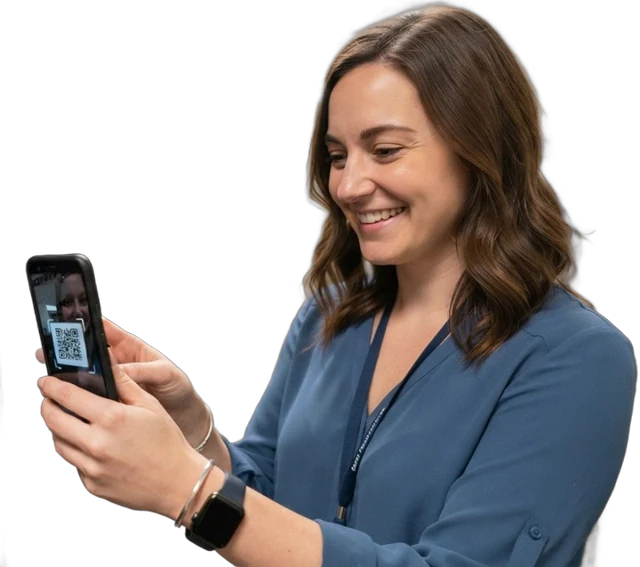
Scan a tag, see where an asset was last seen, move it with a GPS stamp, count a site offline, check equipment out, fix it on site and export the report. These are real screens from the app, in light and dark.

iOS and Android apps coming soon to the App Store and Google Play
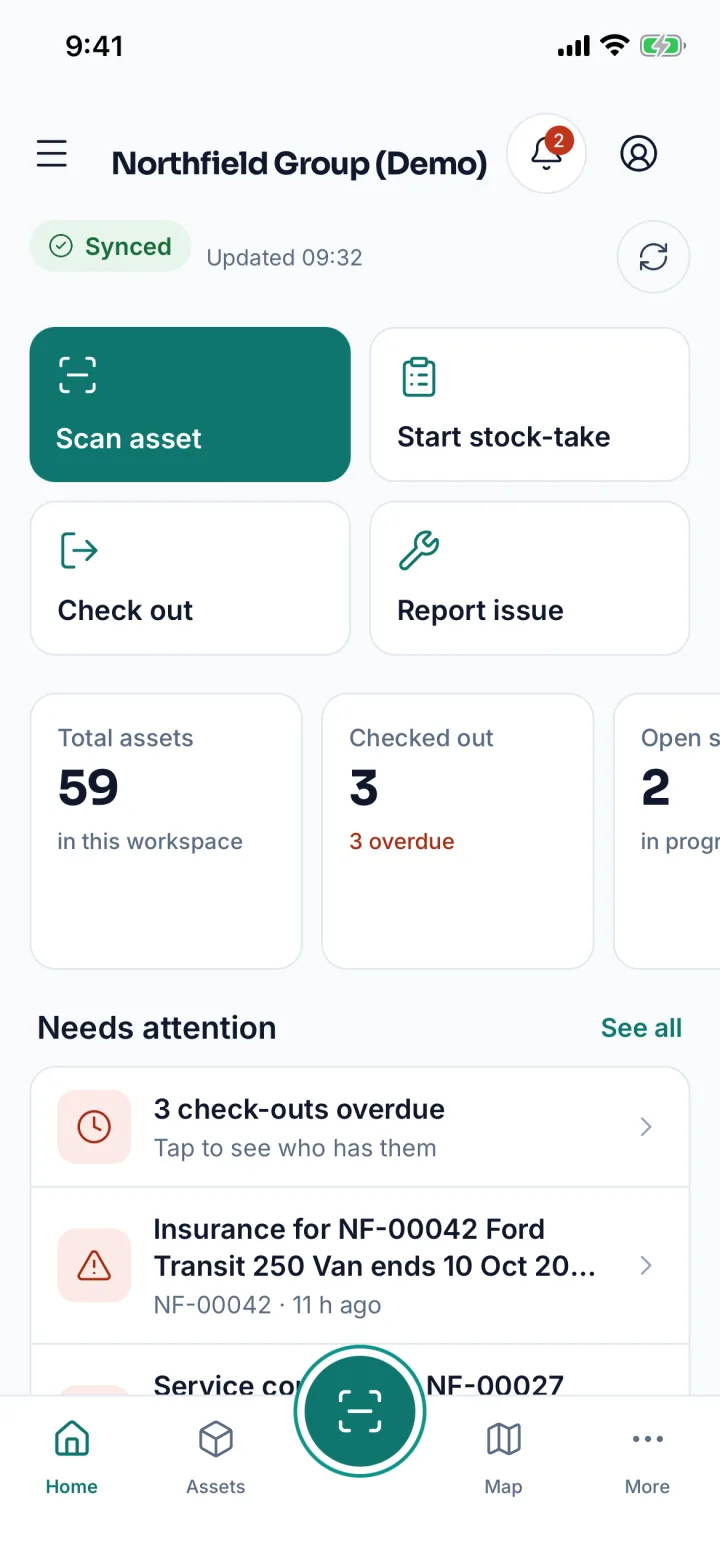
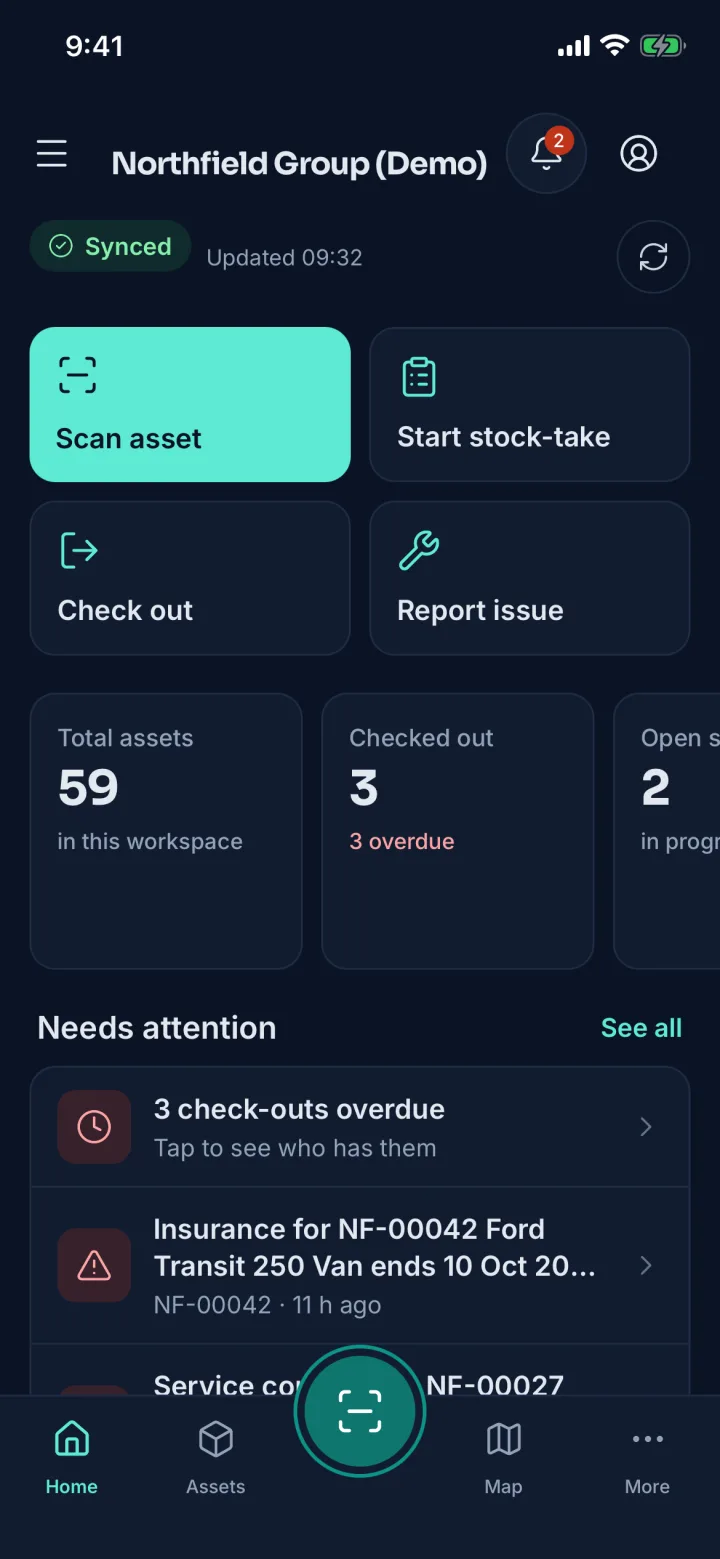
Asetavo app Home with quick actions, total assets, checked out and overdue counts, and a Needs attention list (sample data)Asetavo app Home with quick actions, total assets, checked out and overdue counts, and a Needs attention list, dark theme (sample data)
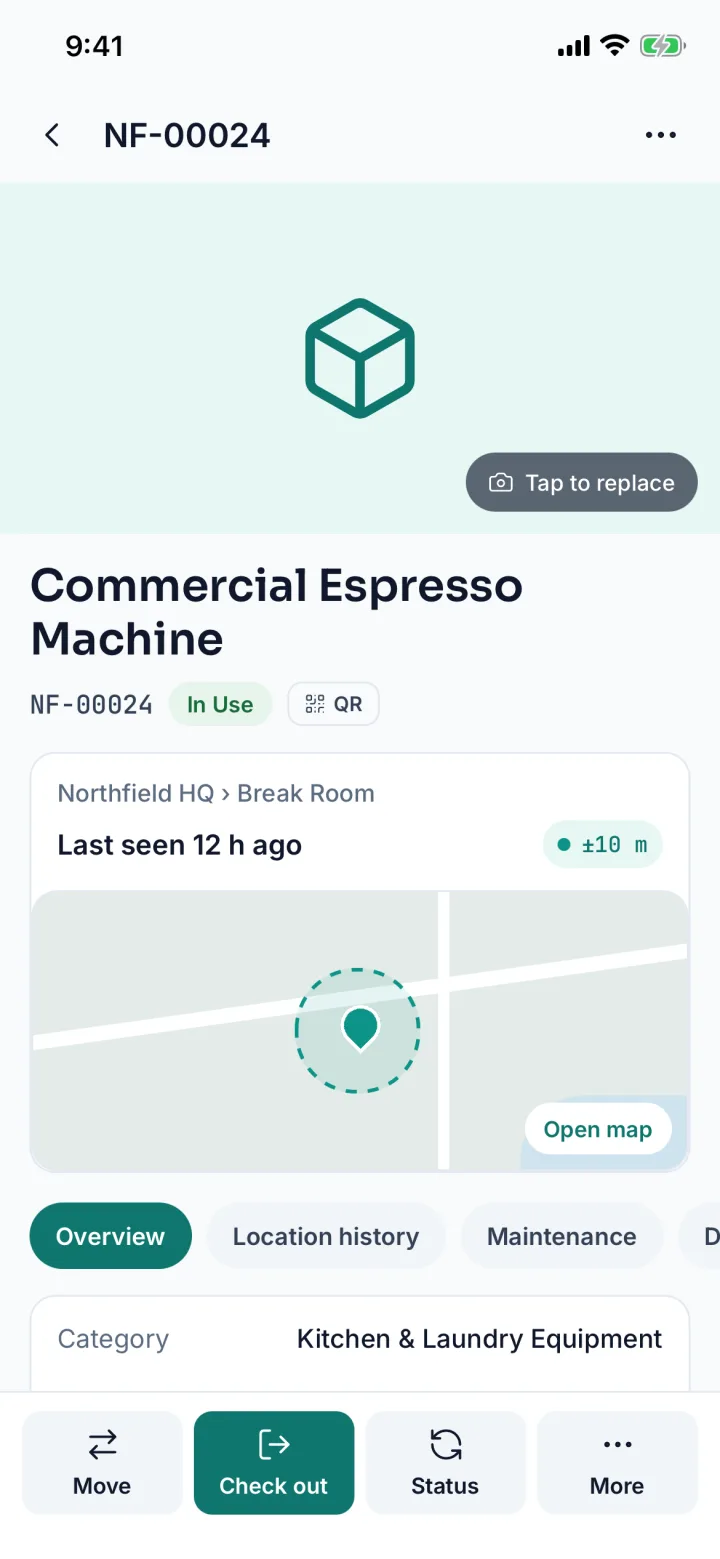
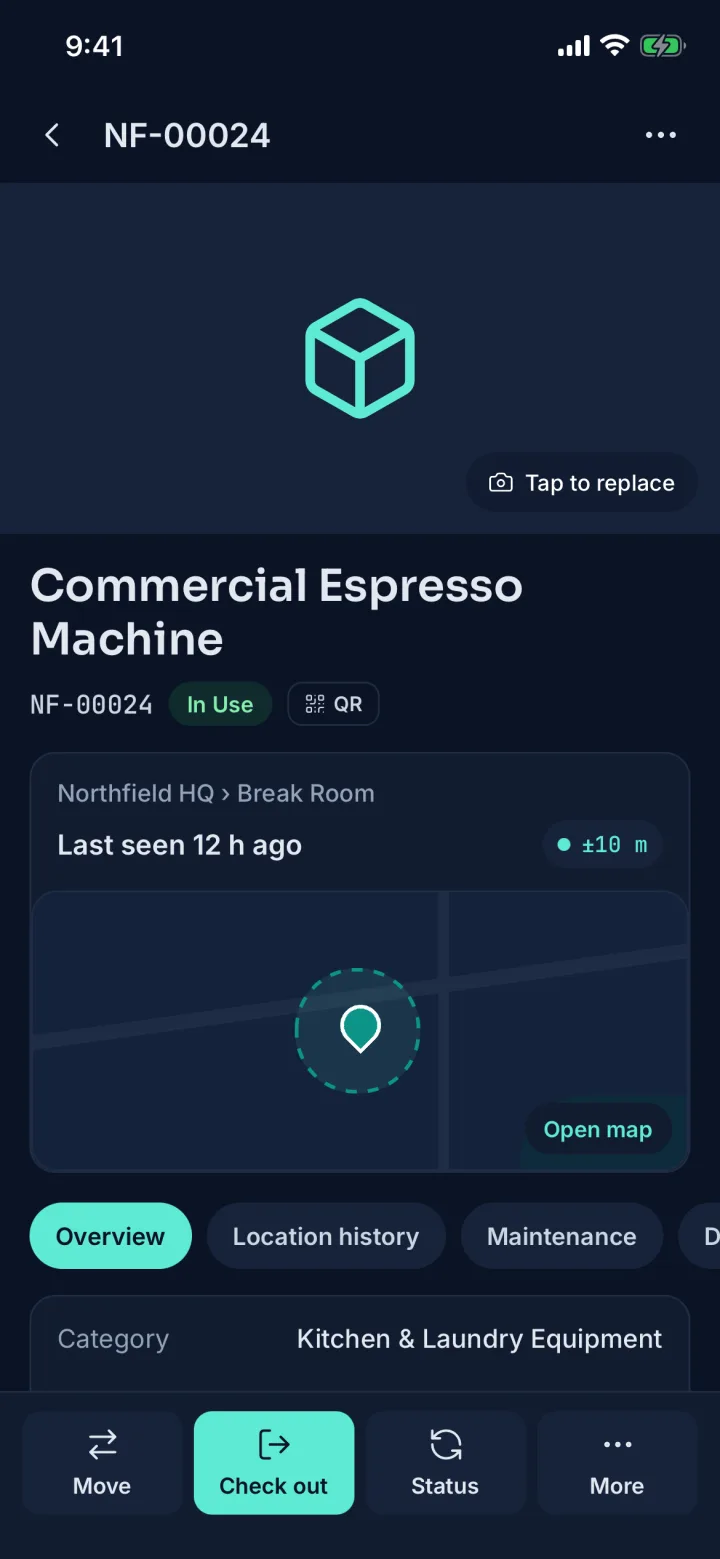
Asset 360 for a Commercial Espresso Machine with last-seen location and map (sample data)Asset 360 for a Commercial Espresso Machine with last-seen location and map, dark theme (sample data)
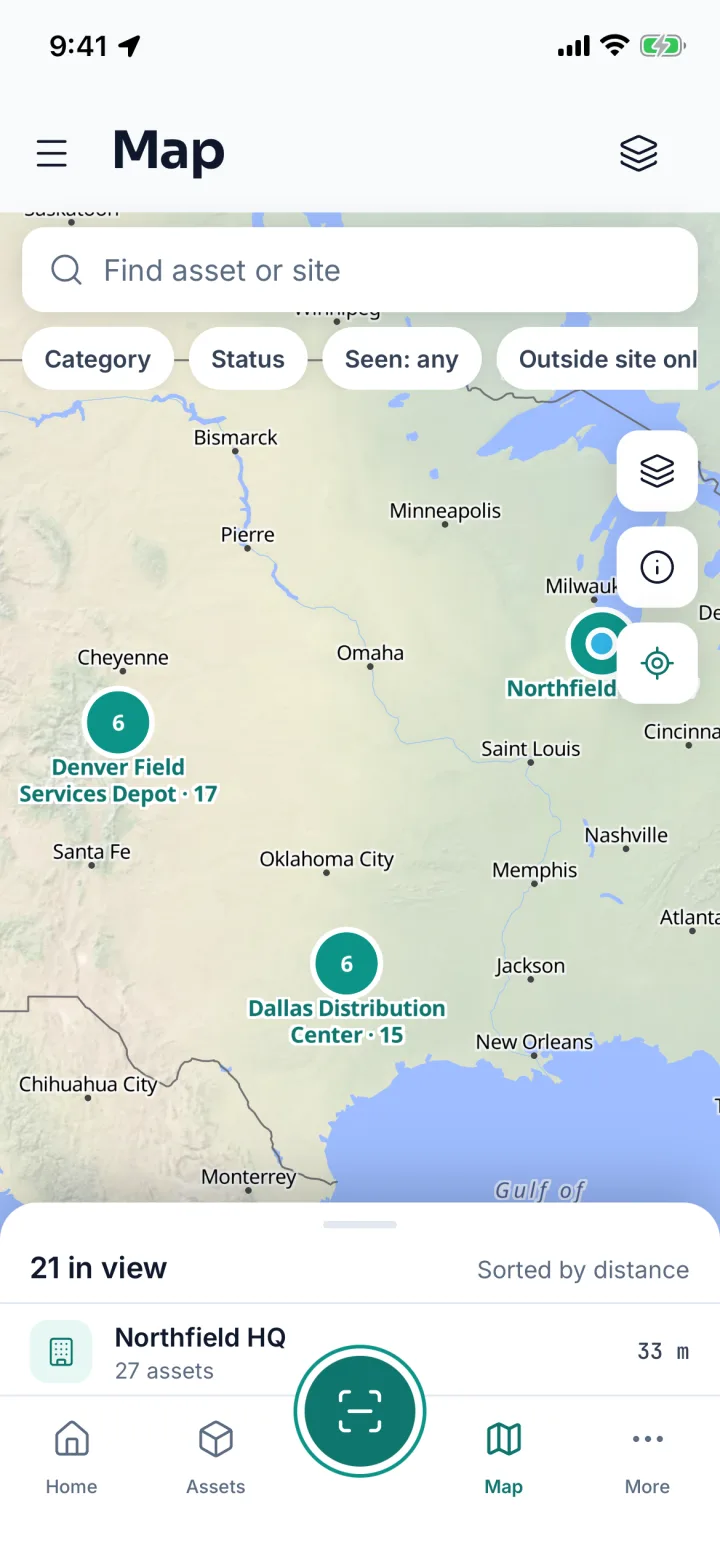
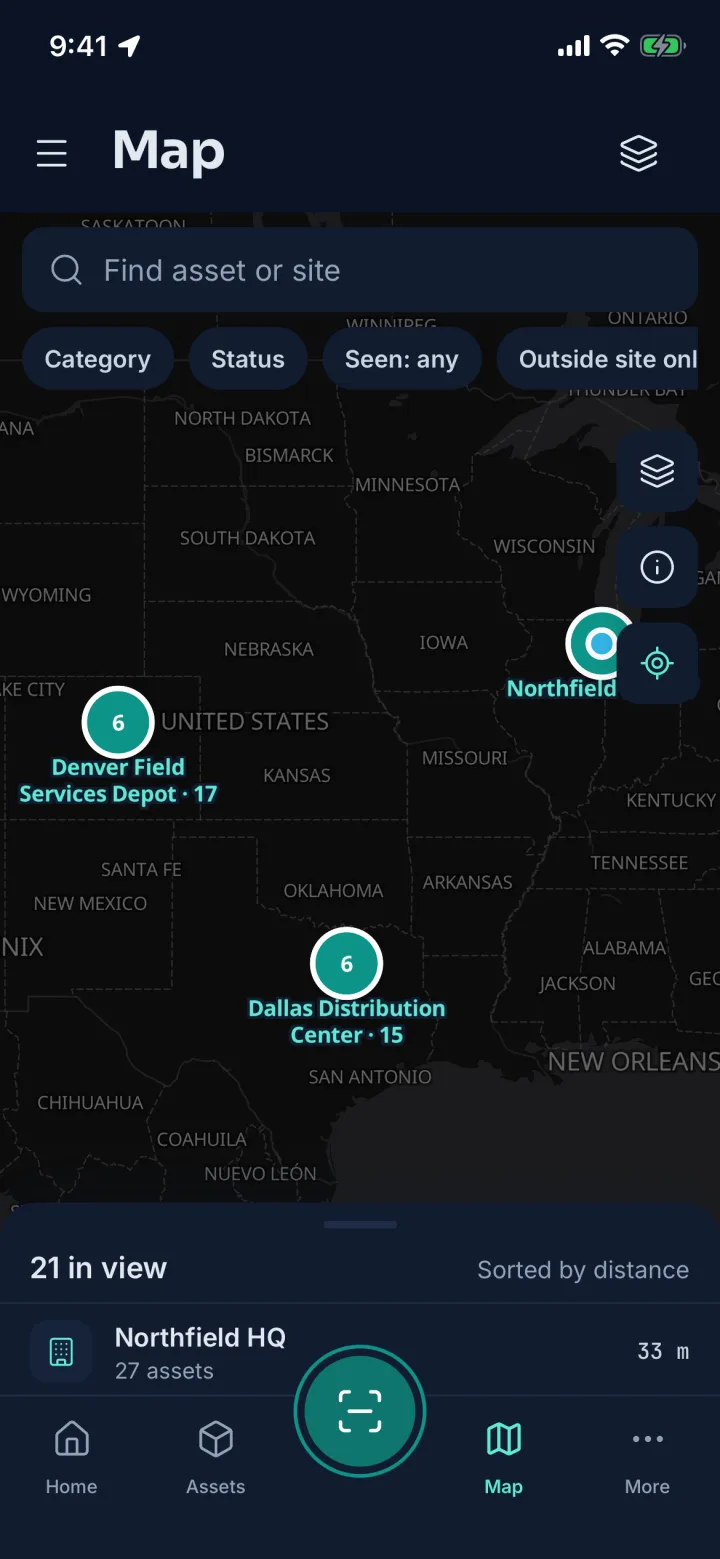
Map of Chicago, Dallas and Denver sites with asset clusters (sample data)Map of Chicago, Dallas and Denver sites with asset clusters, dark theme (sample data)
01 · Home

Your day starts here

Home opens on the jobs you do most: scan an asset, start a stock-take, check something out or report an issue.

Live counts sit underneath, with a Needs attention list of overdue check-outs and expiring contracts. Tap one to deal with it.

Asetavo app Home with quick actions, total assets, checked out and overdue counts, and a Needs attention list (sample data)Asetavo app Home with quick actions, total assets, checked out and overdue counts, and a Needs attention list (sample data)
HomeQuick actions, live counts and what needs attention on one screen.
02 · Assets & Asset 360

Every asset, one tap away

Search by name, tag number or serial, and filter by status, location or category. Each row shows where the asset is and when it was last seen.

Open one for its Asset 360: status, tag, room, last-seen place with GPS accuracy, and the actions you need, including Move, Check out, Status, Add tag and Report issue.

Asset register →
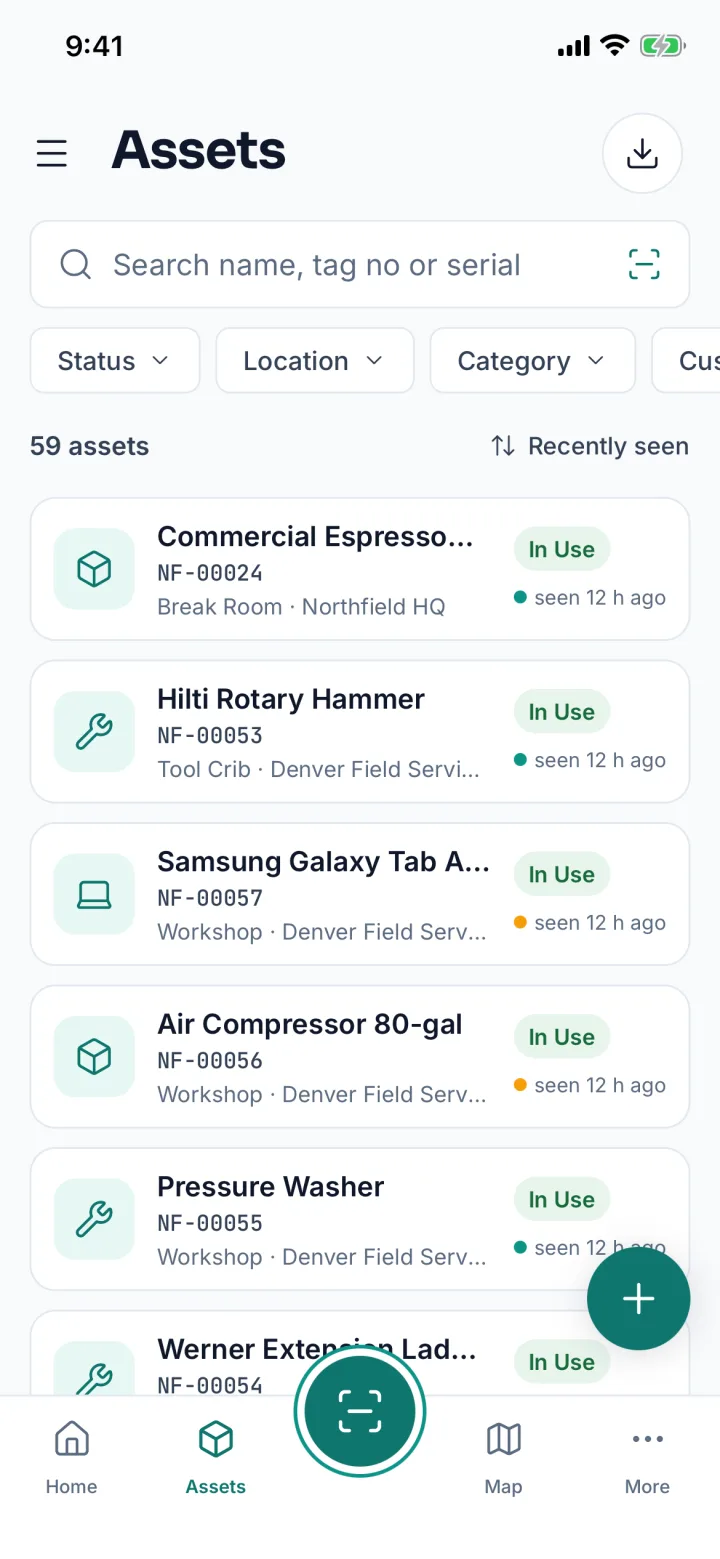
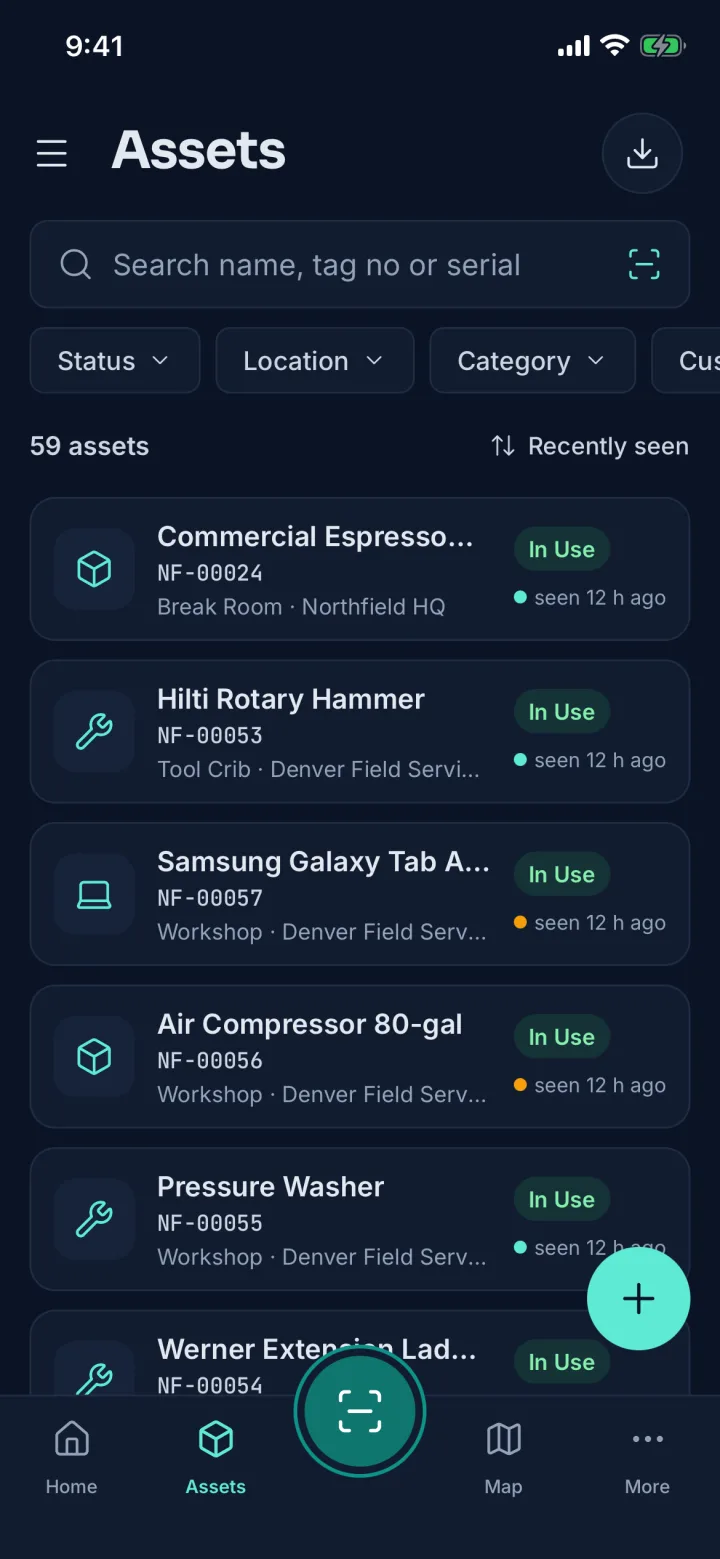
Asset list with search, filters and last-seen times (sample data)Asset list with search, filters and last-seen times (sample data)
AssetsSearch by name, tag or serial and filter by status, location or category.
Asset 360 for a Commercial Espresso Machine with last-seen location and map (sample data)Asset 360 for a Commercial Espresso Machine with last-seen location and map (sample data)
Asset 360Status, tag, room and last seen with ±10 m accuracy on a map.
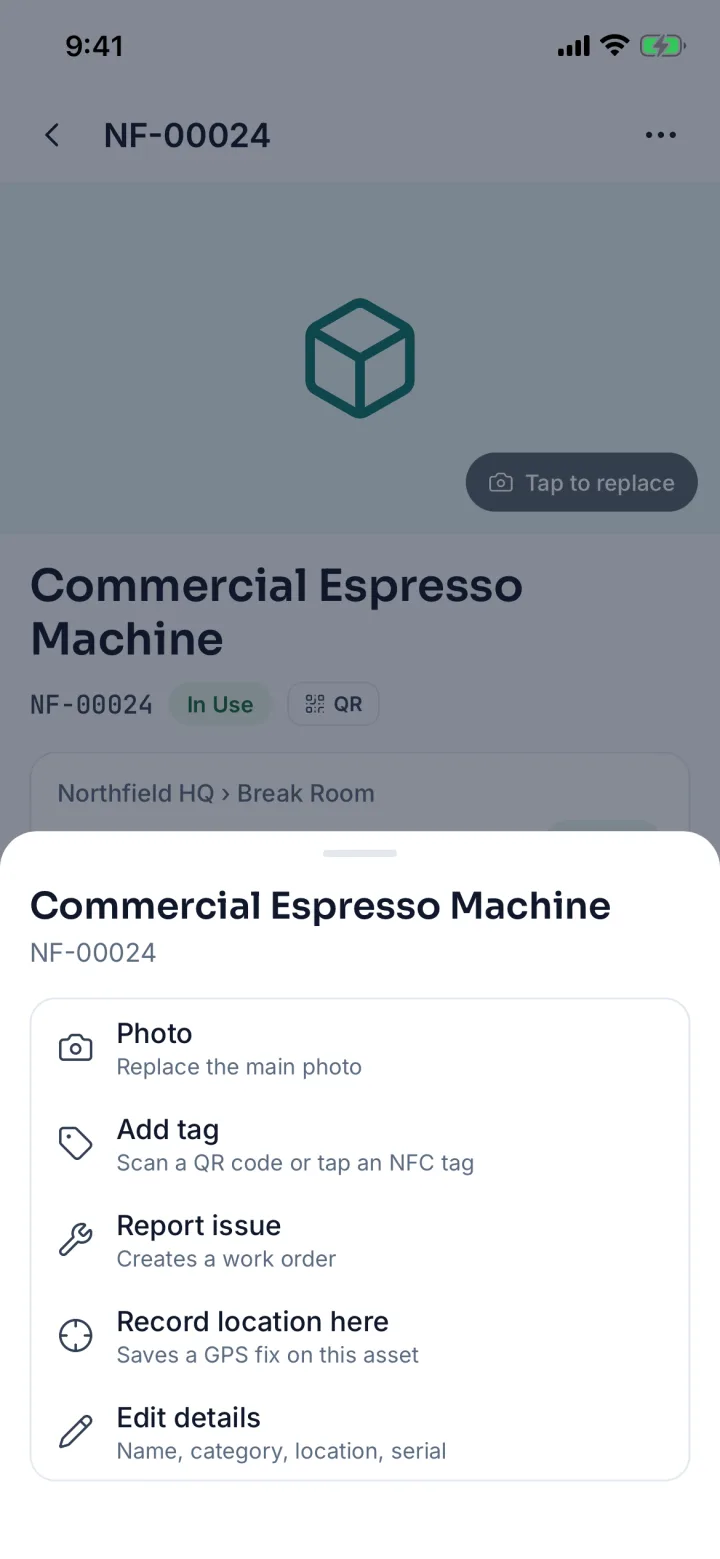
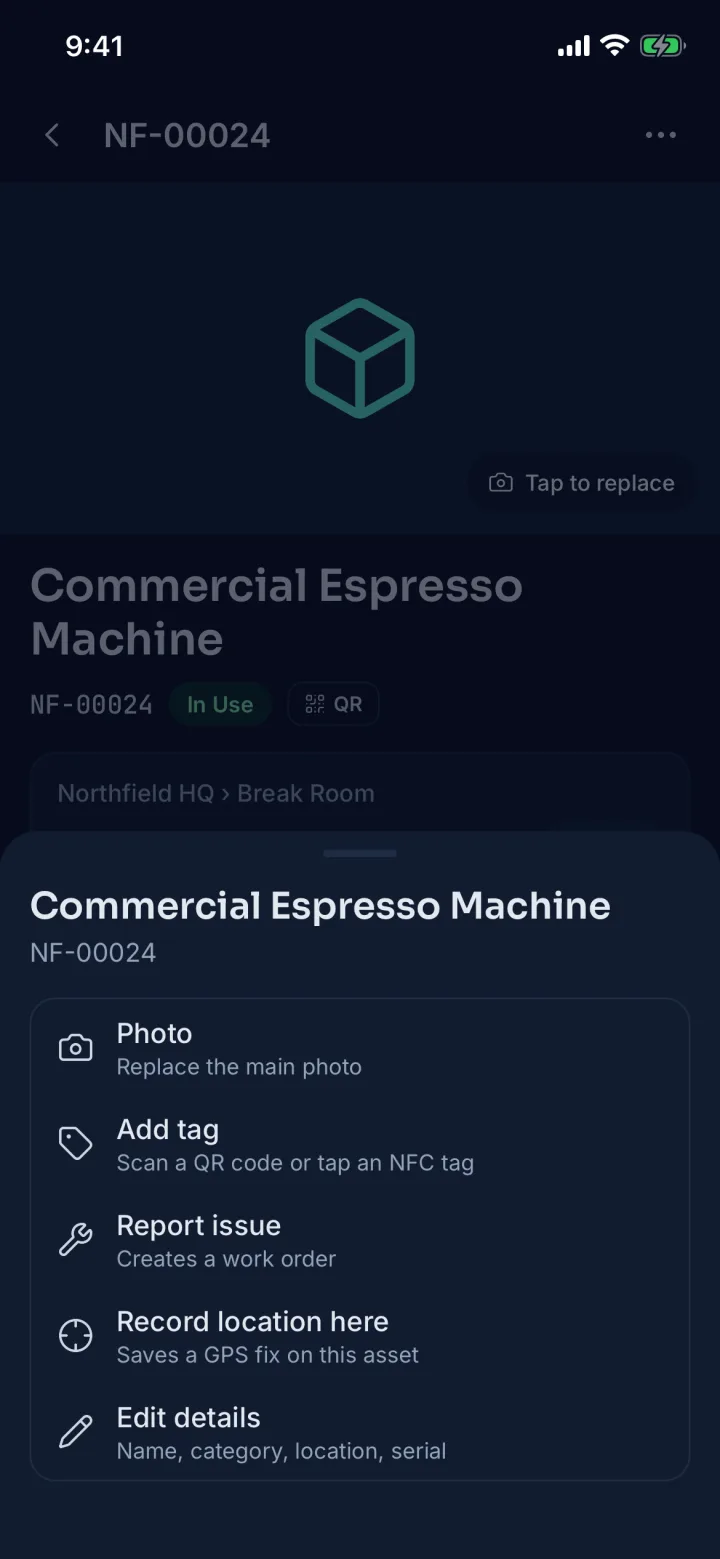
Asset actions sheet with photo, add tag, report issue, record location and edit details (sample data)Asset actions sheet with photo, add tag, report issue, record location and edit details (sample data)
Asset actionsReplace the photo, add a tag, report an issue, record location or edit.
03 · Scan

One button for field work

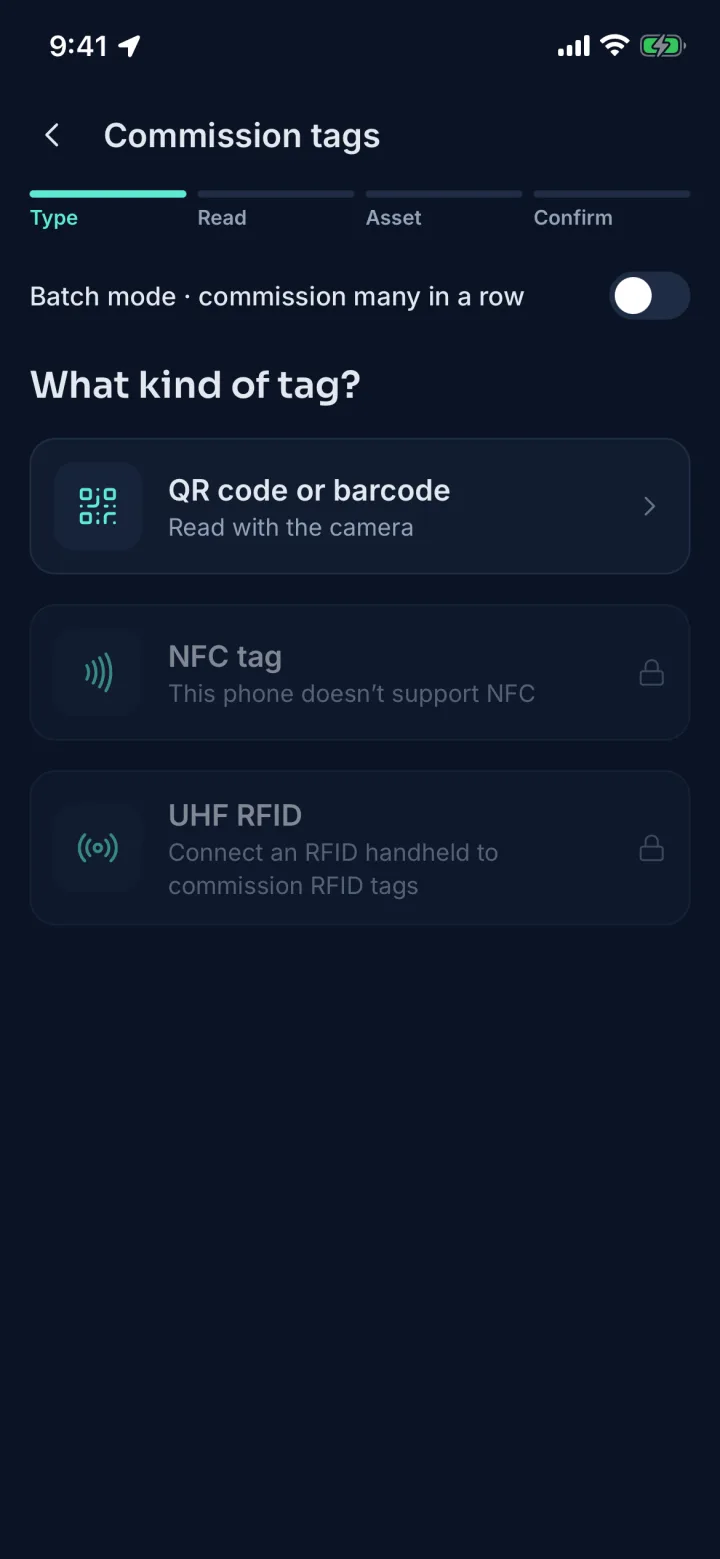
The raised Scan button opens a hub: look up an asset by QR code, barcode or NFC, run a stock-take, move a trolley-load, check items in and out, commission new tags or find an item.

NFC works on phones that have it. UHF RFID needs a Bluetooth handheld; until one is paired, that option is locked and the app says why.

Tagging →
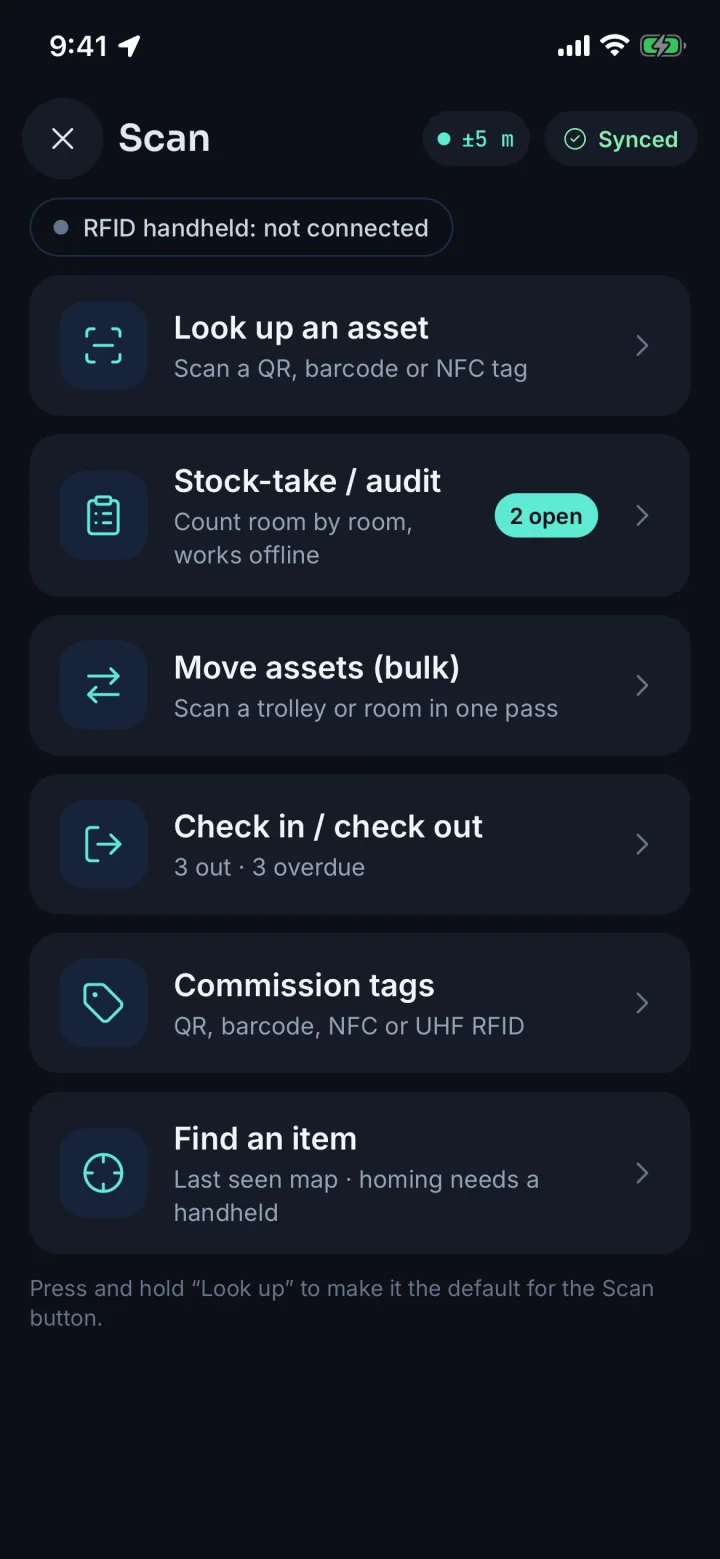
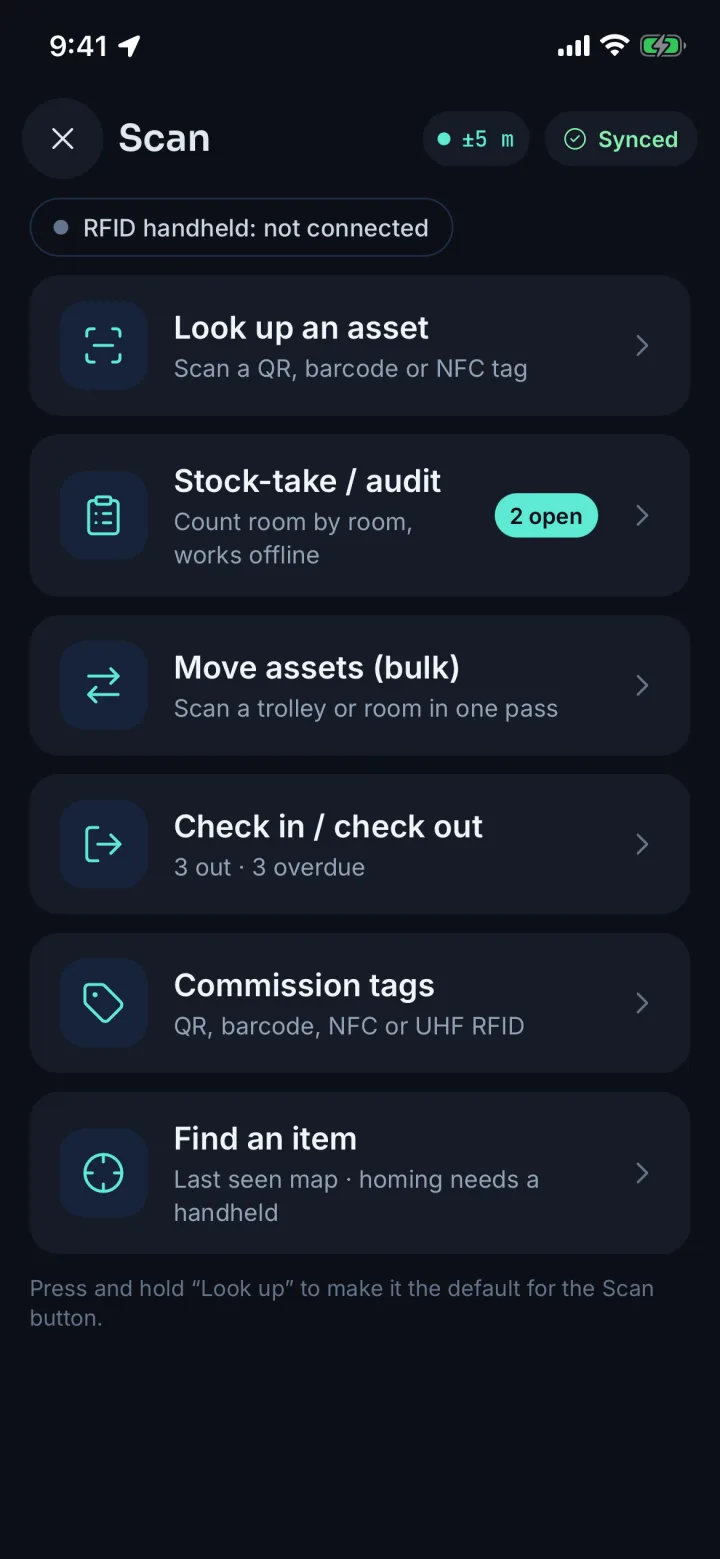
Scan hub listing look up, stock-take, bulk move, check in and out, commission tags and find an item (sample data)Scan hub listing look up, stock-take, bulk move, check in and out, commission tags and find an item (sample data)
Scan hubLook up, count, bulk move, check in or out, commission tags and find.
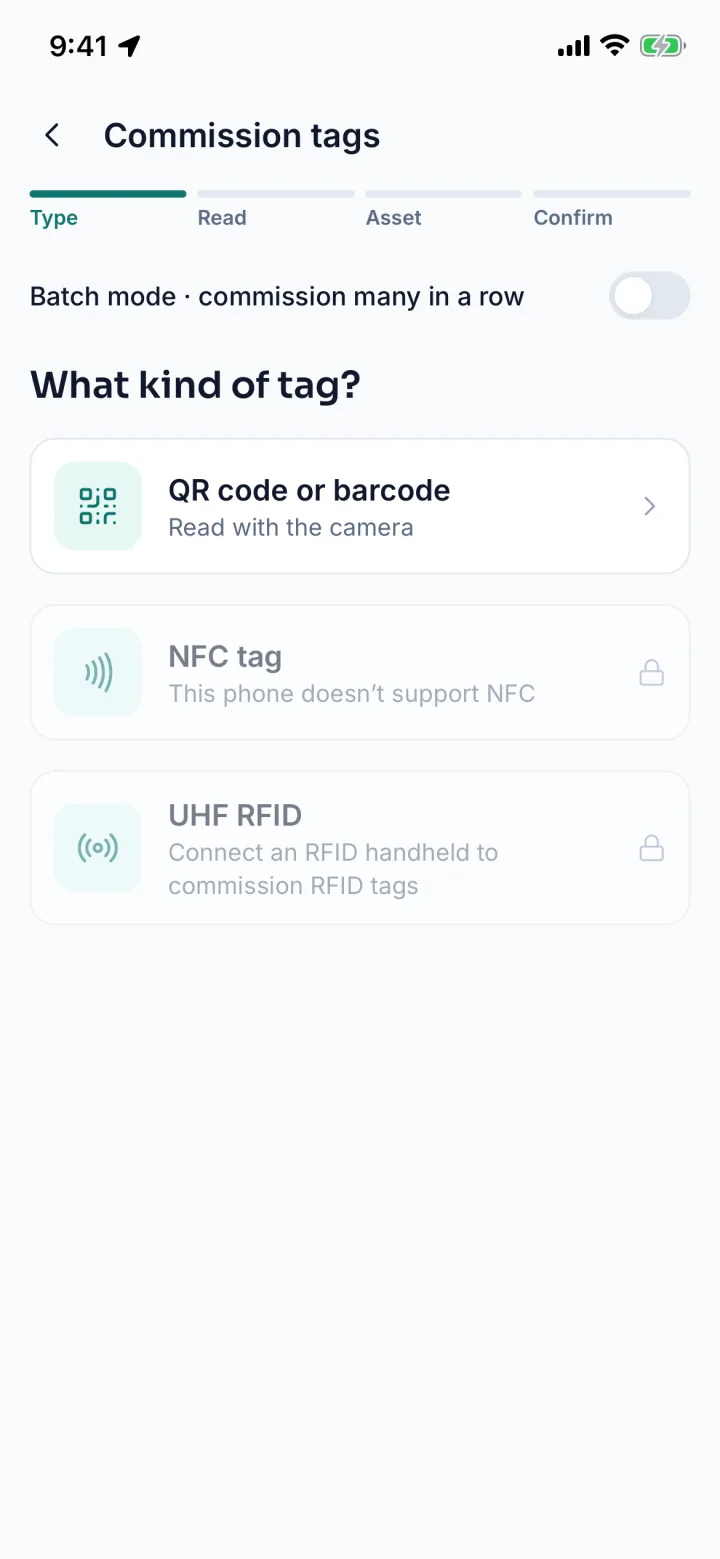
Commission tags screen choosing QR code or barcode, NFC tag or UHF RFID (sample data)Commission tags screen choosing QR code or barcode, NFC tag or UHF RFID (sample data)
Commission tagsBind a new QR, barcode or NFC tag to an asset; UHF with a handheld.
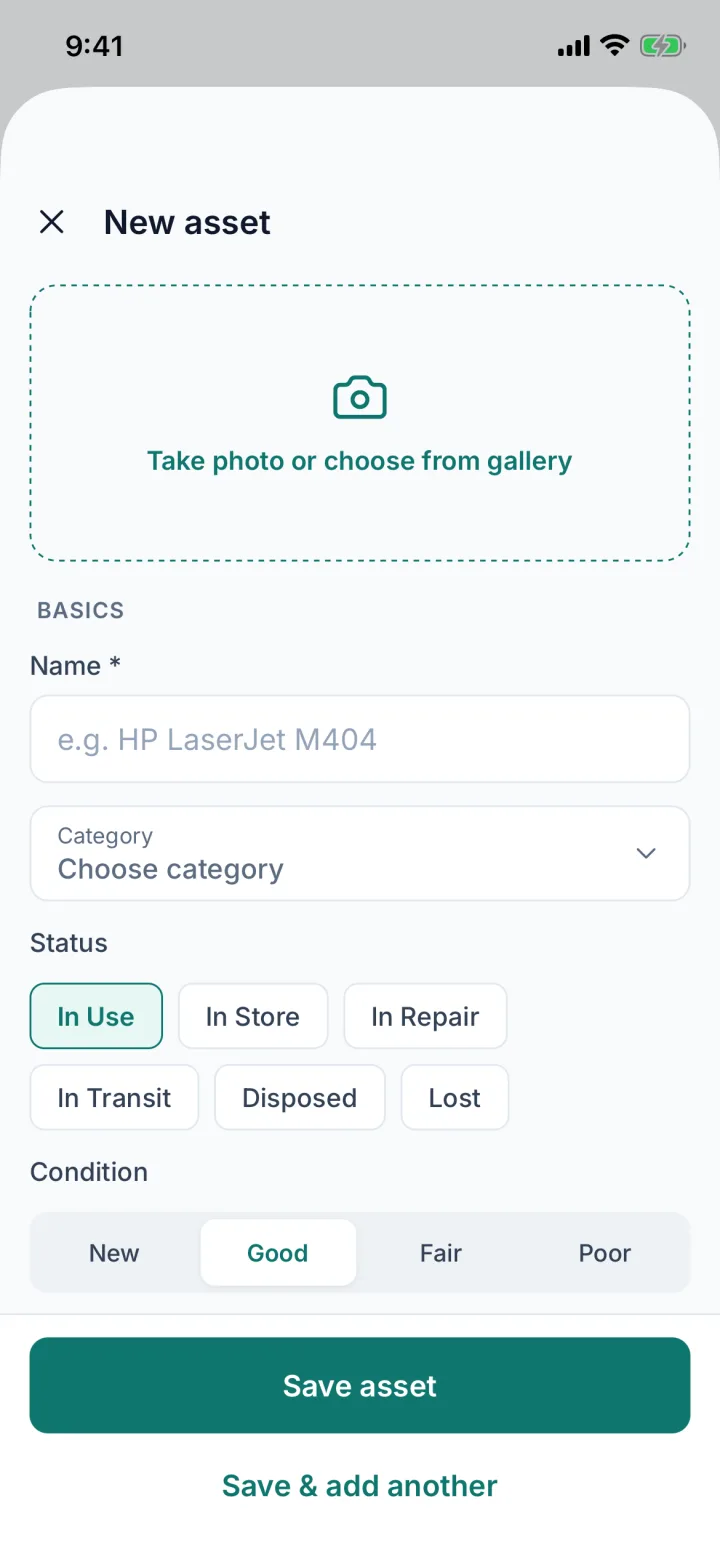
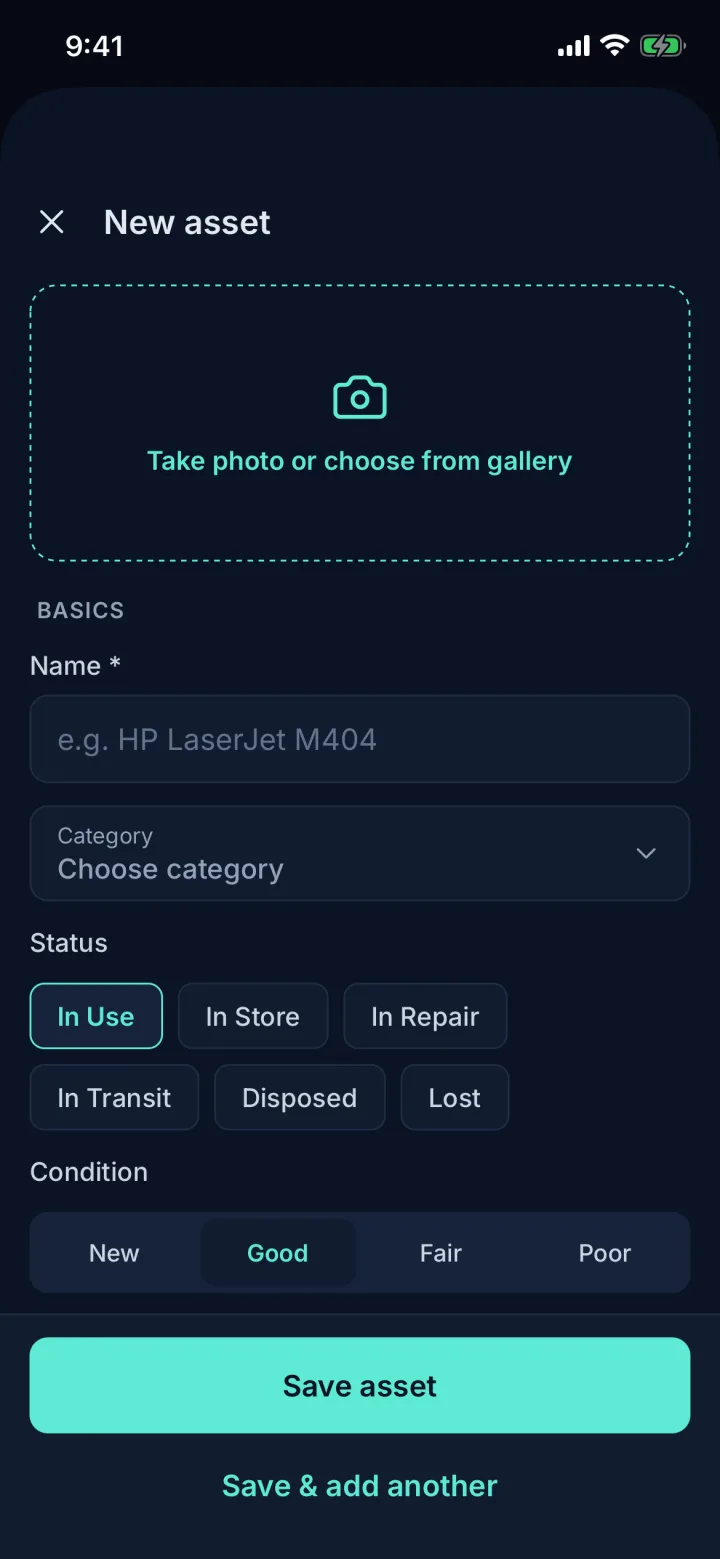
New asset form with photo, name, category, status and condition (sample data)New asset form with photo, name, category, status and condition (sample data)
New assetUnknown item? Add it on the spot with a photo, category and status.
04 · GPS & map

See where things were last seen

The Map tab shows every site, geofence and asset. Filter by category, status, last-seen time or outside-site only, then tap a pin to open the asset, get directions or find it.

A position is recorded only when someone acts on an asset with the app open. Asetavo never tracks anyone in the background.

GPS tracking →
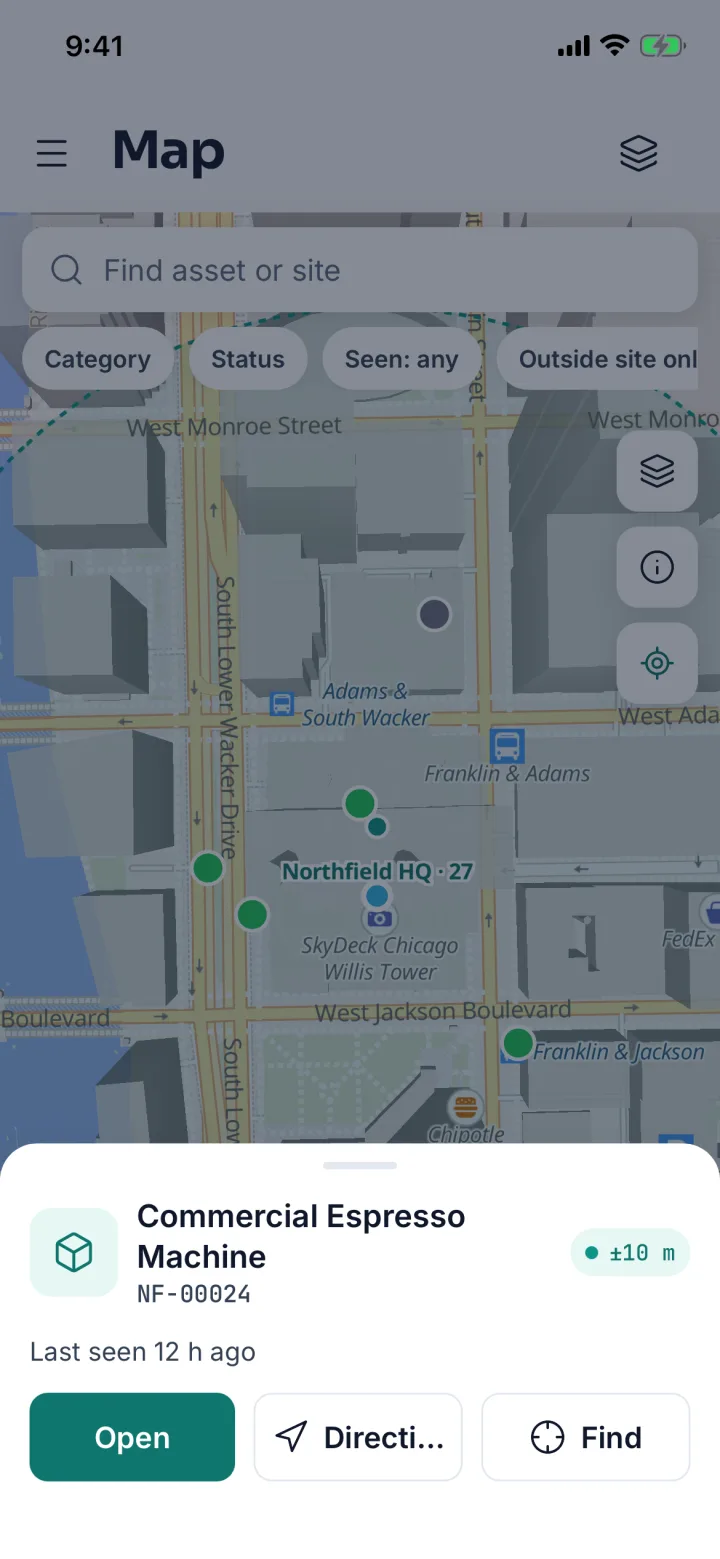
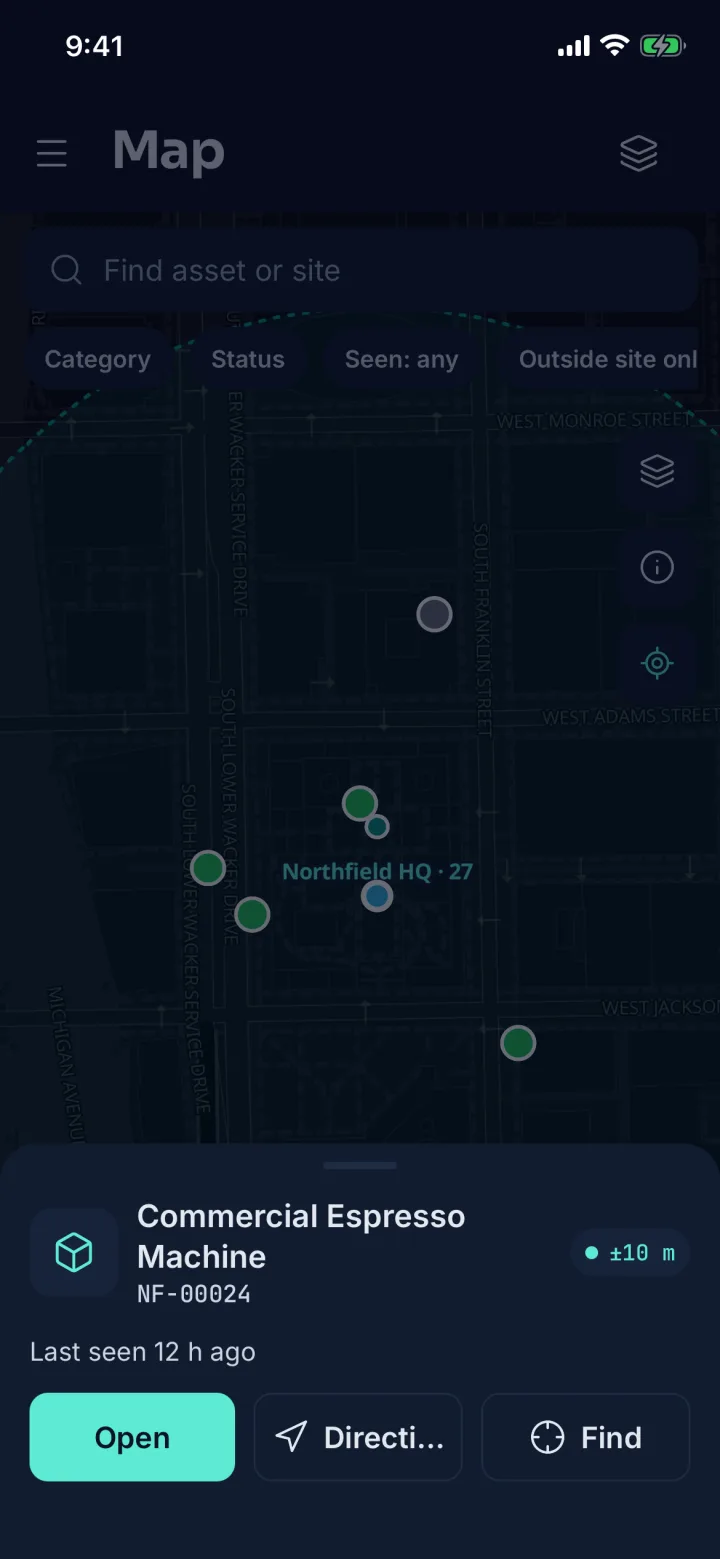
Map of Chicago, Dallas and Denver sites with asset clusters (sample data)Map of Chicago, Dallas and Denver sites with asset clusters (sample data)
MapSites, geofences and asset clusters with filters.
Map zoomed to an asset pin with Open, Directions and Find buttons (sample data)Map zoomed to an asset pin with Open, Directions and Find buttons (sample data)
Asset on the mapTap a pin: accuracy, last seen, Open, Directions or Find.
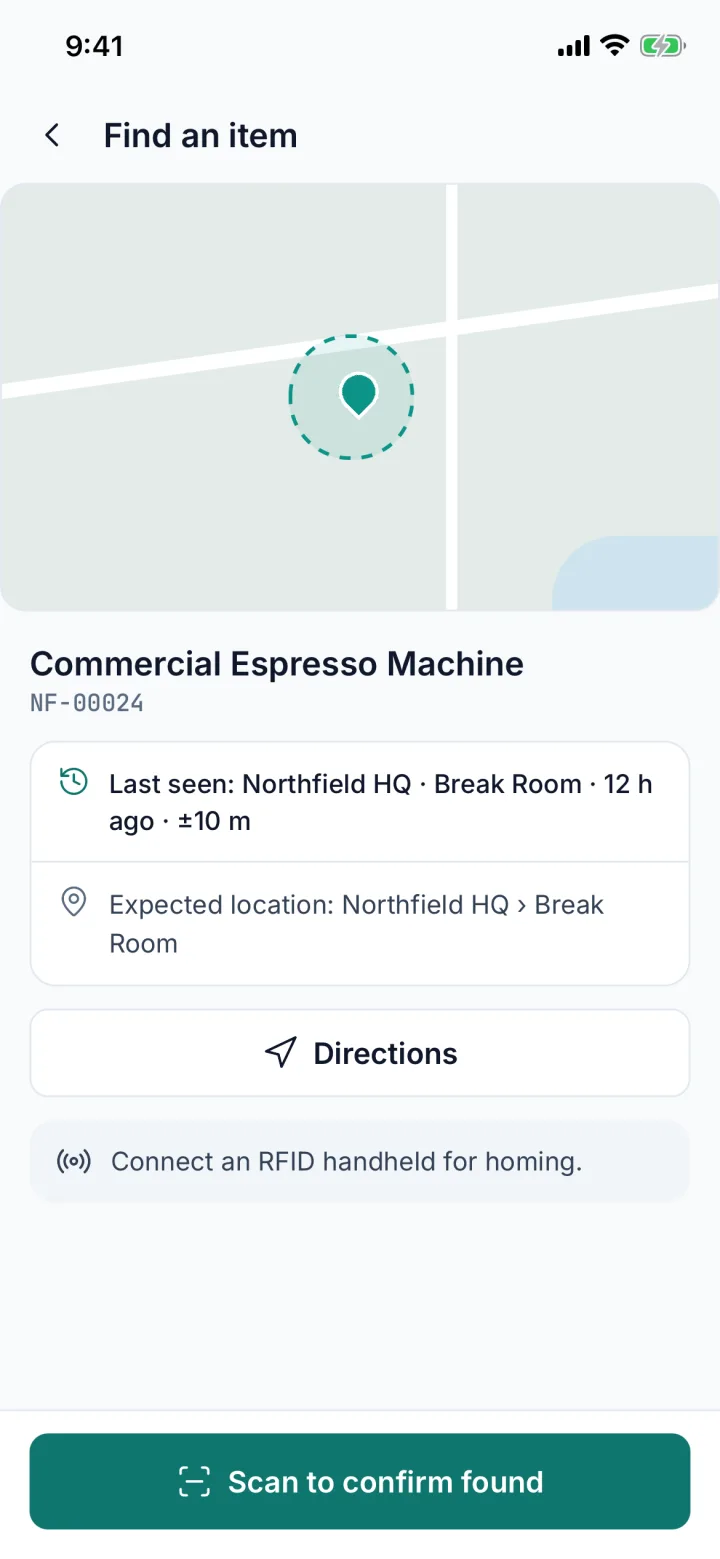
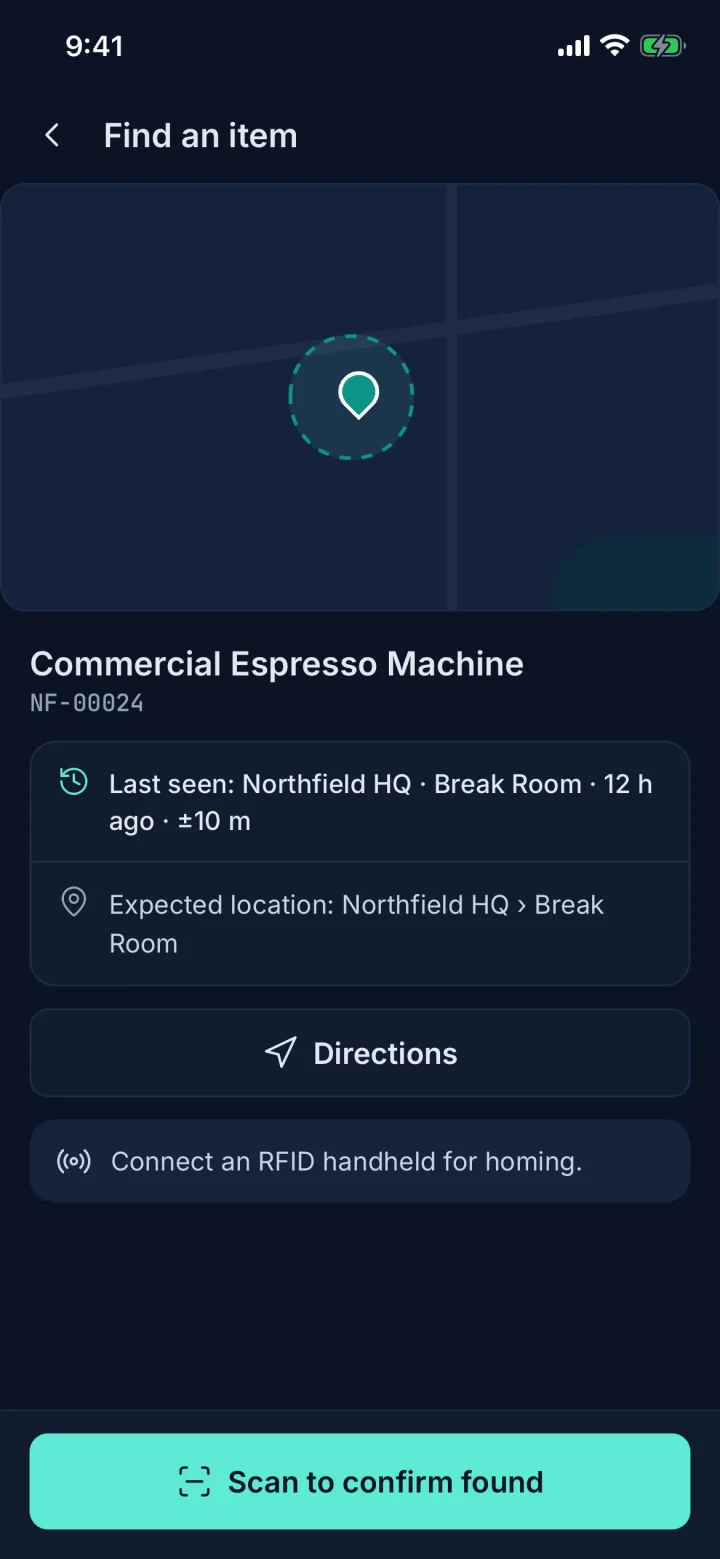
Find an item screen with last-seen place, expected location and directions (sample data)Find an item screen with last-seen place, expected location and directions (sample data)
Find an itemLast-seen place, expected room and directions, then scan to confirm.
05 · Move & record location

Move it, with proof

A move takes a destination, an optional custodian change and a reason, and is stamped with your location and its accuracy in metres.

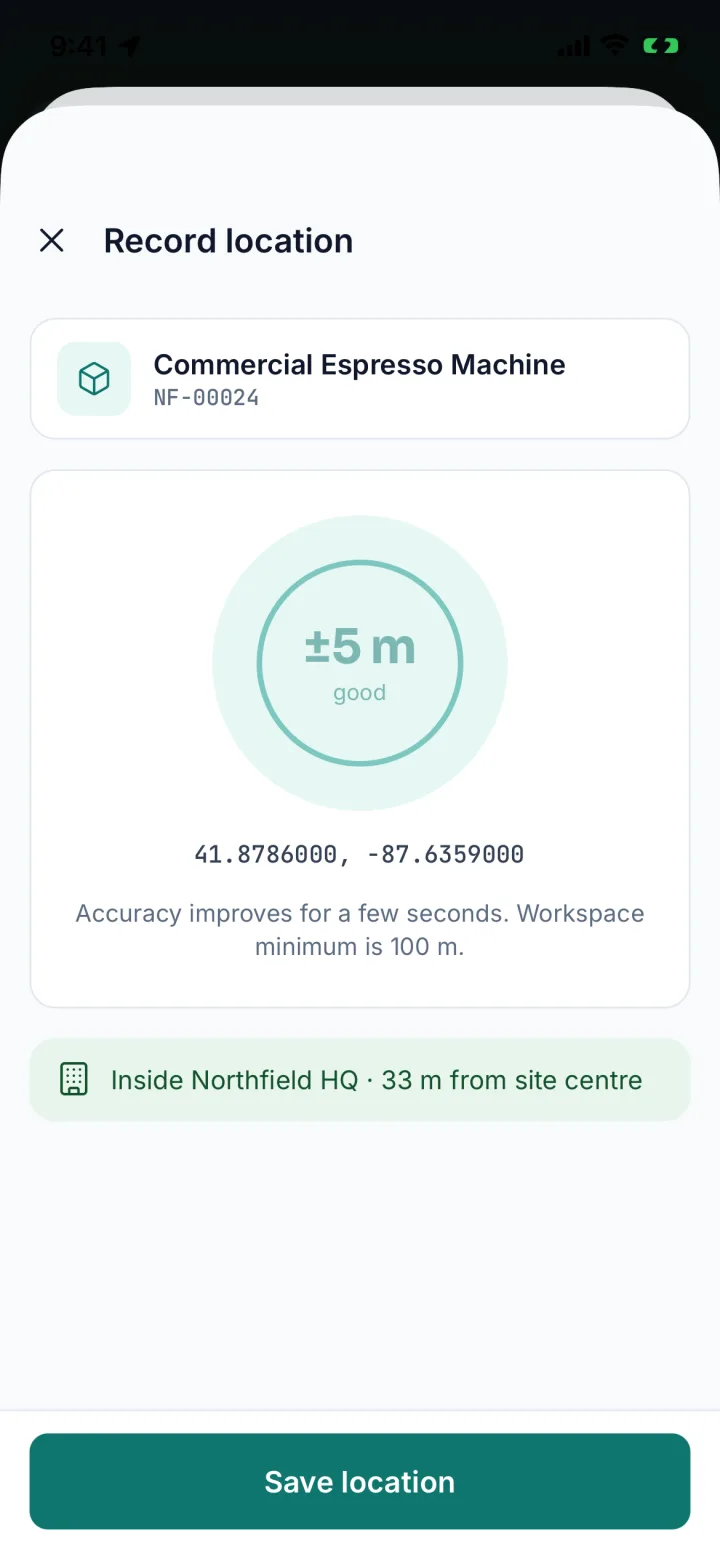
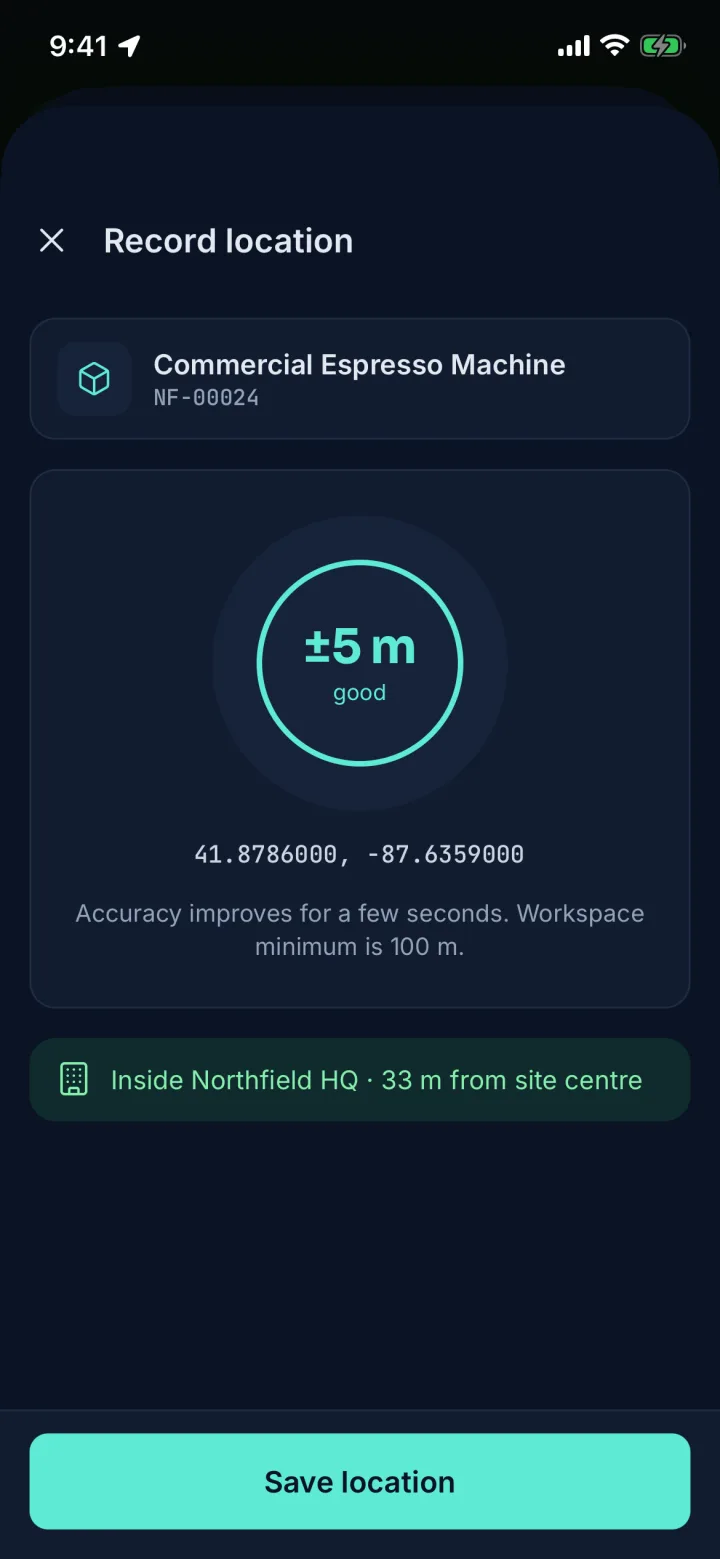
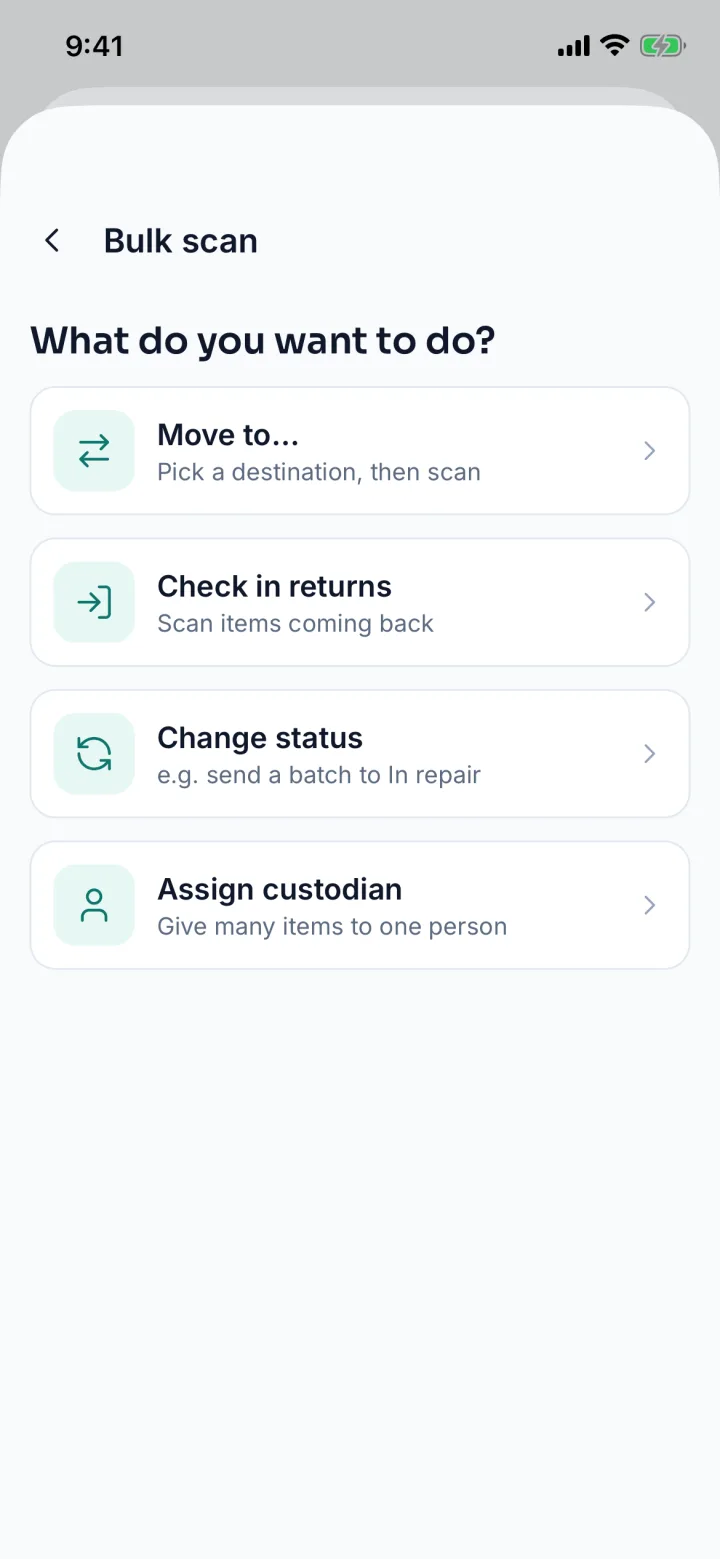
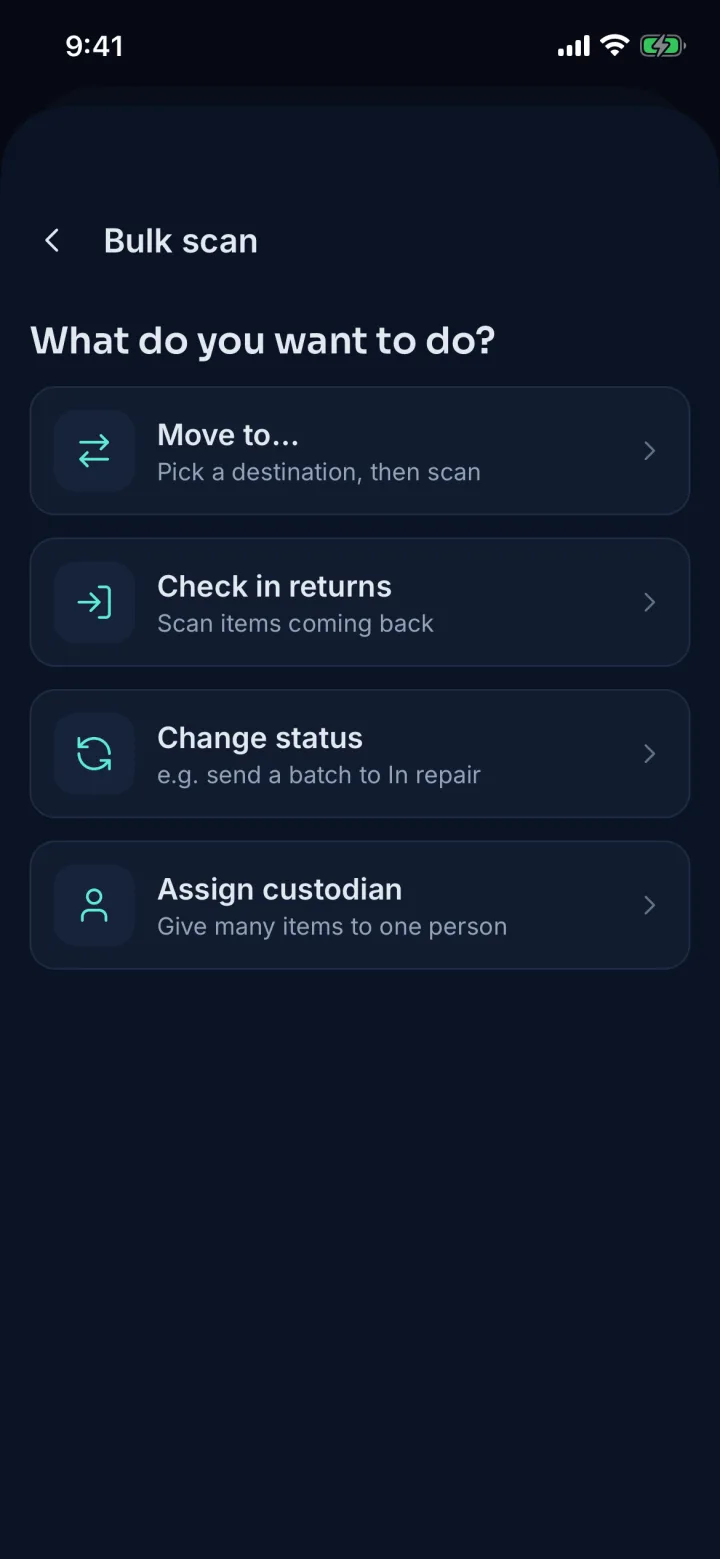
Record location saves a fix on its own and tells you whether you are inside the site. Bulk scan moves, checks in, re-statuses or reassigns a whole room in one pass.
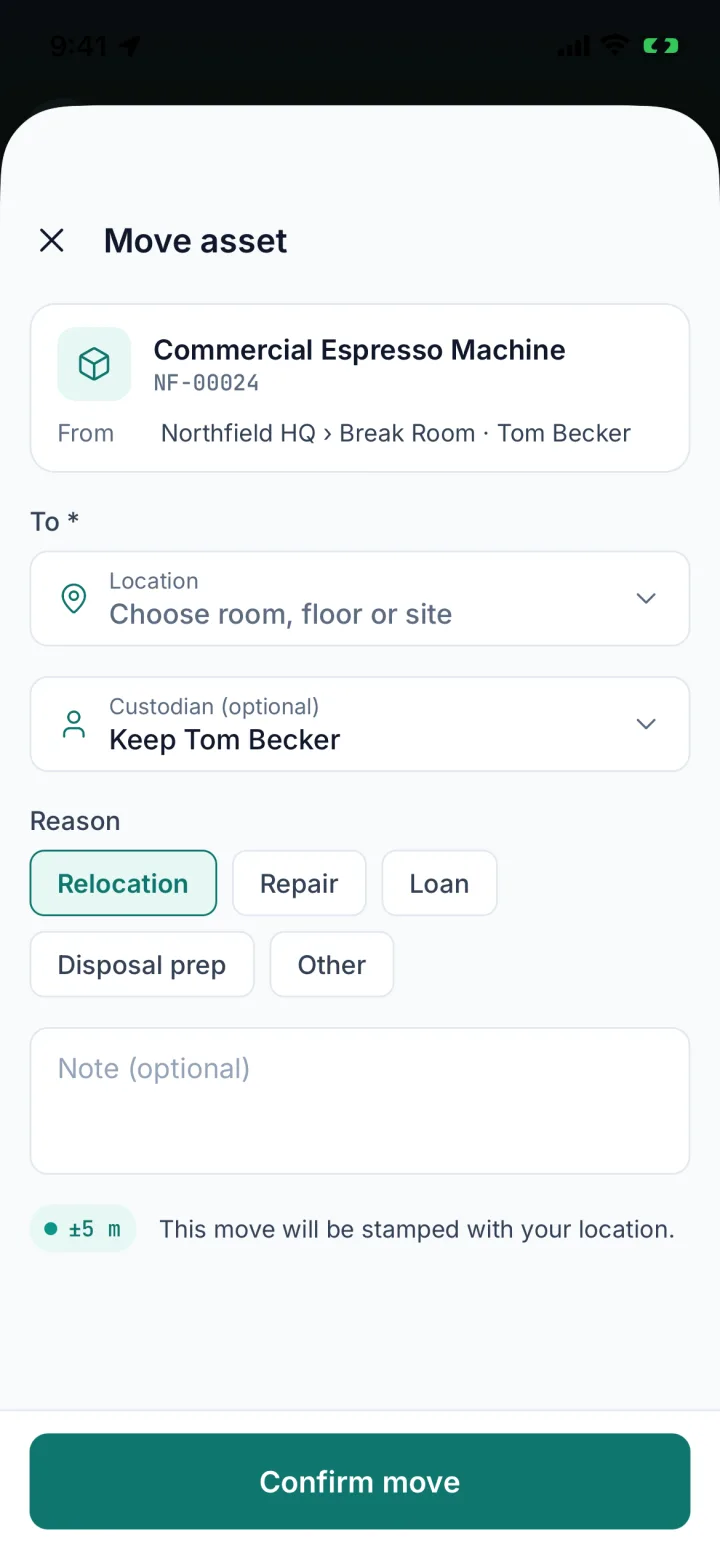
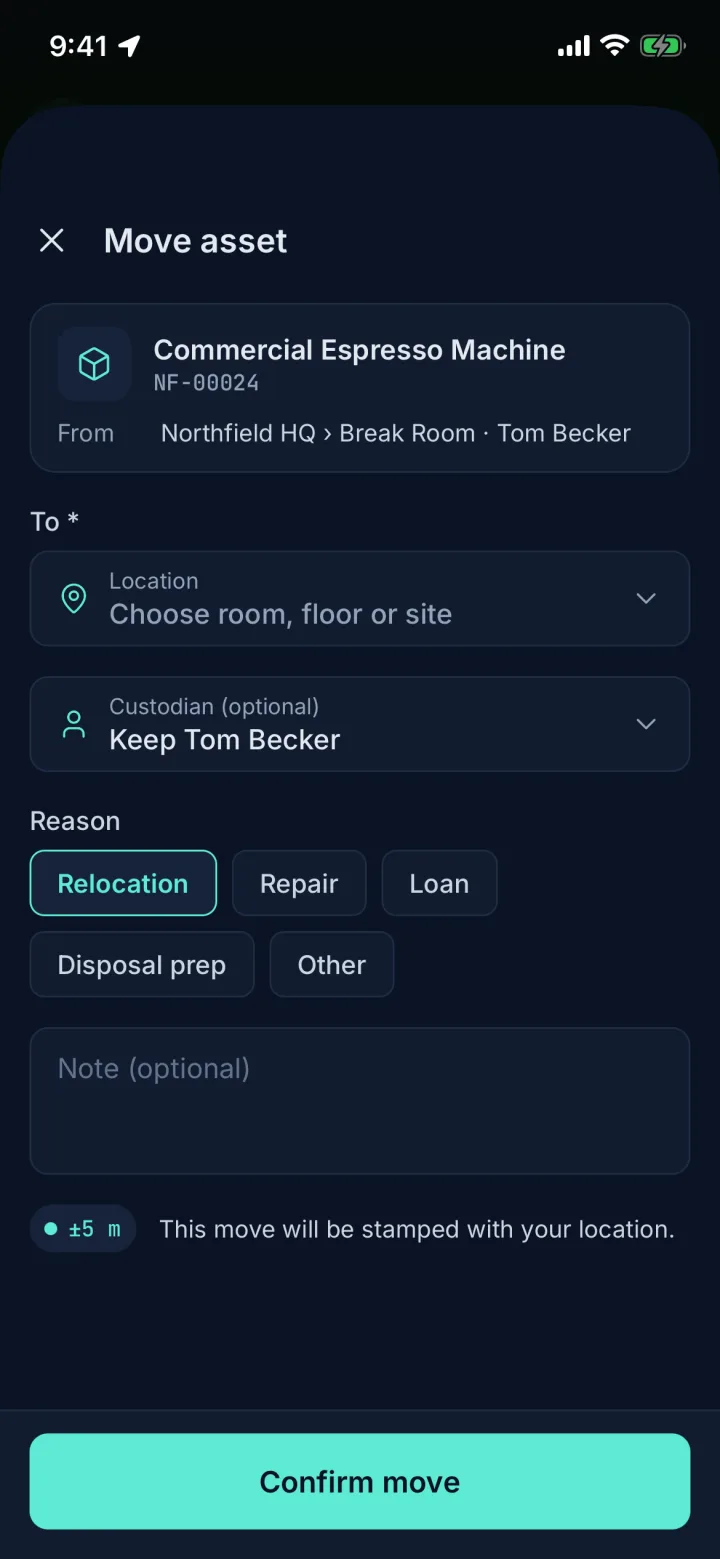
Move asset sheet with destination, custodian, reason and a ±5 m location stamp (sample data)Move asset sheet with destination, custodian, reason and a ±5 m location stamp (sample data)
Move assetPick a room, keep or change the custodian, and stamp it with your location.
Record location screen with ±5 m accuracy and Inside Northfield HQ (sample data)Record location screen with ±5 m accuracy and Inside Northfield HQ (sample data)
Record locationSave a GPS fix where you stand, with accuracy and a site check.
Bulk scan options: move to, check in returns, change status, assign custodian (sample data)Bulk scan options: move to, check in returns, change status, assign custodian (sample data)
Bulk scanMove, check in, change status or assign a custodian for a whole room.
06 · Stock-takes

Count a site, even offline

Start a stock-take on the phone or the web, then count room by room. Scans are kept on the phone when there is no signal and sync once you are back online.

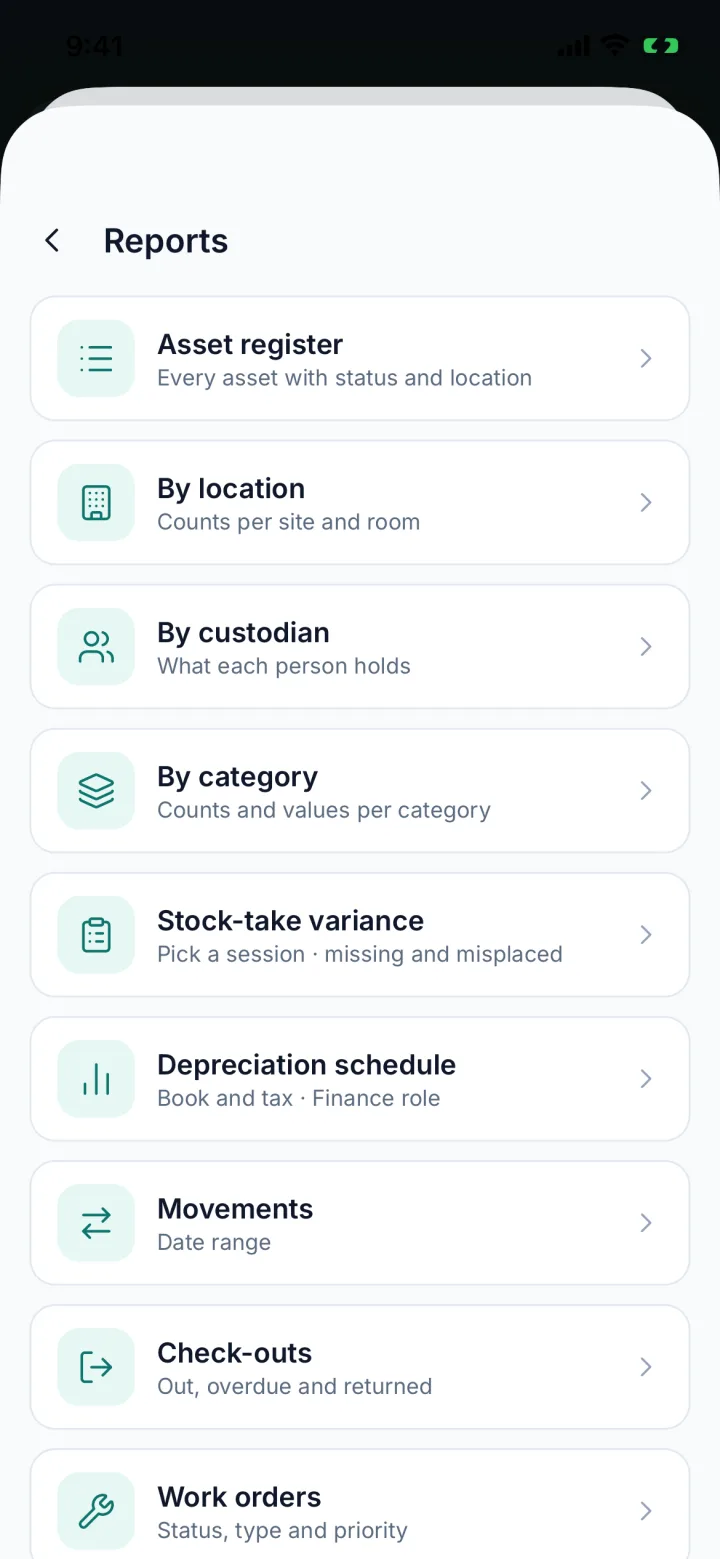
After you submit, review variances on the phone or the web with Found it, Still searching or Write off. The variance report lists what is missing and misplaced.

Mobile app →
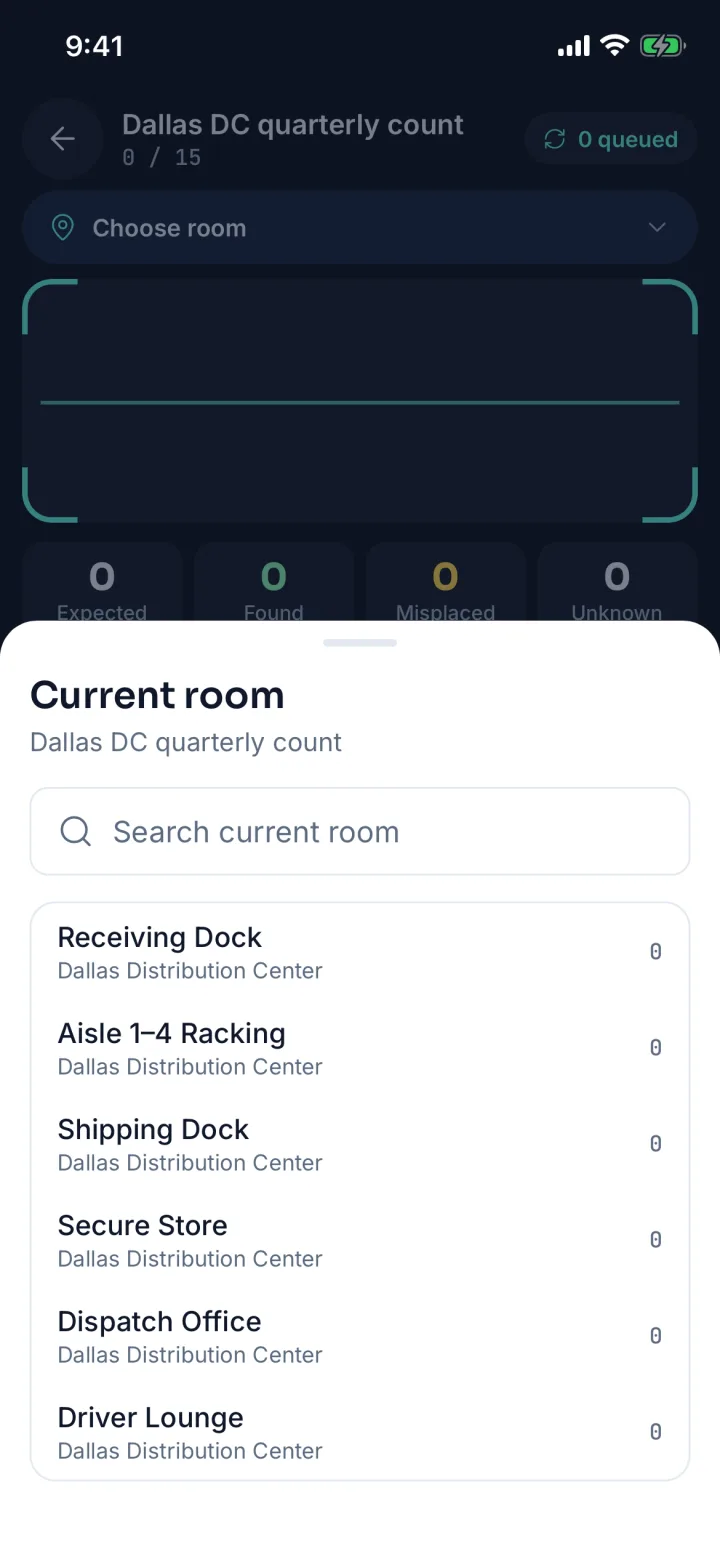
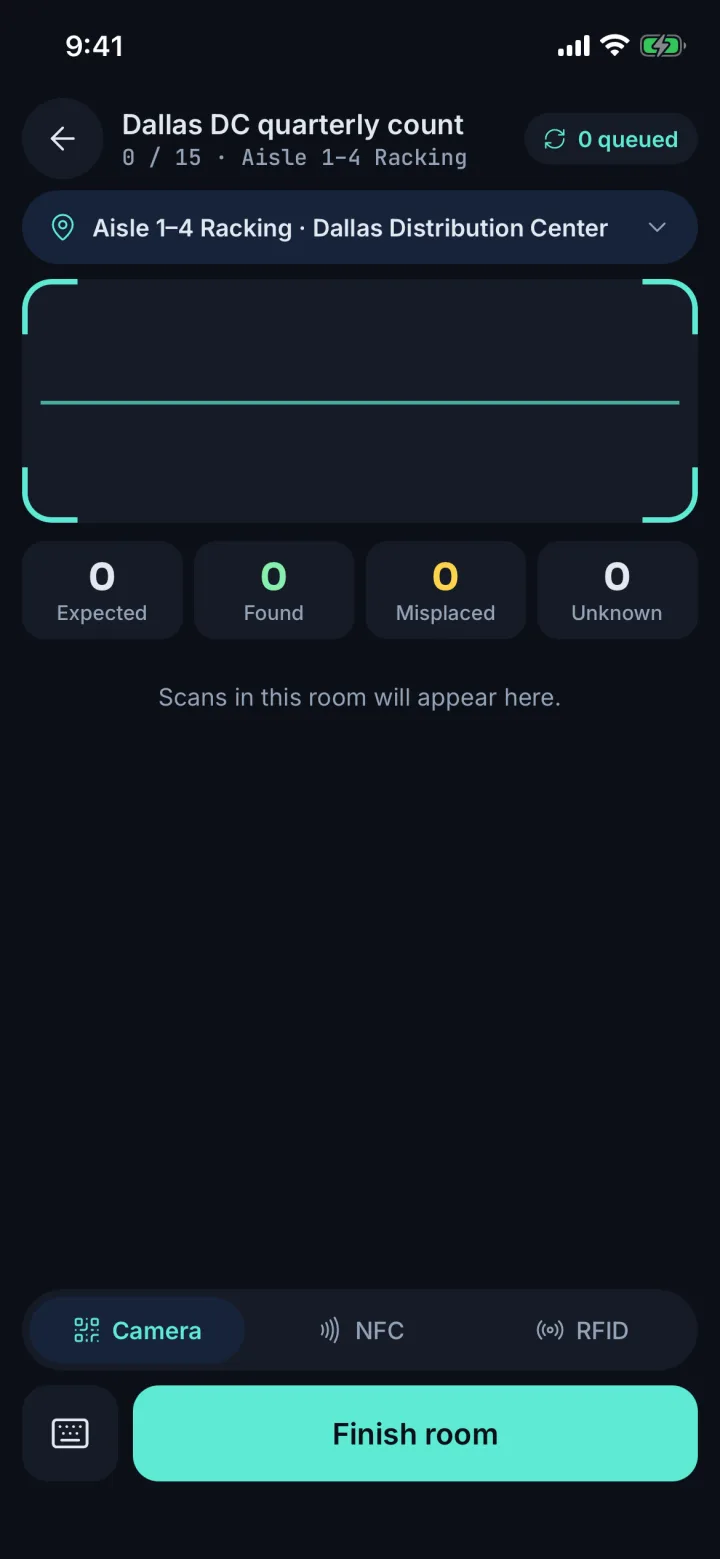
Stock-take Dallas DC quarterly count choosing the current room (sample data)
Pick the roomCount a site room by room.
Counting Aisle 1–4 Racking with expected, found, misplaced and unknown counters (sample data)
CountExpected, found, misplaced and unknown, with a queued-scans badge.
Reports list including stock-take variance (sample data)Reports list including stock-take variance (sample data)
Variance reportStock-take variance sits with the other ready-made reports.
07 · Check-outs

Know who has it

See what is out, what is overdue and what has come back, and return an item with one tap.

Issue to a member of staff, a custodian or someone else, with a due date. On return, record its condition: good, fair, damaged or parts missing.

Check-in / check-out →
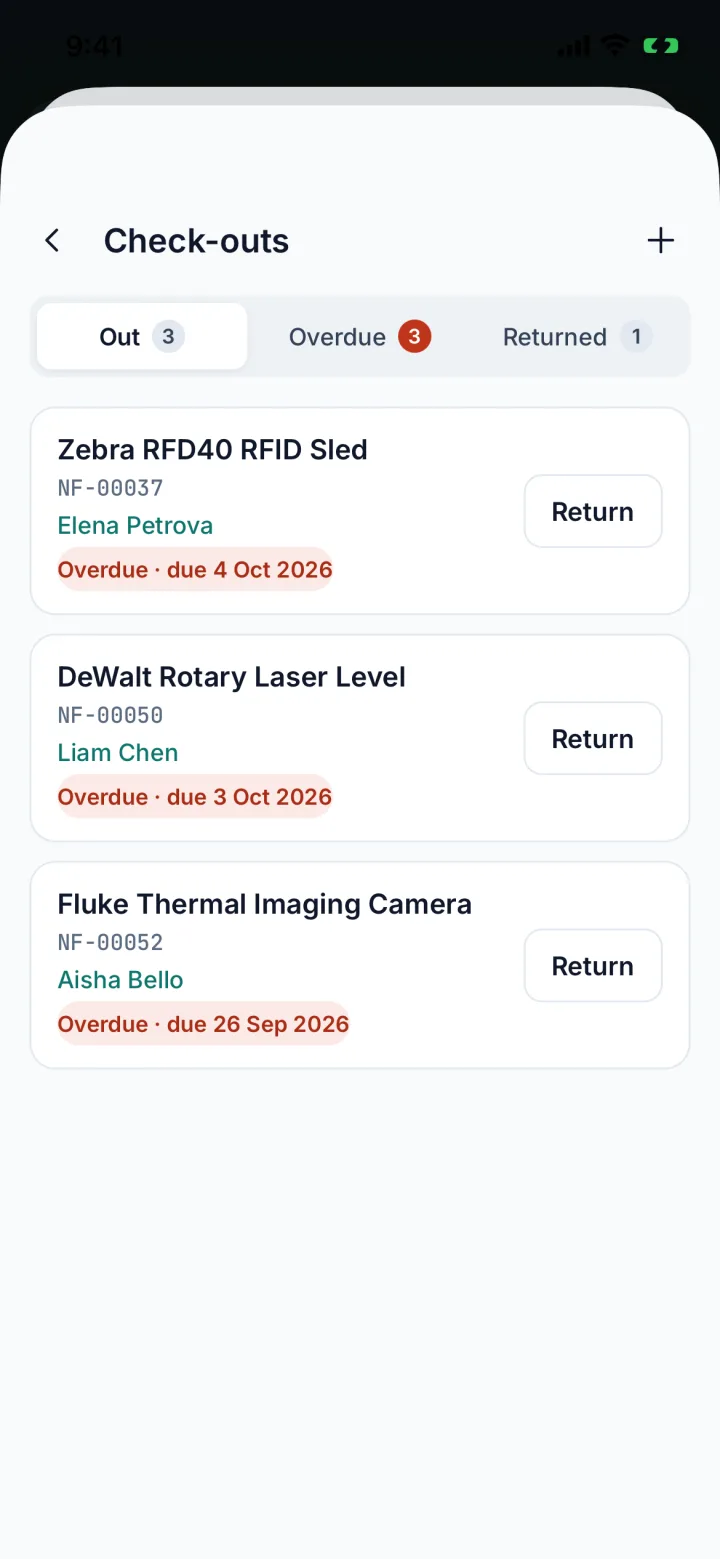
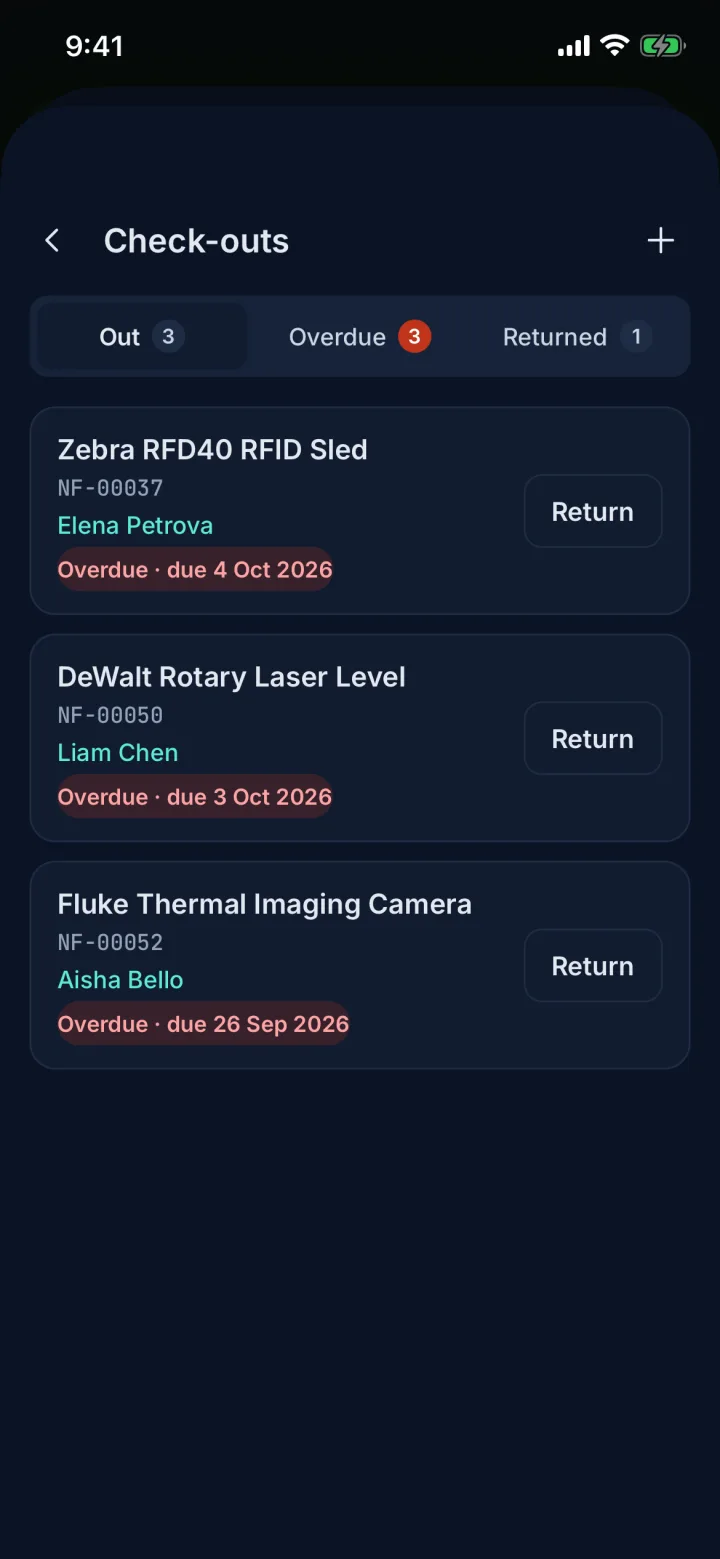
Check-outs list with overdue items and Return buttons (sample data)Check-outs list with overdue items and Return buttons (sample data)
Check-outsWho has what, with overdue items flagged and one-tap Return.
08 · Work orders

Fix it on site

Technicians follow each job from Open through In progress to Completed, add notes and photos, and tap I’ve arrived to log attendance with a GPS fix.

Parts and labour costs show only to the Finance role. Anyone can report an issue from an asset, which creates a work order.

Maintenance →
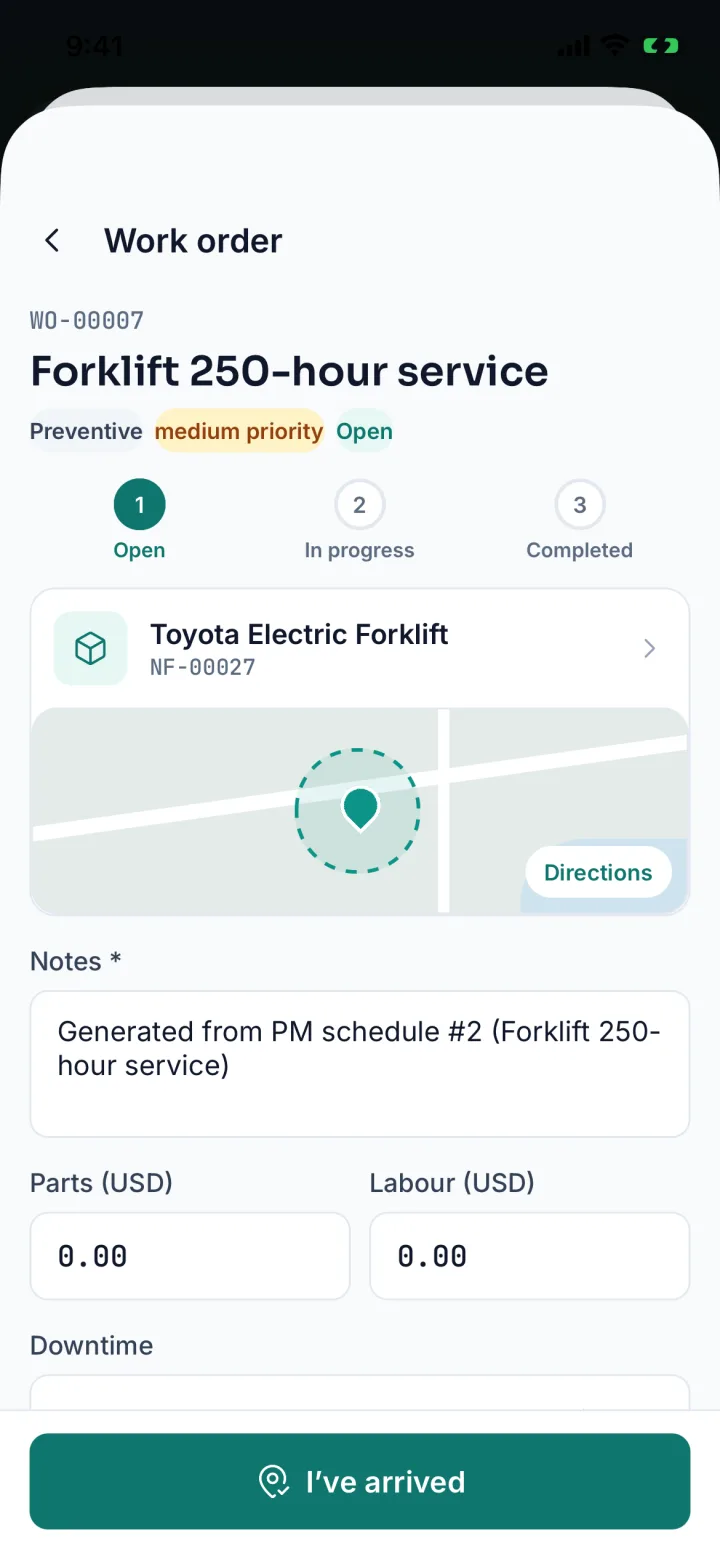
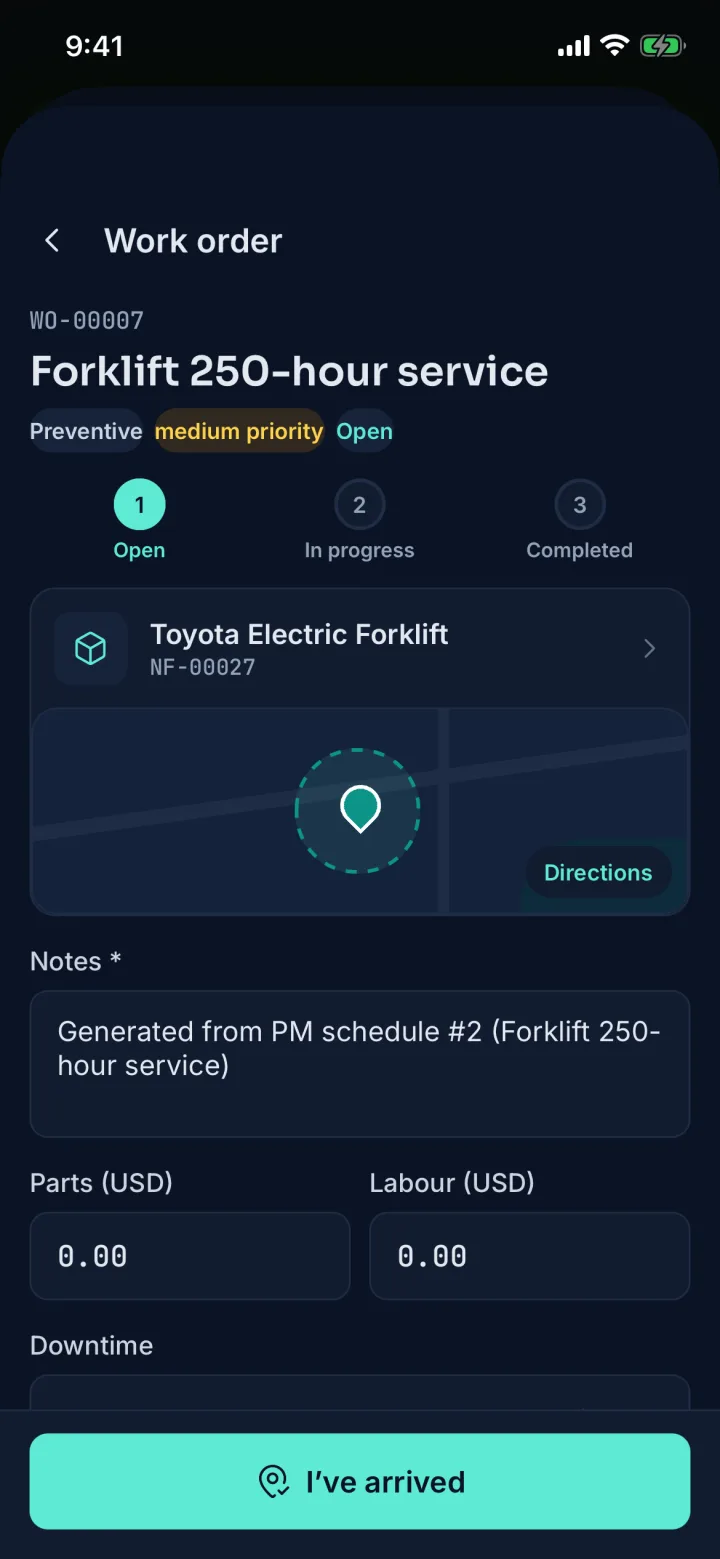
Work order WO-00007 Forklift 250-hour service with a status stepper, notes and costs (sample data)Work order WO-00007 Forklift 250-hour service with a status stepper, notes and costs (sample data)
Work orderOpen → In progress → Completed, with notes, parts, labour and I’ve arrived.
09 · Alerts

Stay informed, not interrupted

Alerts land in one inbox, filtered by type: assets seen outside their site, overdue check-outs, RFID zone events and contracts about to end. Swipe an alert to acknowledge it.

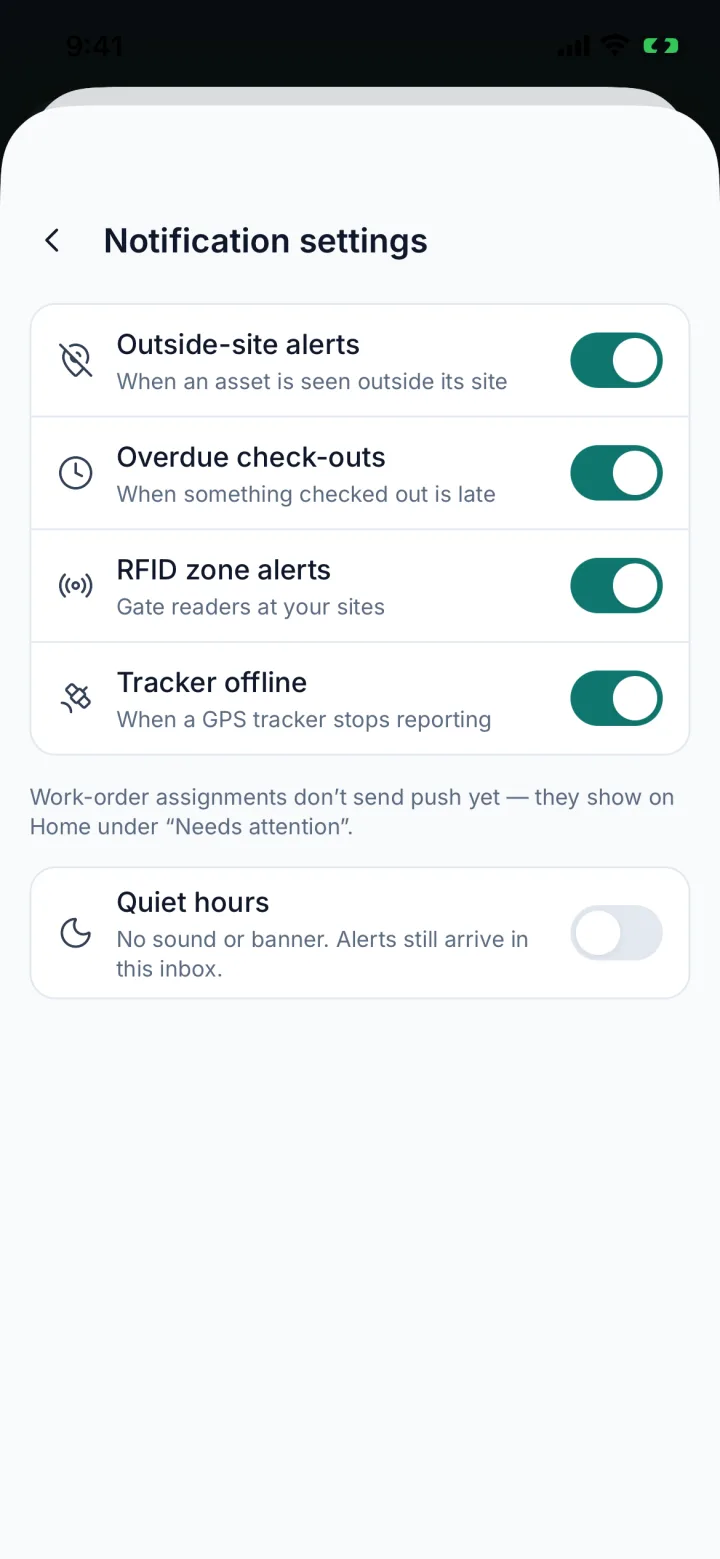
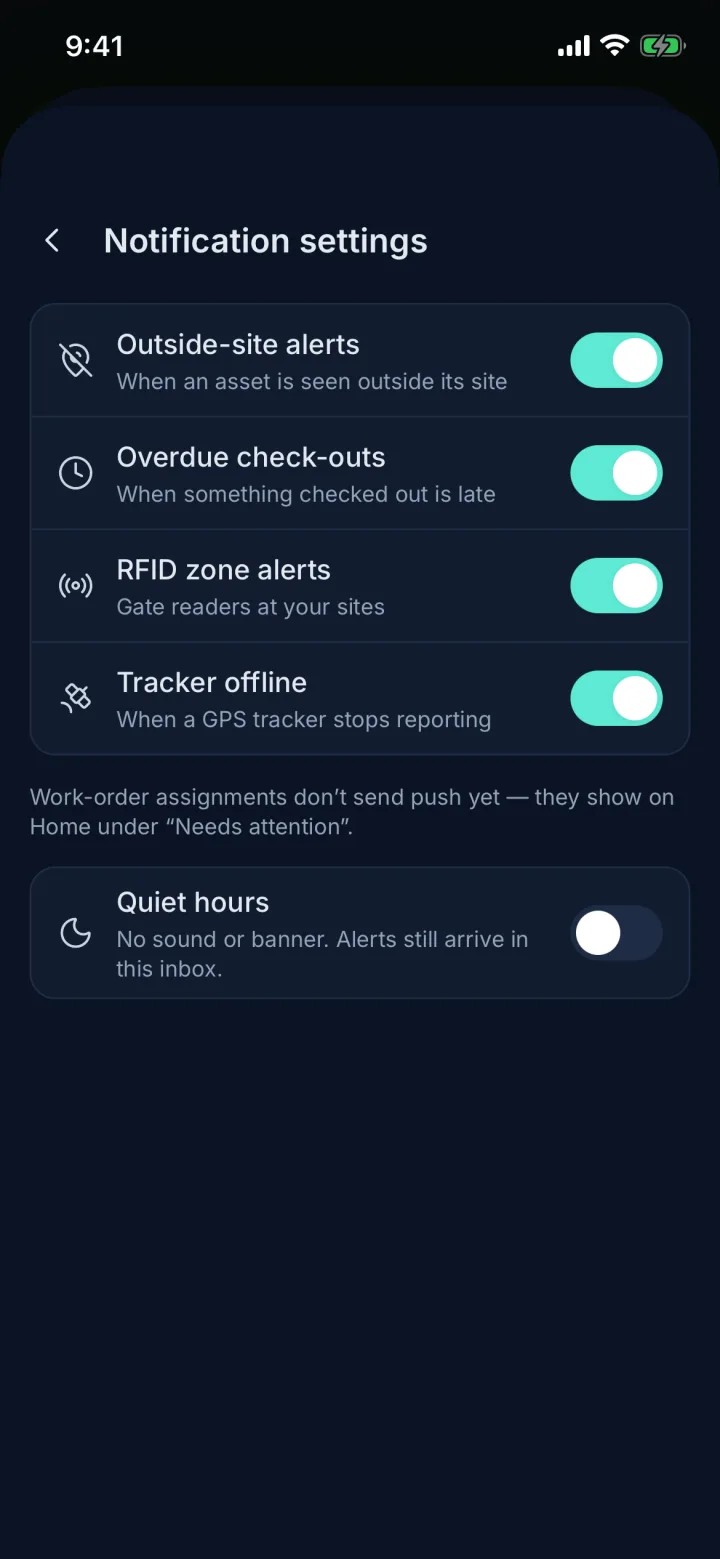
Choose which alert types you want and set quiet hours. Push notifications switch on with the App Store and Google Play release.

Alerts →
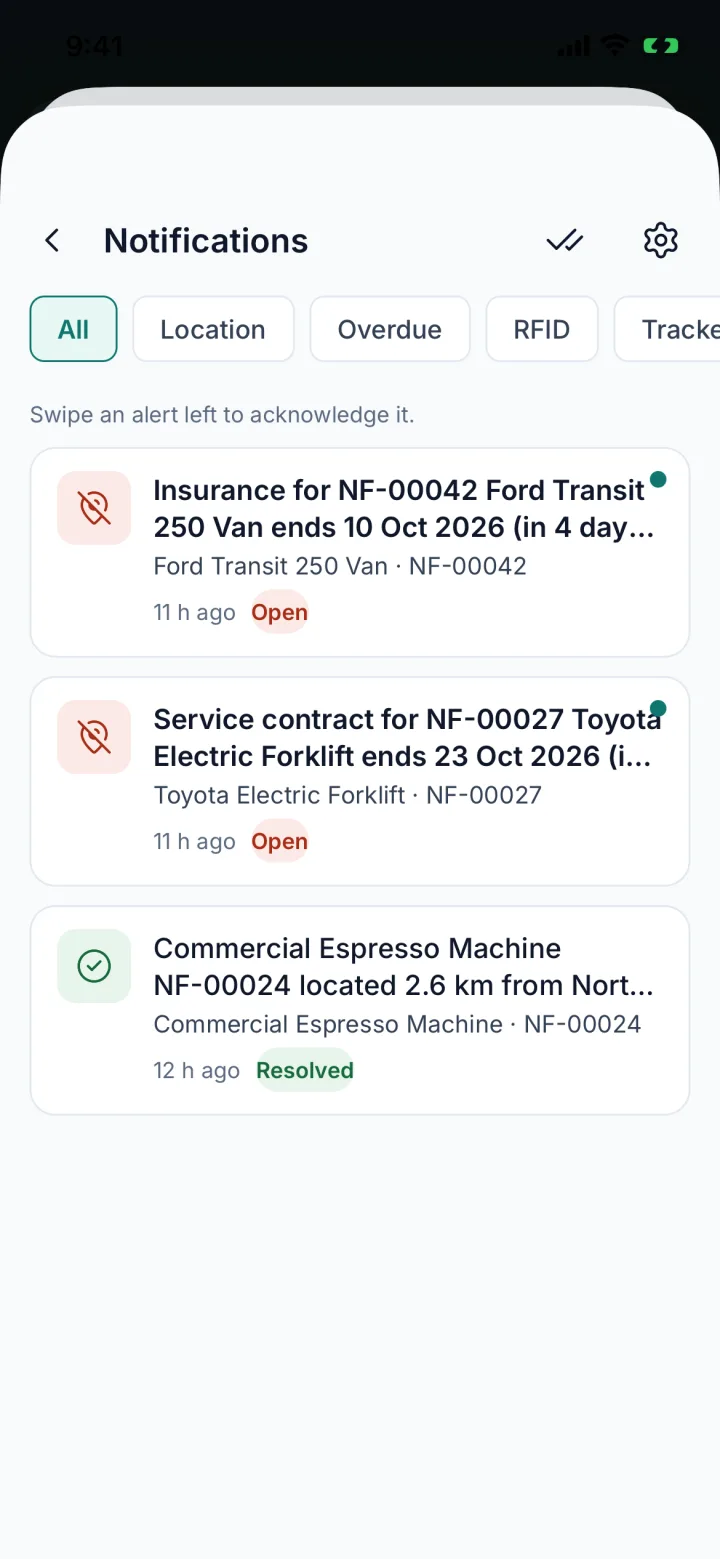
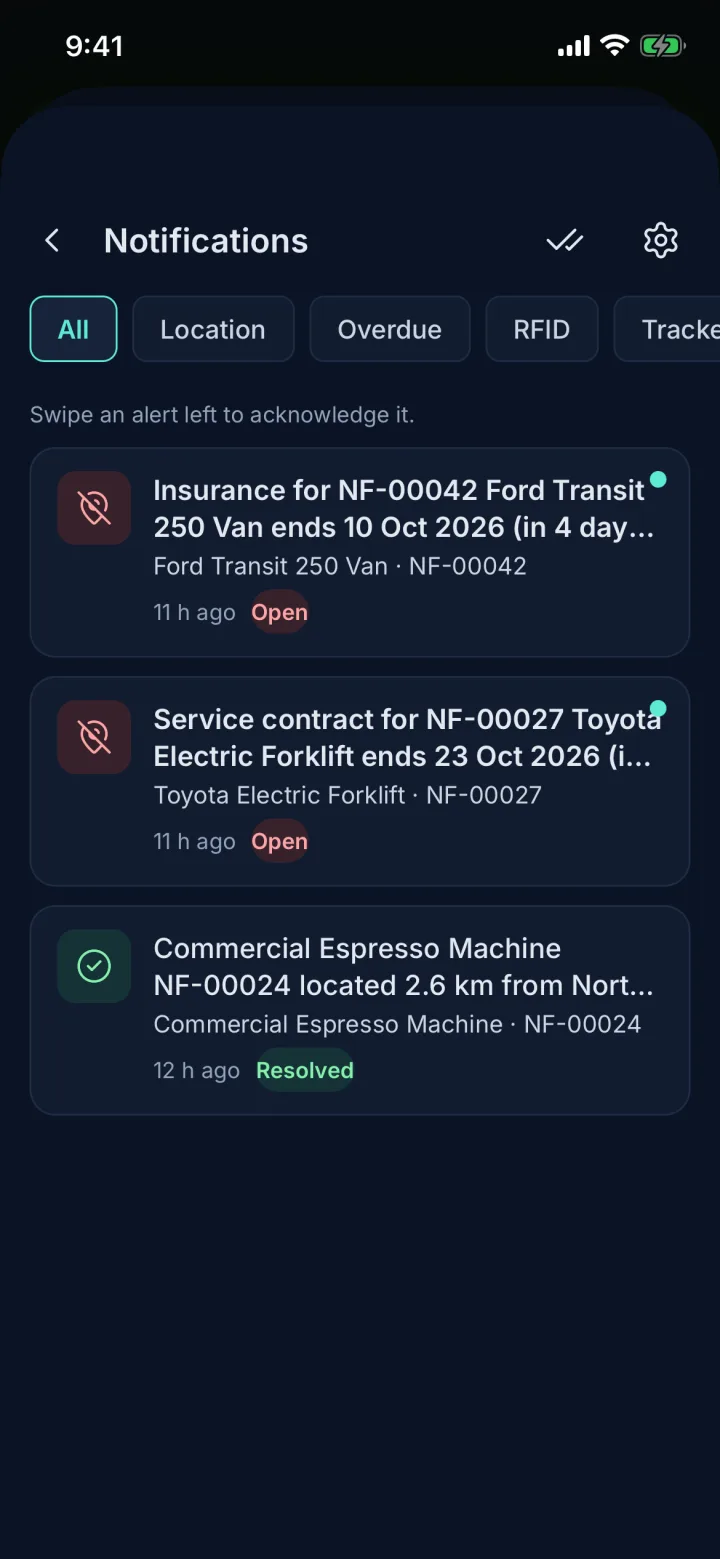
Notifications inbox with contract and location alerts (sample data)Notifications inbox with contract and location alerts (sample data)
Alerts inboxOne inbox, filtered by type; swipe to acknowledge.
Notification settings with alert types and quiet hours (sample data)Notification settings with alert types and quiet hours (sample data)
Alert settingsPick the alert types you want and set quiet hours.
10 · Sites & geofences

Sites and geofences in your pocket

Each site has a pin and a geofence radius. The Sites list shows how many assets each one holds, how far away it is, and which one you are inside now.

Managers can adjust a site’s pin and radius from the phone. Vehicles and plant with GPS trackers (Business plan) appear under Trackers once they report.

Zones & geofencing →
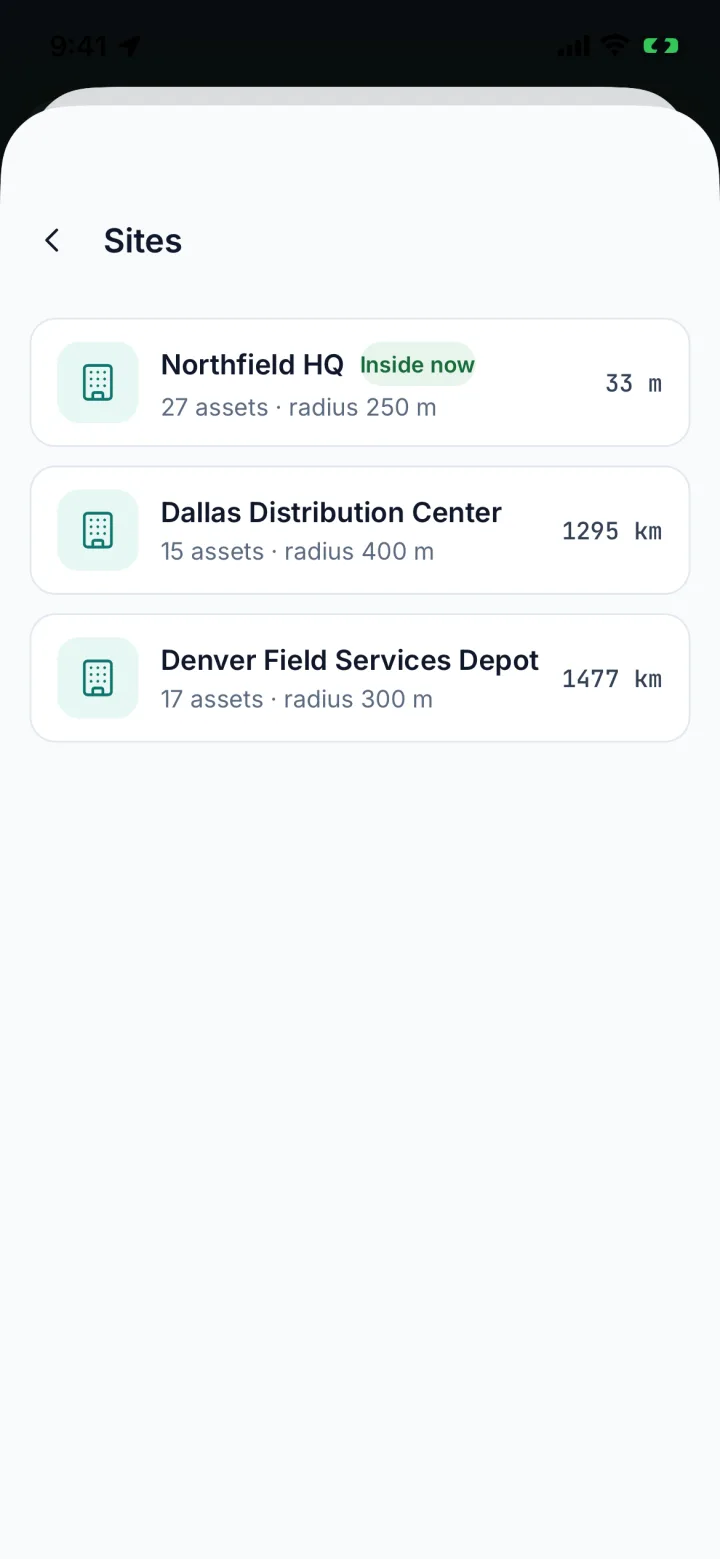
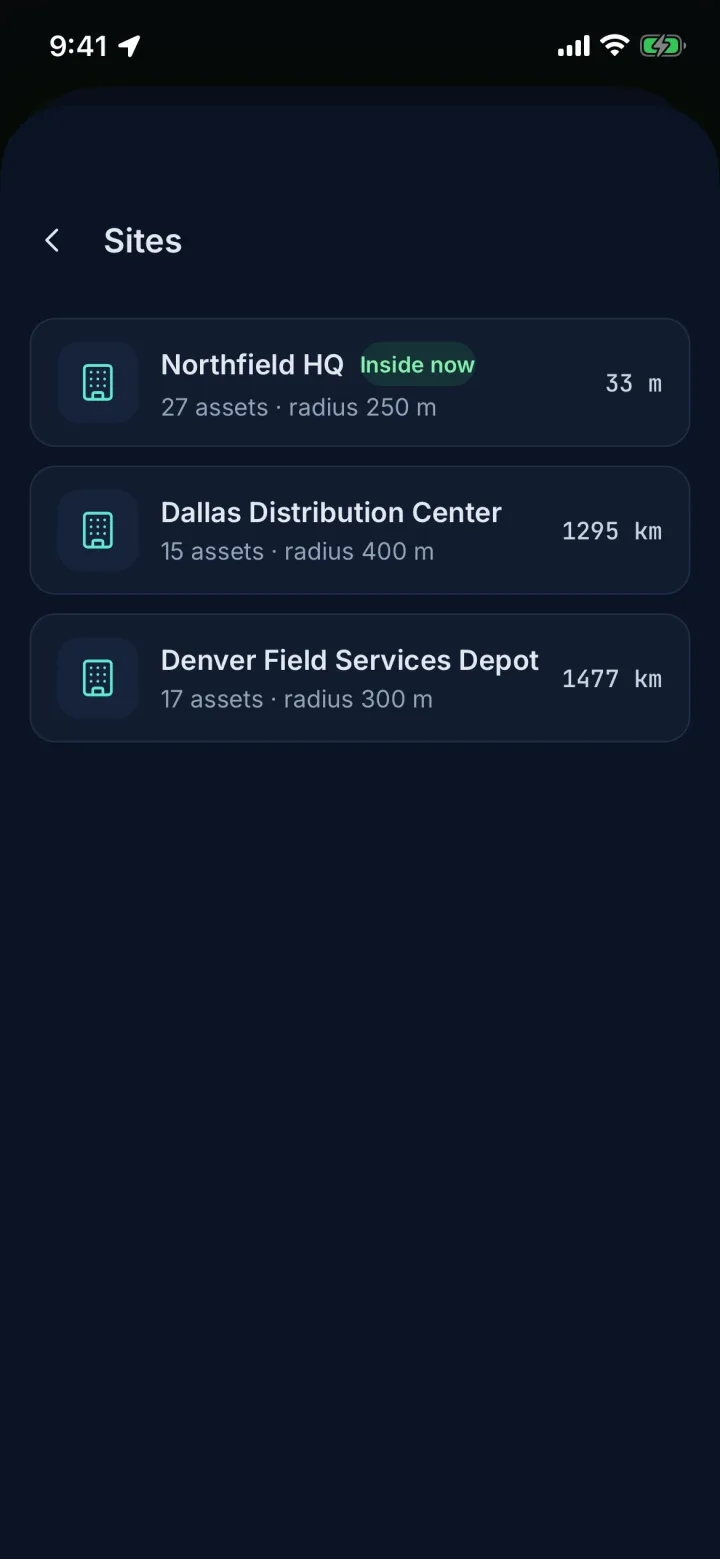
Sites list with Northfield HQ marked Inside now (sample data)Sites list with Northfield HQ marked Inside now (sample data)
SitesAsset counts, geofence radius, distance and which site you are inside.
11 · Reports & export

Reports in your pocket

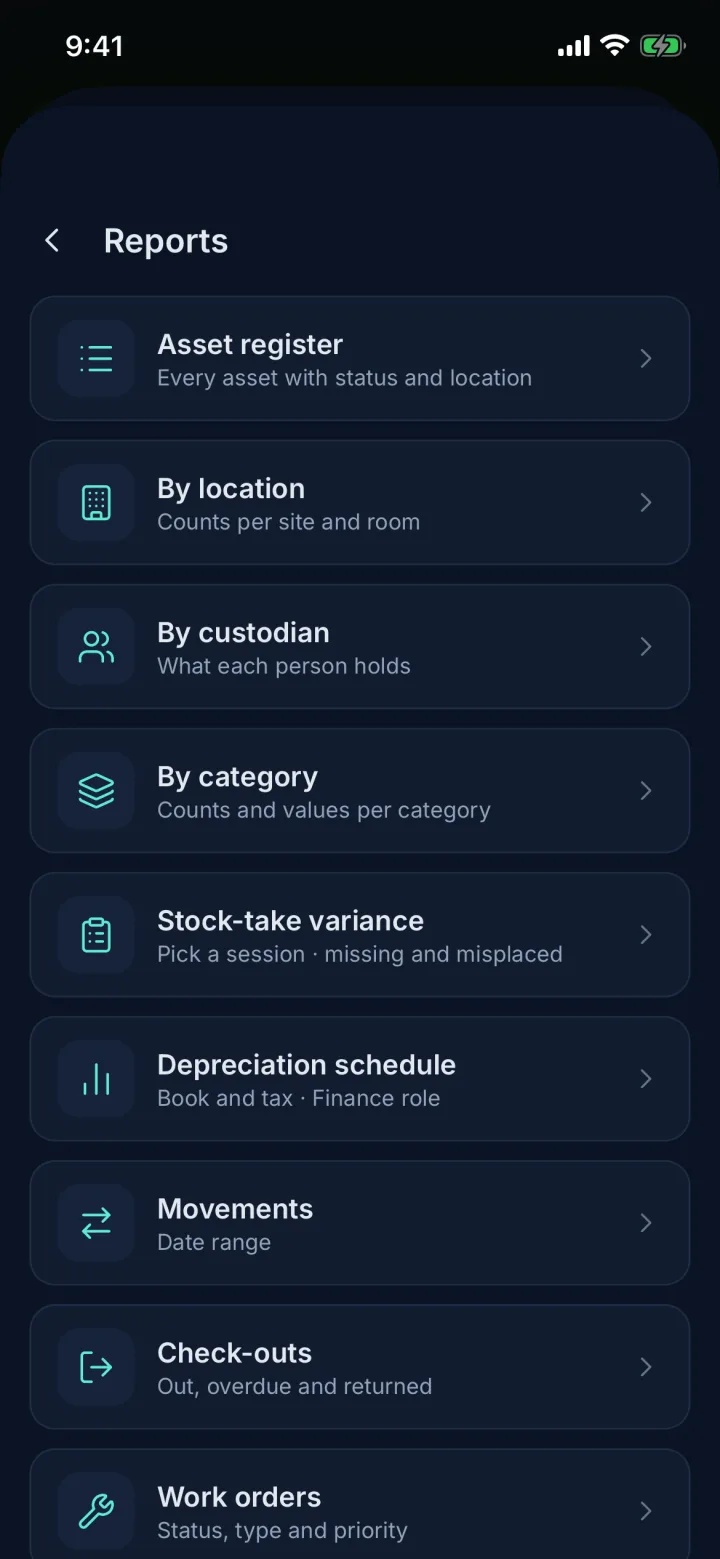
Run the asset register, movements, check-outs, work orders, depreciation and more, and preview the first rows on the phone.

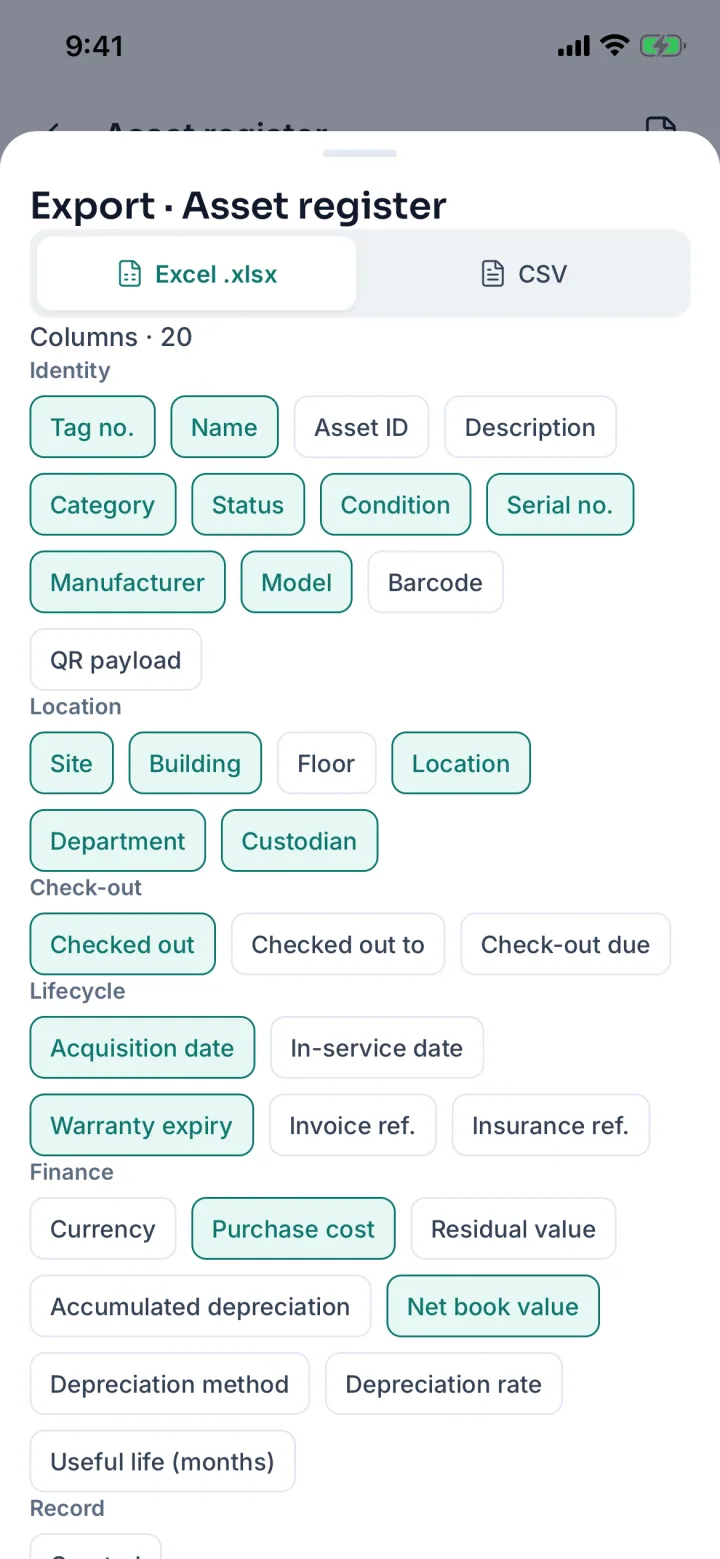
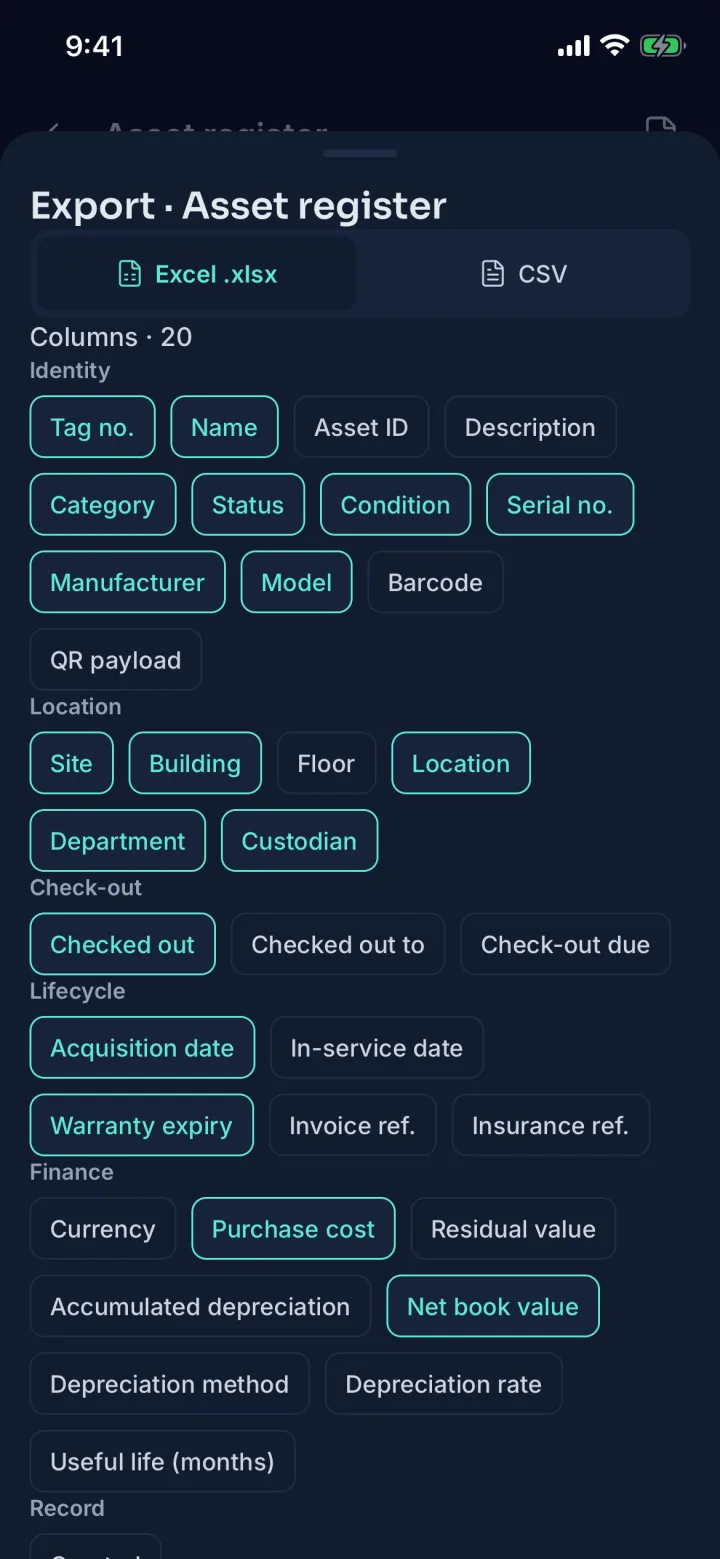
Export to Excel or CSV with exactly the columns you need and share the file from your phone. Money columns need the Finance role.

Reports →
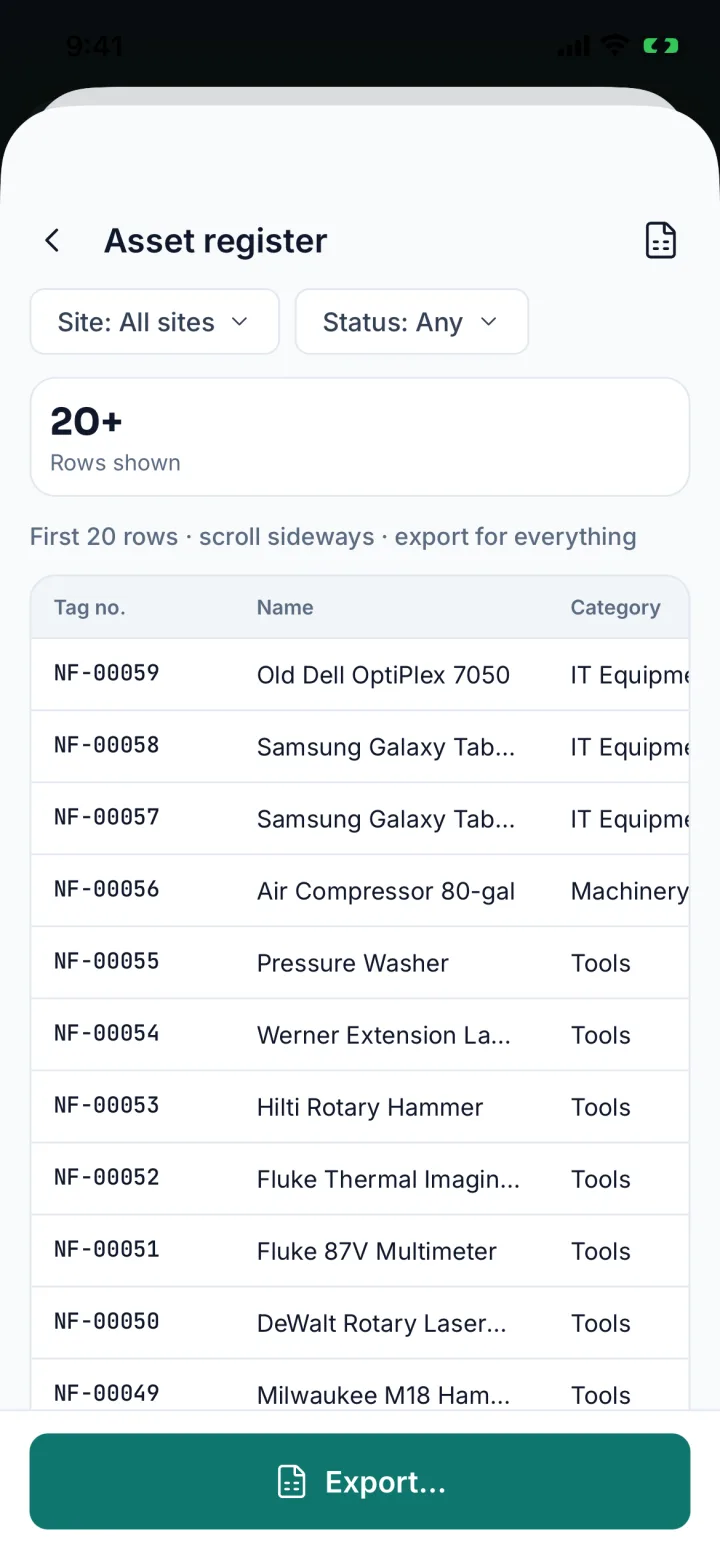
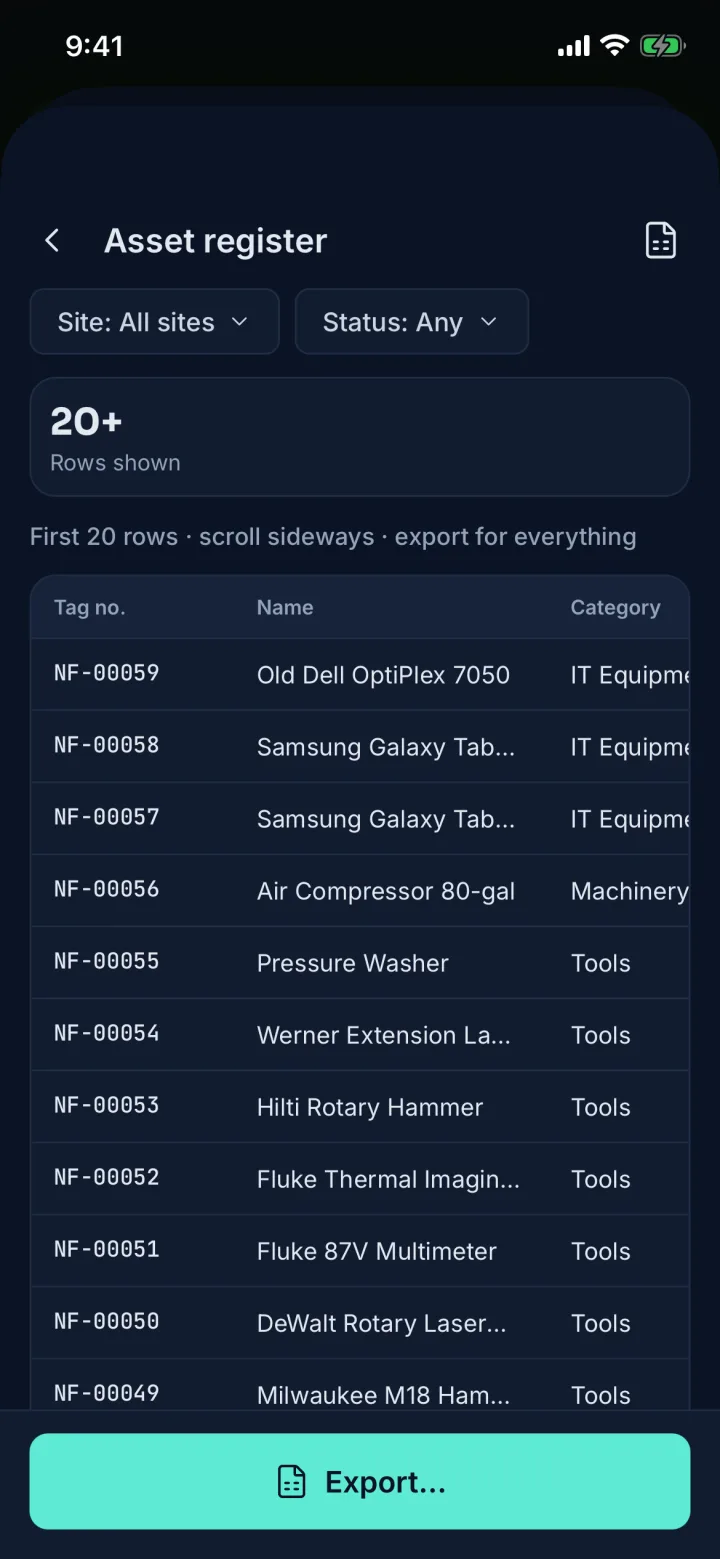
Asset register preview table filtered by site and status (sample data)Asset register preview table filtered by site and status (sample data)
Report previewPreview rows filtered by site and status before you export.
Export sheet choosing Excel or CSV and grouped columns (sample data)Export sheet choosing Excel or CSV and grouped columns (sample data)
ExportExcel or CSV, with the columns you choose.
12 · Offline & sync

Works without signal

With no signal the phone keeps your work: moves, check-outs, returns, tags, photos, status changes, new and edited assets, location fixes, work-order updates and stock-take scans.

Each change syncs exactly once when you reconnect. The Sync centre shows what is waiting, with retry, edit and discard.
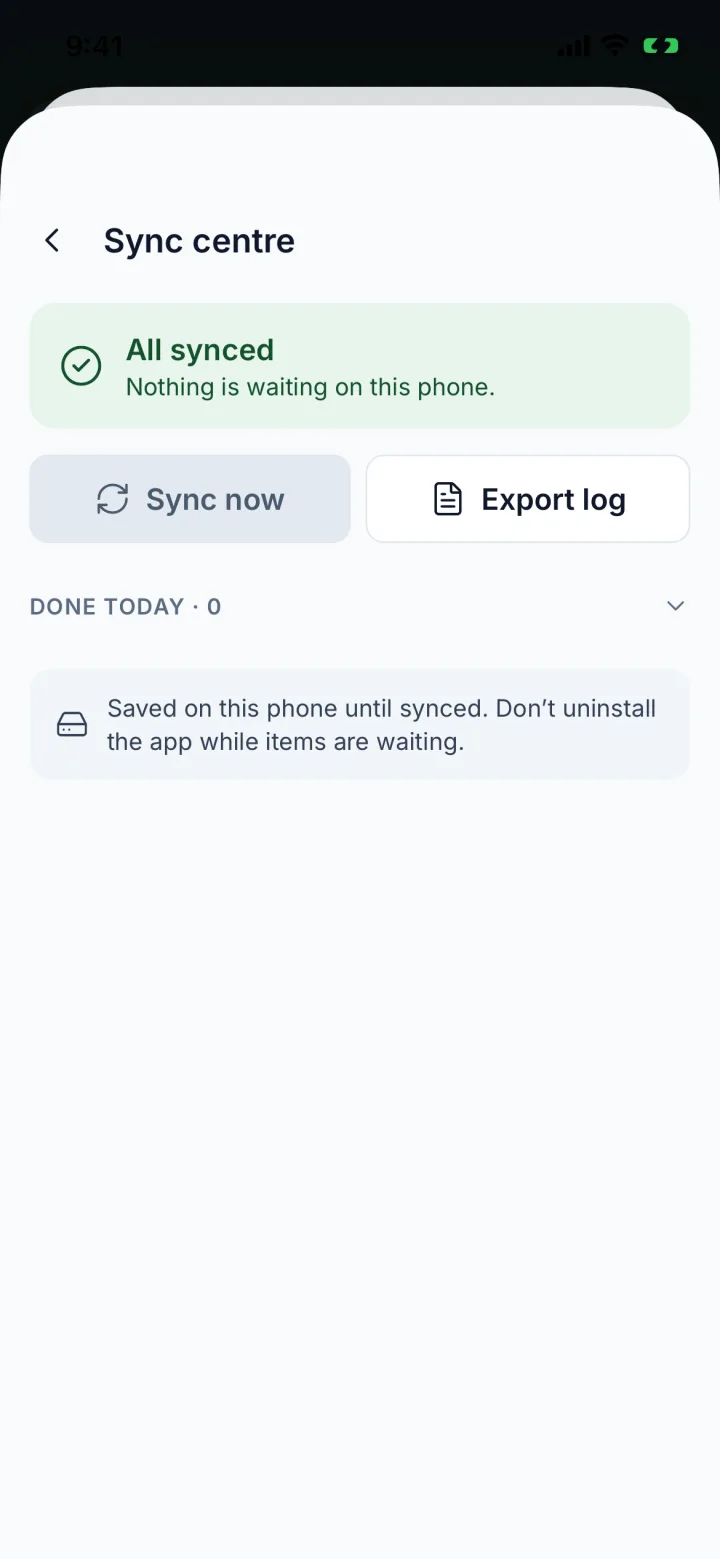
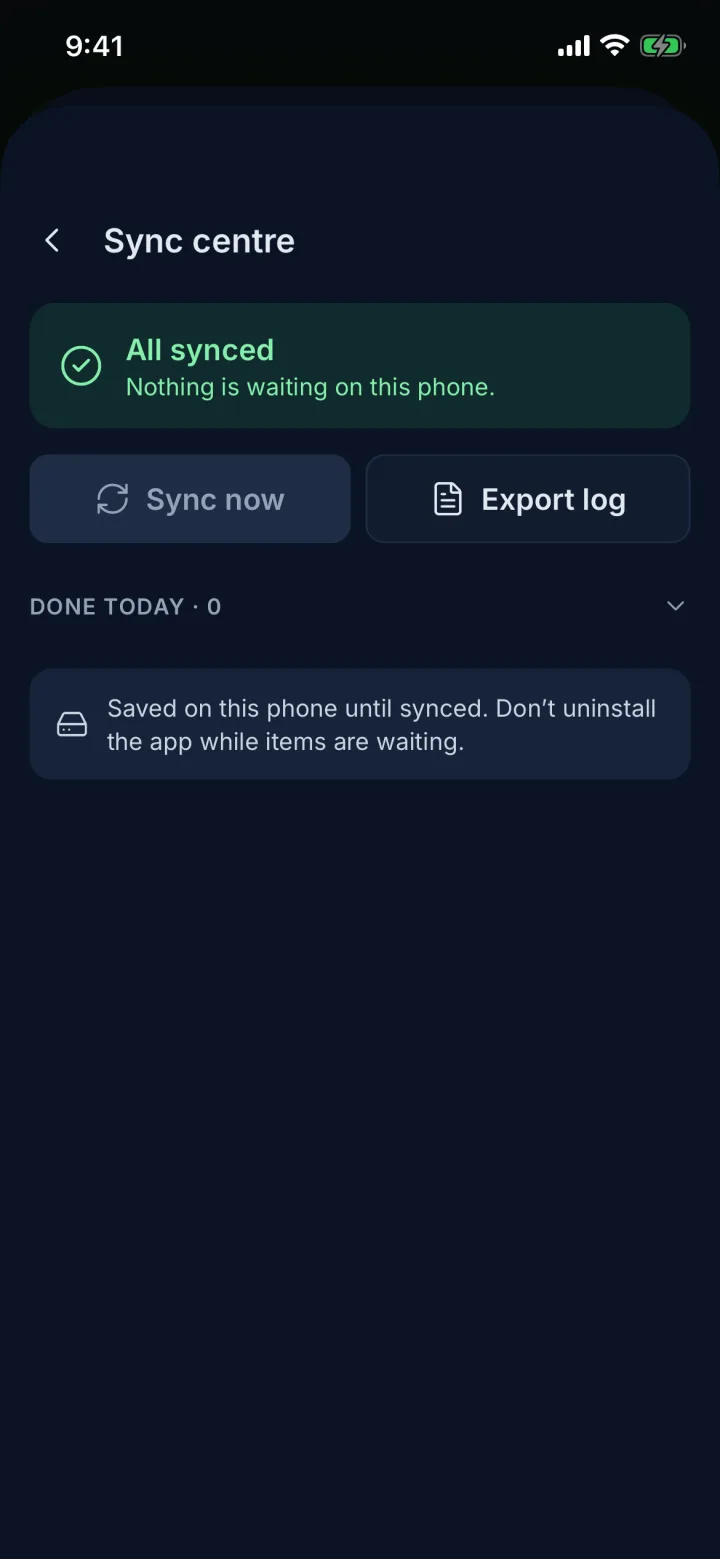
Sync centre showing All synced with Sync now and Export log (sample data)Sync centre showing All synced with Sync now and Export log (sample data)
Sync centreSee what is waiting; it sends itself when you are back online.
13 · Privacy & location

Location, only when you act

Location is recorded only while the app is open, at the moment you scan, move, check out, count, commission a tag or arrive at a job. It never runs in the background.

Your workspace sets the policy (Off, Optional or Required) and the minimum accuracy. When it is optional, anyone can switch it off for themselves and their actions still save.

Security →
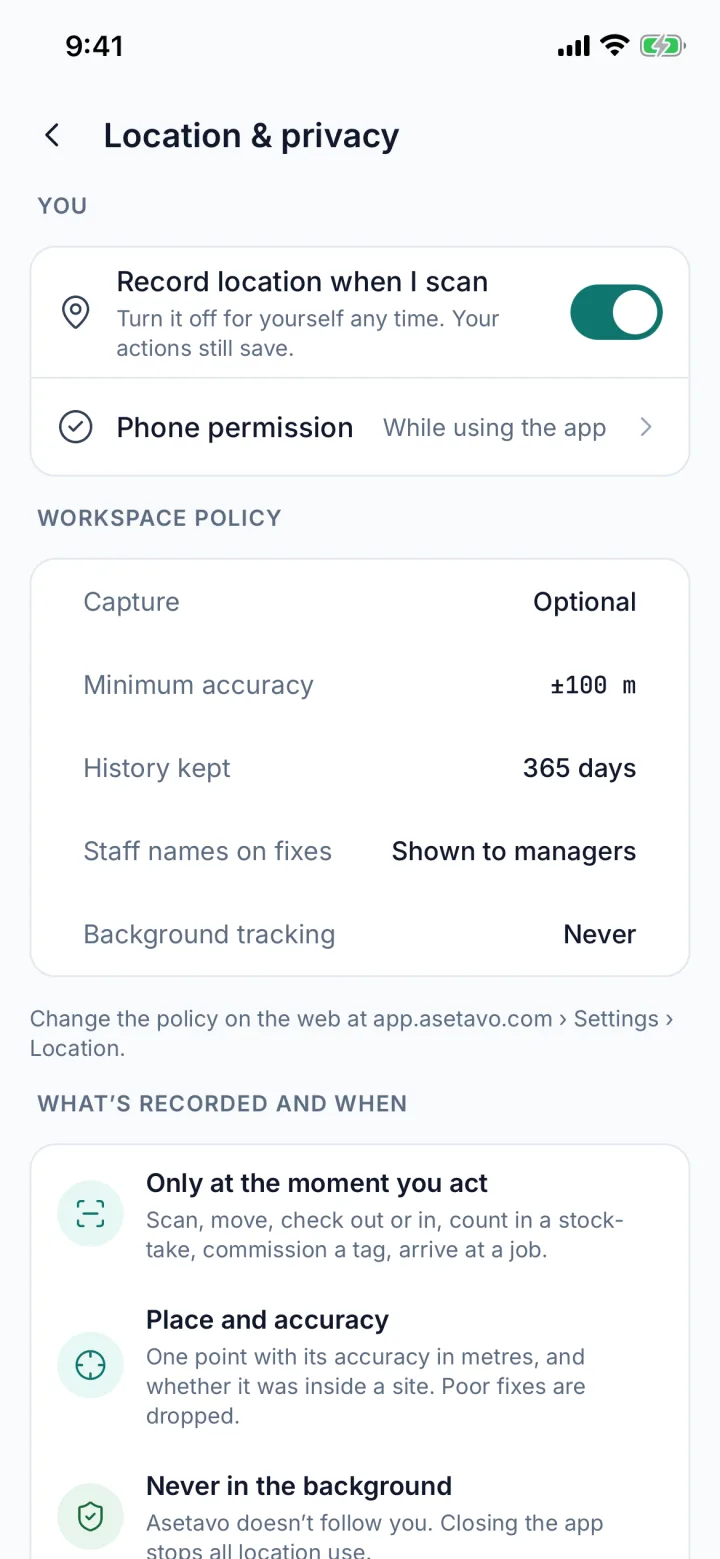
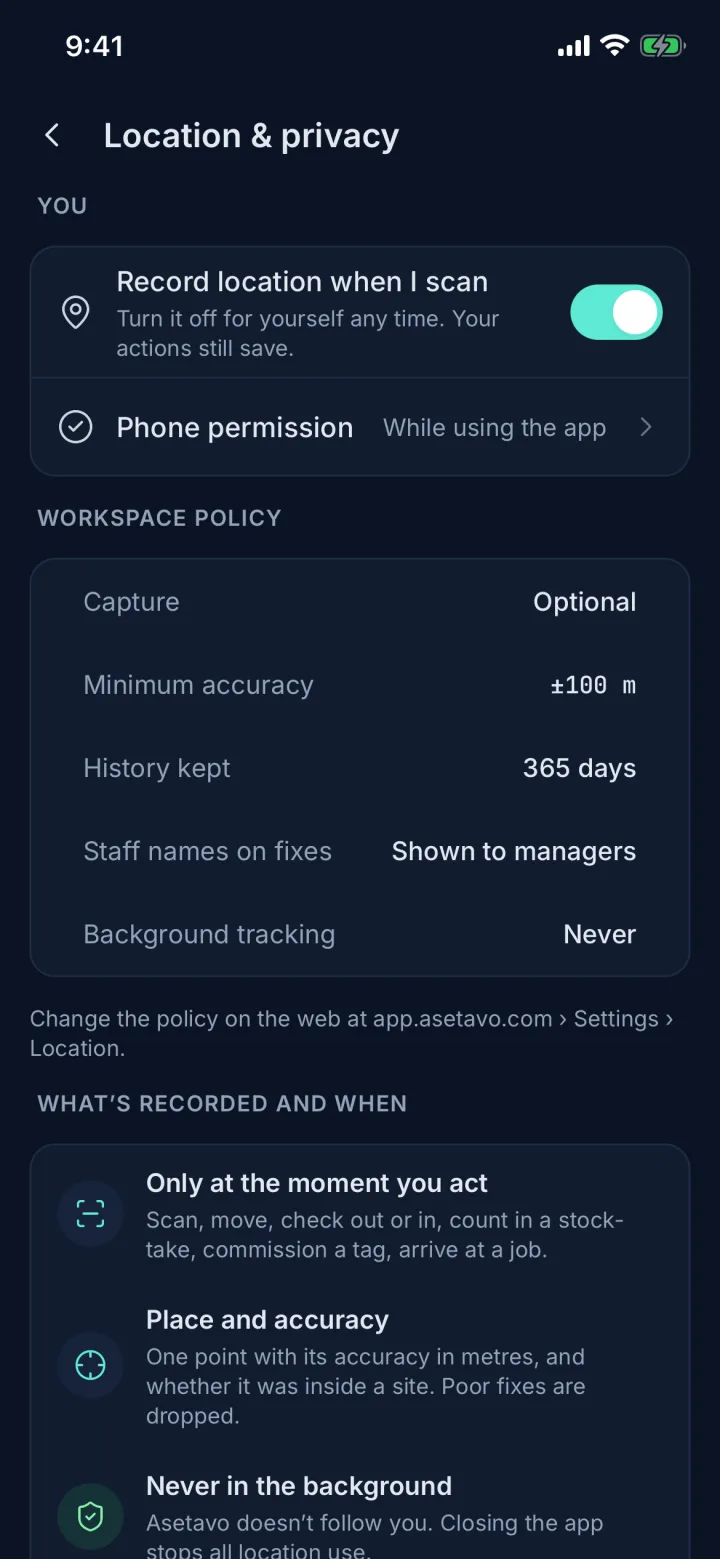
Location and privacy settings with workspace policy and background tracking Never (sample data)Location and privacy settings with workspace policy and background tracking Never (sample data)
Location & privacySaved only when you act, never in the background; switch it off when allowed.
14 · Roles & access

Everyone sees what their role allows

Editing, moving, changing status and checking out need edit access; viewers can look things up. Money shows only to the Finance role, and configuration needs the Manage role.

Anything hidden explains why, for example “Needs the Finance role”. Lost a phone? Sign it out from More › Devices or from the web.
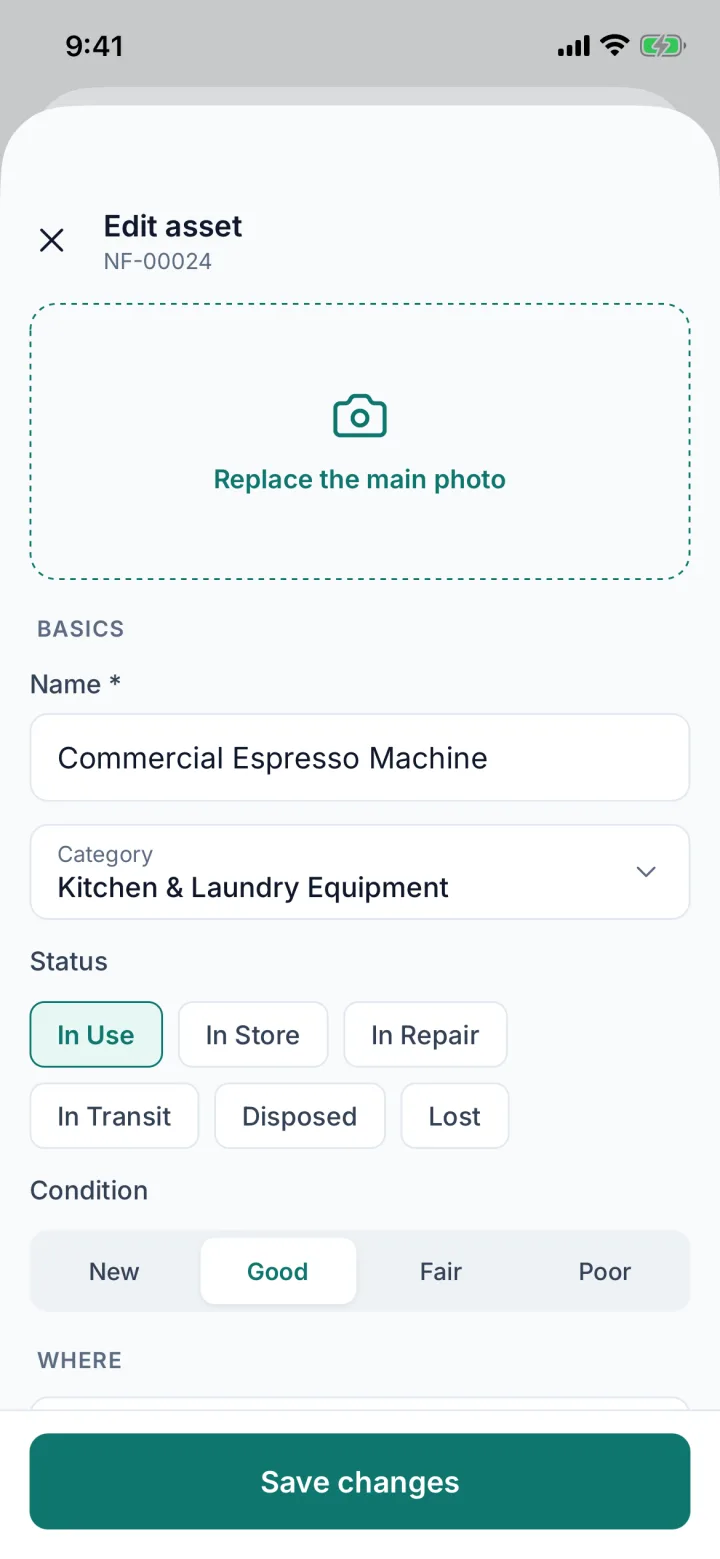
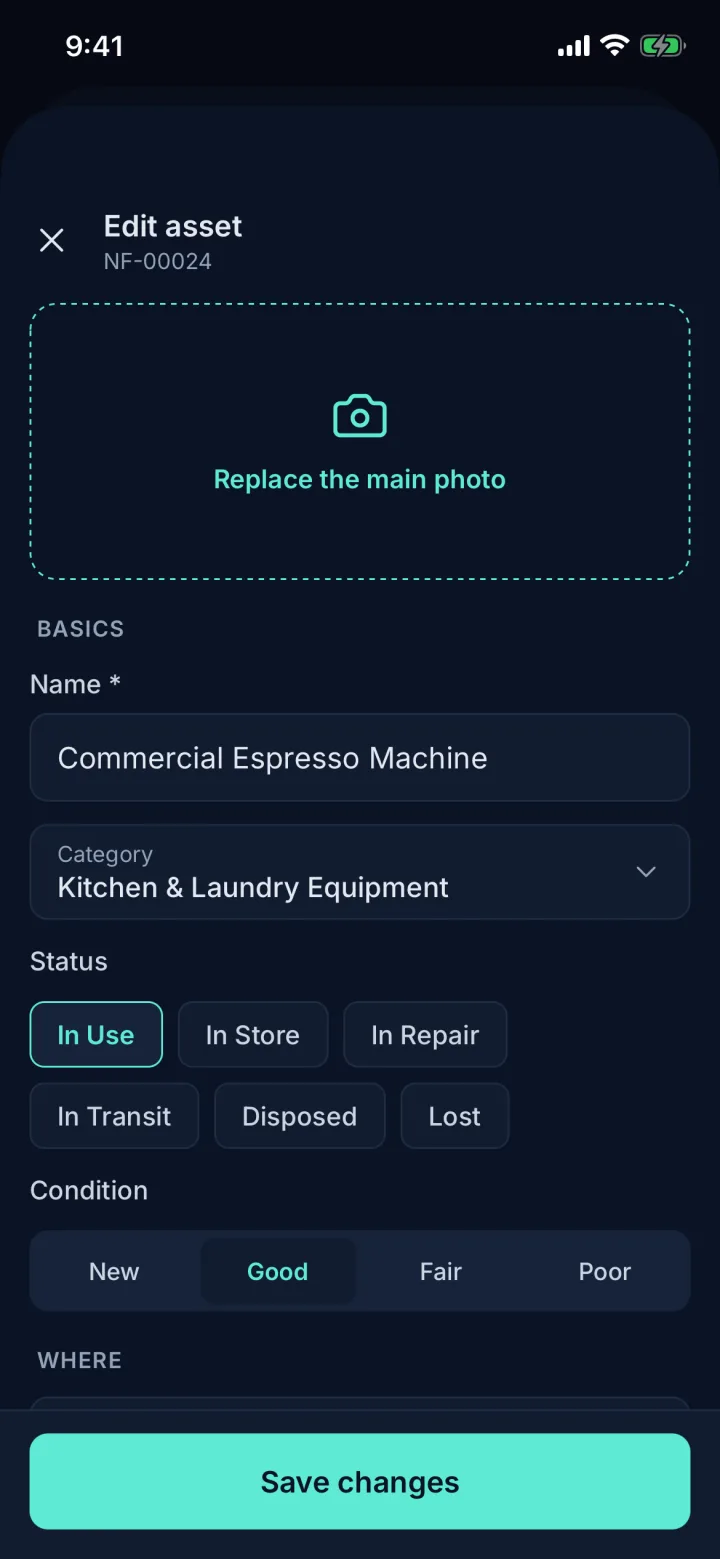
Edit asset form (sample data)Edit asset form (sample data)
Edit assetFix details on the spot: photo, name, category, status and condition.
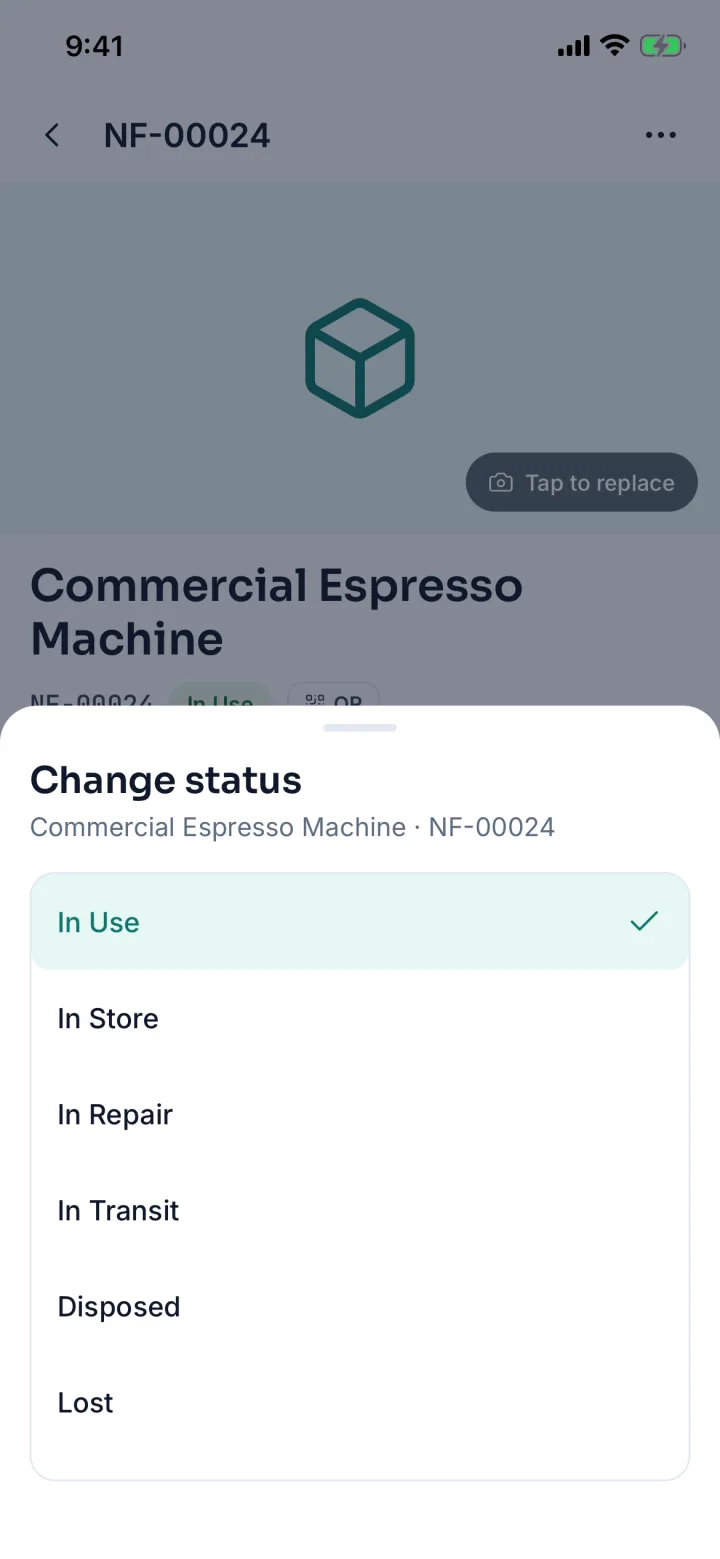
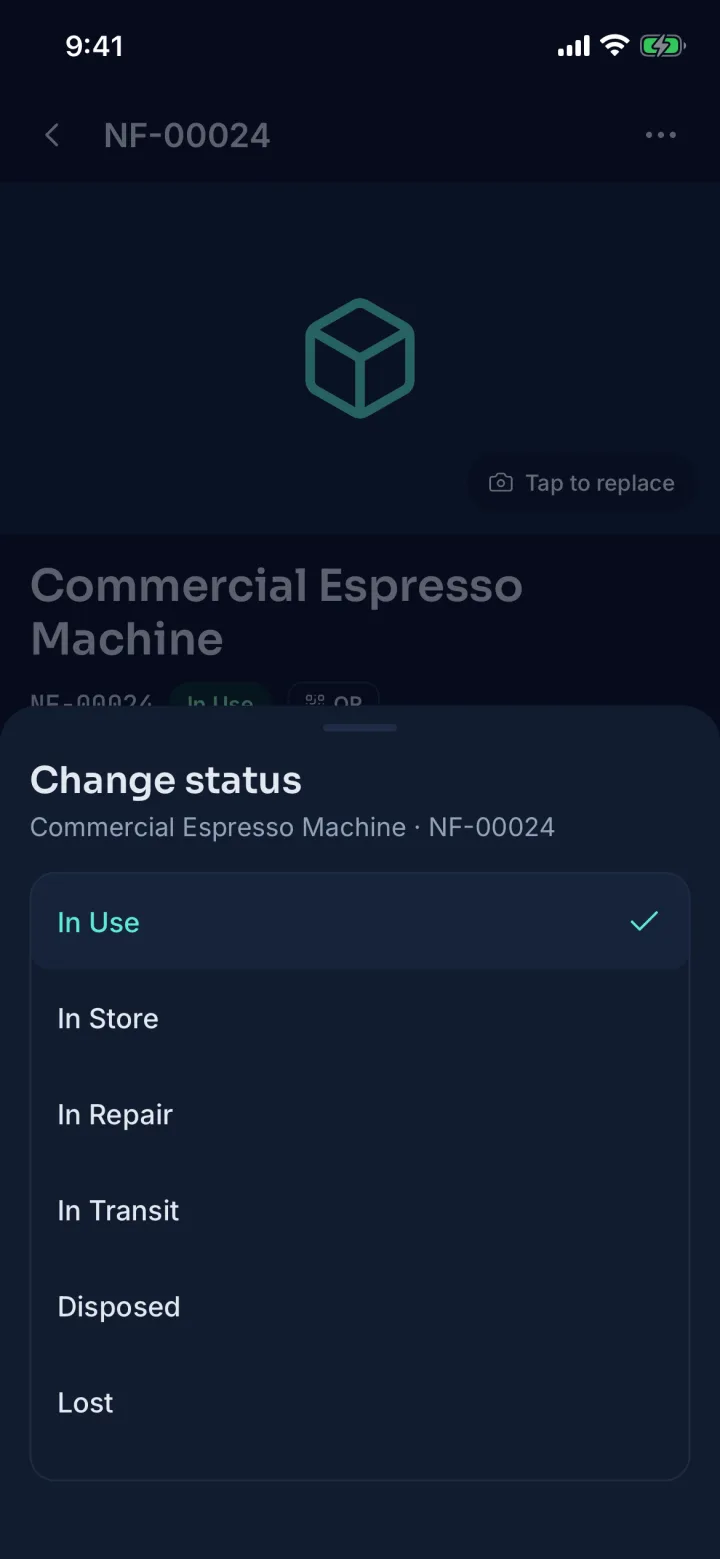
Change status sheet (sample data)Change status sheet (sample data)
Change statusIn use, in store, in repair, in transit, disposed or lost, in two taps.
15 · Finance & admin

Finance and admin, when you need them

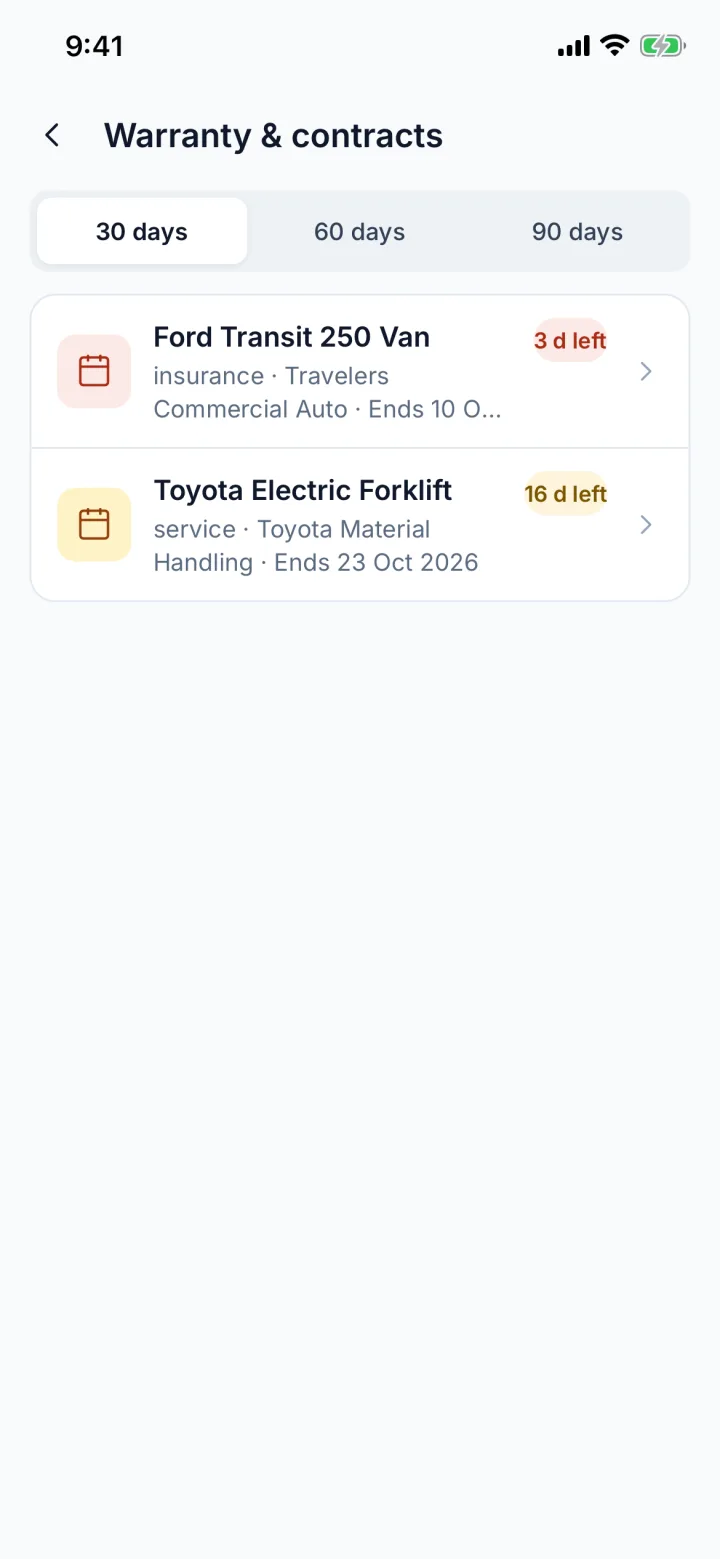
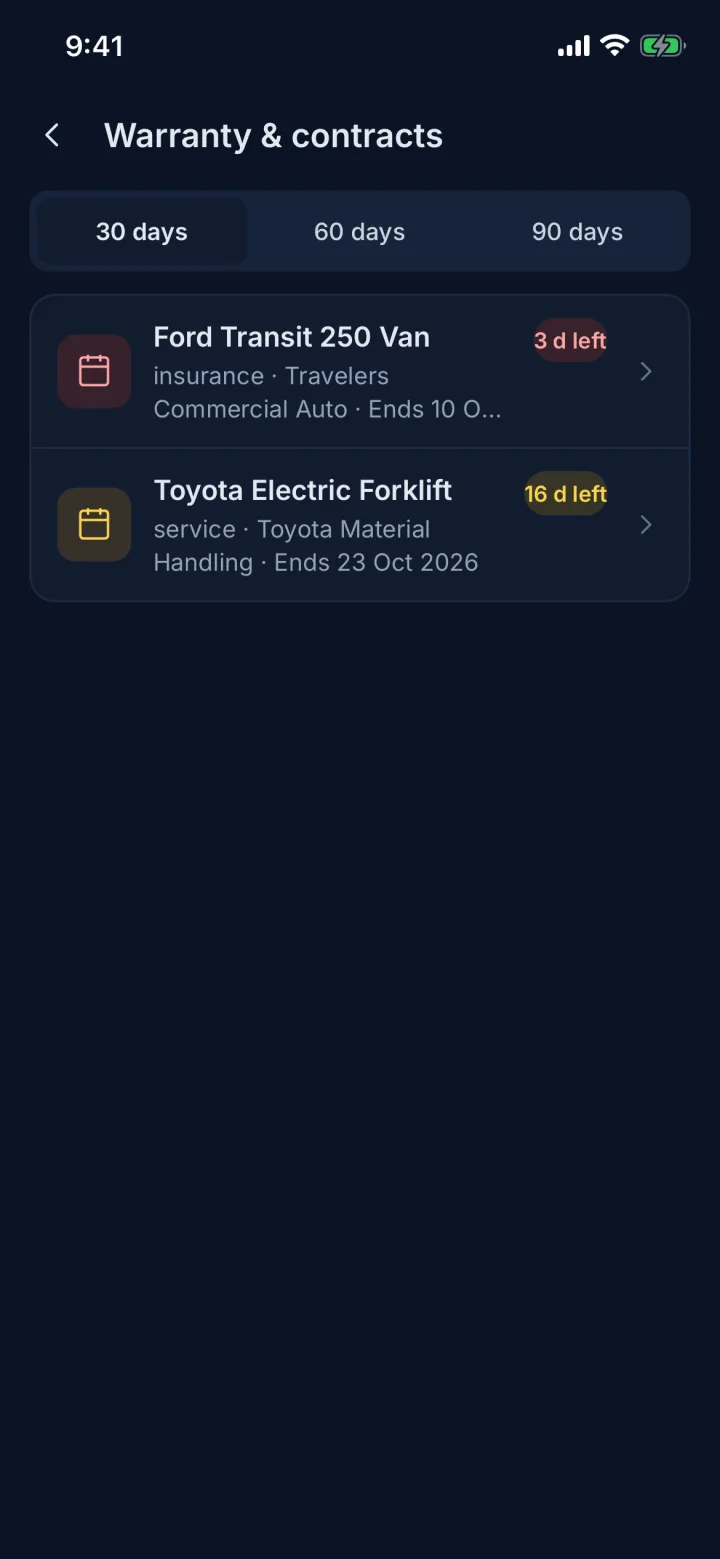
Finance staff see book and tax depreciation and can compute the monthly book run. Warranty & contracts shows what ends in the next 30, 60 or 90 days.

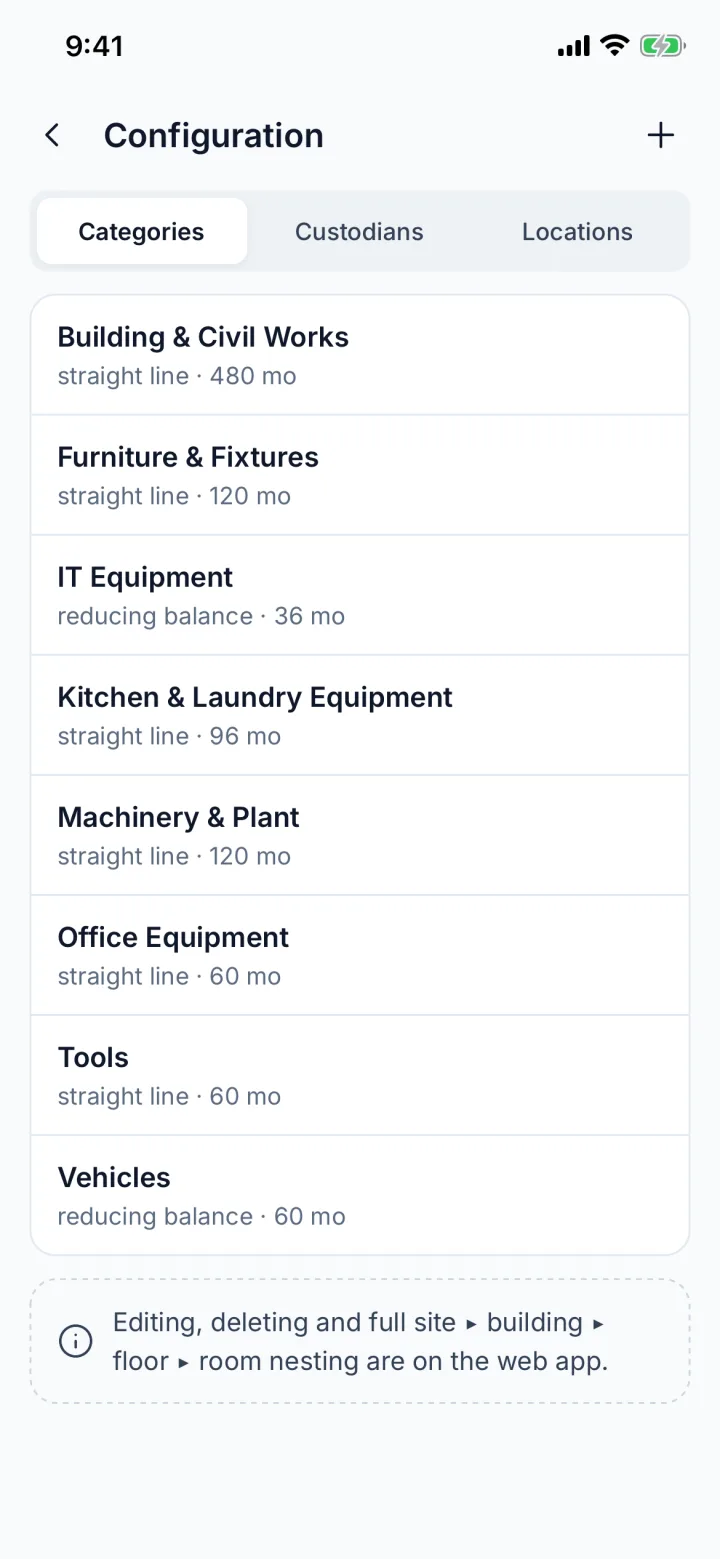
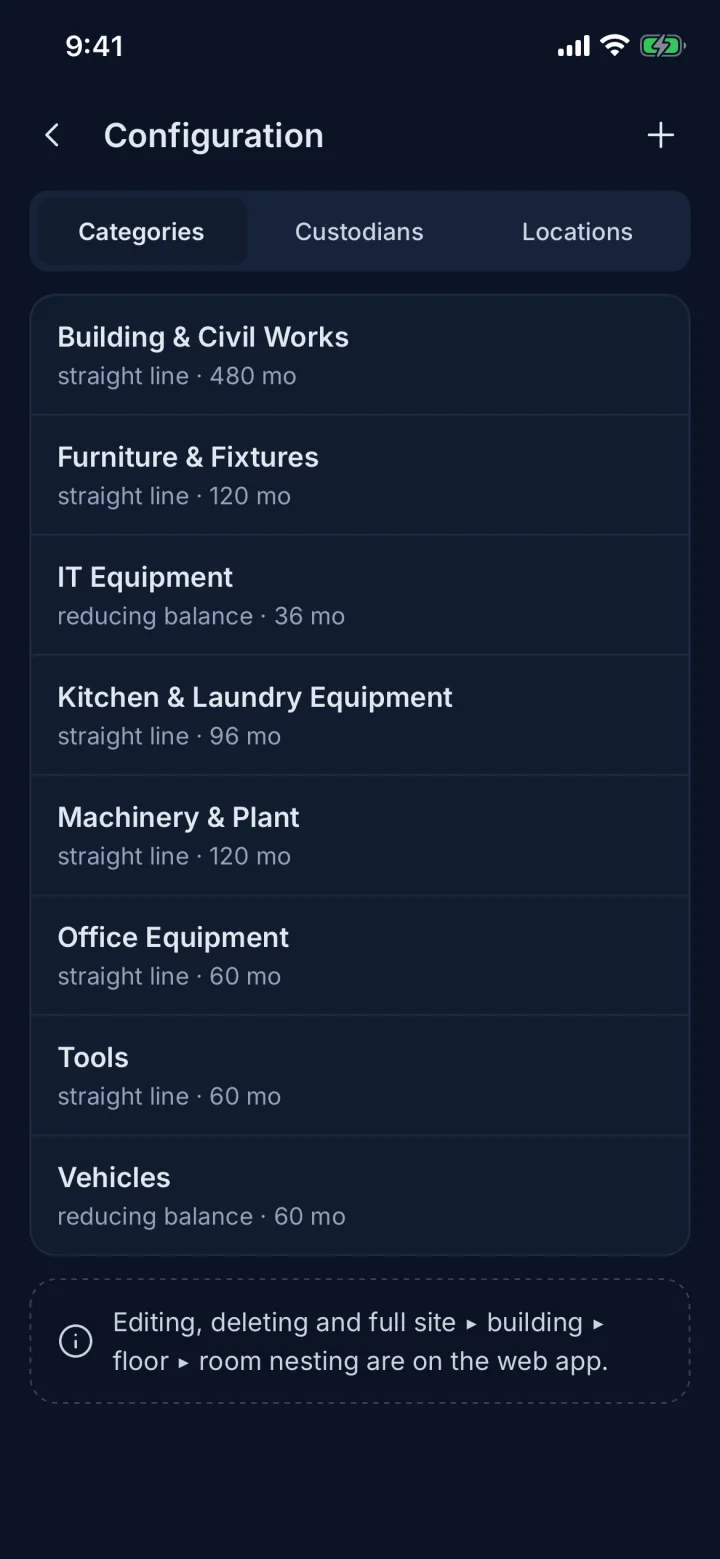
Managers keep categories, custodians and locations tidy in Configuration. Deeper setup, like nesting sites, buildings, floors and rooms, stays on the web app.

Depreciation →
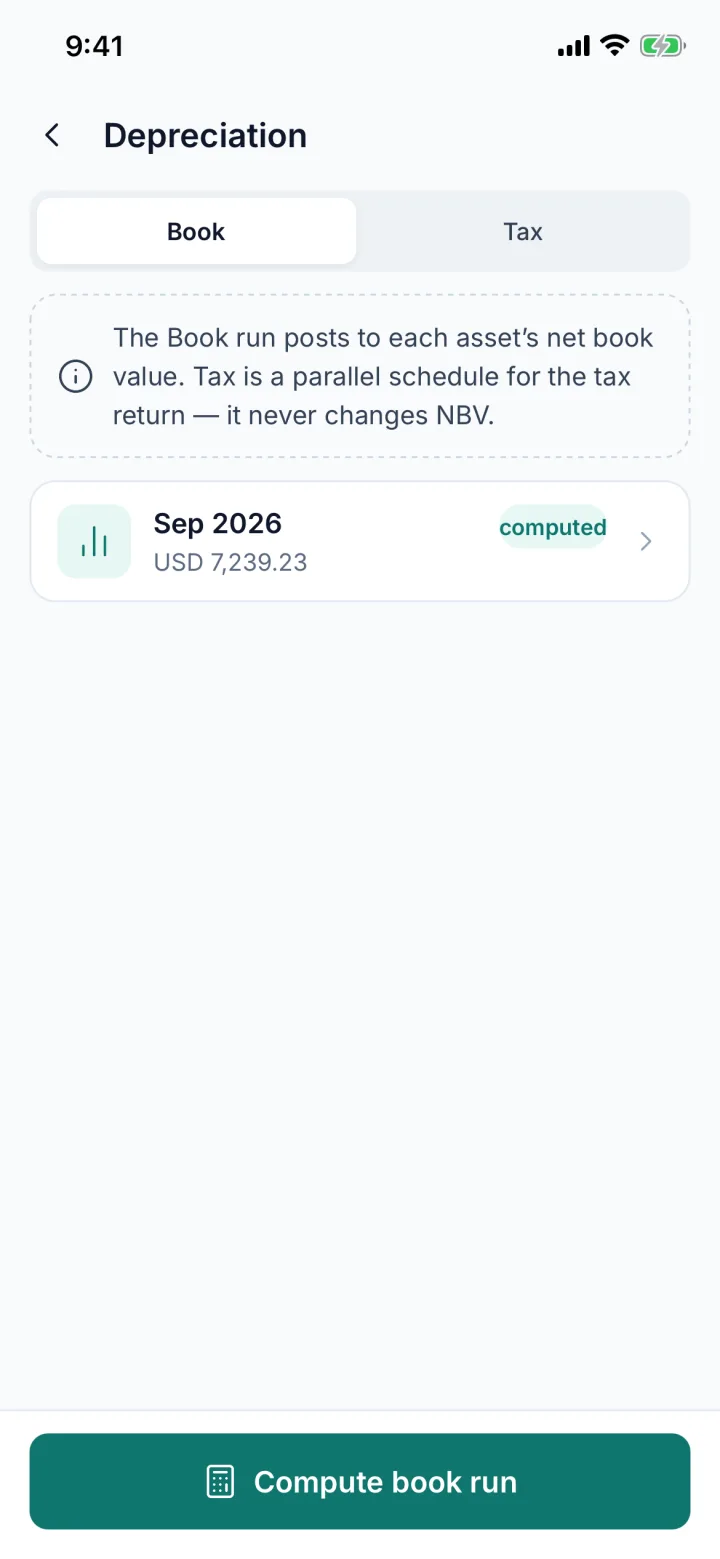
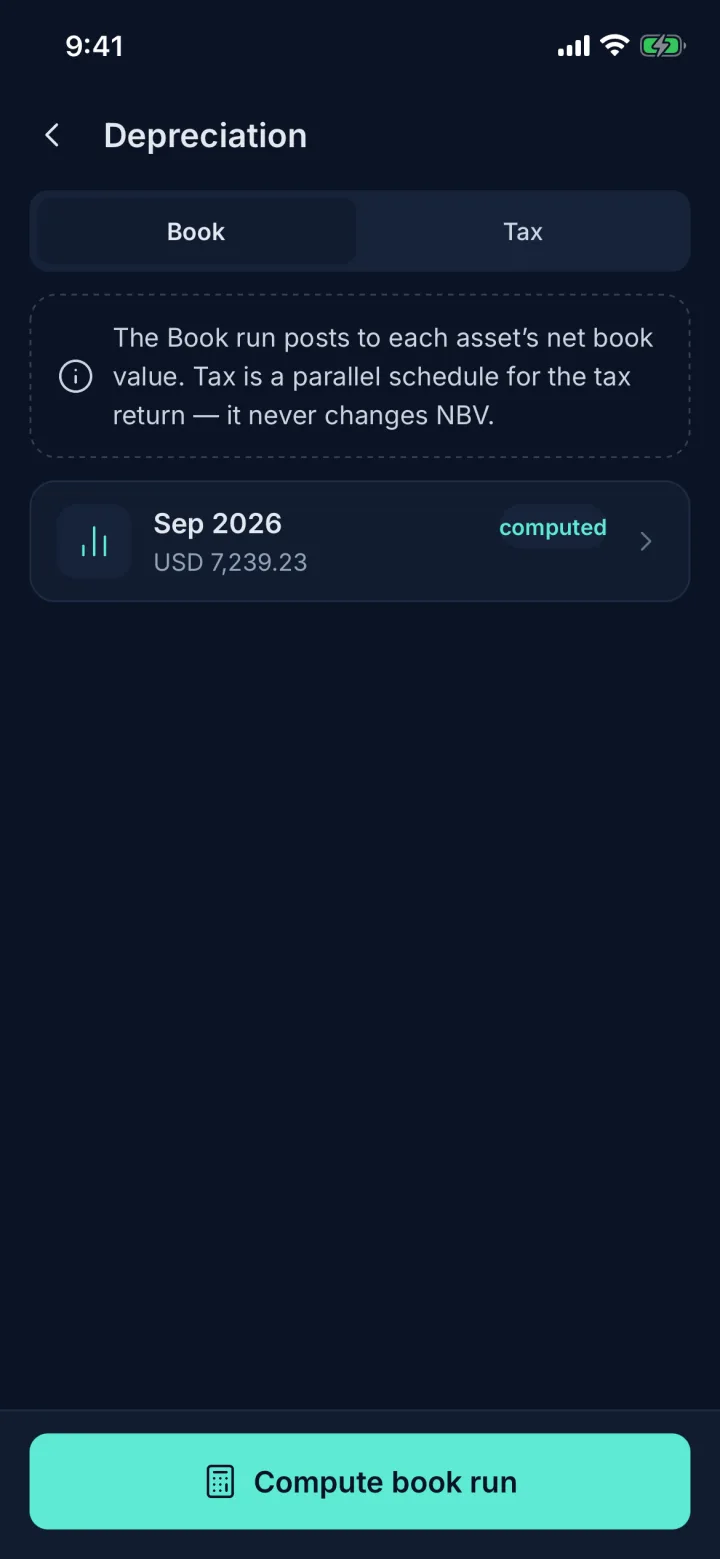
Depreciation screen with Book and Tax tabs and a computed September run (sample data)Depreciation screen with Book and Tax tabs and a computed September run (sample data)
DepreciationBook and tax schedules; compute the monthly book run.
Warranty and contracts list with days-left badges (sample data)Warranty and contracts list with days-left badges (sample data)
Warranty & contractsWhat ends in the next 30, 60 or 90 days.
Configuration categories list (sample data)Configuration categories list (sample data)
ConfigurationCategories with depreciation method and life, custodians and locations.

Screens captured on an iPhone in the Asetavo demo workspace “Northfield Group”: every asset, person and number is sample data.

App questions

The native iOS and Android apps are built and coming soon to the App Store and Google Play. Until then, the full web app, including camera scanning, runs in any phone browser at app.asetavo.com.

See it on your own assets

Start a free workspace and scan your first tag from a phone browser today; the iOS and Android apps follow on the stores.

No card required · Workspace ready in minutes · Simple USD pricing