Check-in / Check-out

Equipment check-out system: know who has every asset

Issue a laptop, a drill, a camera or a patient monitor to a named person in a few taps. Set a due date, record its condition going out and coming back, and see at a glance what is out, what is overdue and who is holding it.

Every plan, including free StarterCompare plans
Asset Manager
Check-outs
18 out · 3 overdue · 42 returned this month
+ Issue asset
Currently out18
Overdue3
Due today2
Returned (30d)42
OutOverdue3ReturnedAll
NF-00318 Hilti TE 60 rotary hammer
DOIssued to Daniel Okaforstaff
Issued Sep 22, 07:40
by Liam Chen
4d overdue
Return
NF-00211 FLIR E8 thermal camera
AMIssued to Apex Mechanical (contractor)contact
Issued Sep 19, 13:05
by Liam Chen
2d overdue
Return
NF-00042 Dell Latitude 7440 laptop
PSIssued to Priya Shahcustodian
Issued Sep 15, 09:12
by Rachel Kim
Due Oct 03
Return
NF-00407 Zebra TC52 handheld
MWIssued to Marcus Webbstaff
Issued Sep 29, 06:55
by Rachel Kim
Due today
Return
NF-00133 Canon EOS R6 camera kit
E&Issued to Events & Commsother
Issued Sep 26, 16:30
by Rachel Kim
Due Oct 06
Return
Product screen · sample data
What it solves

What changes when check-in/out moves into Asetavo

The way it usually works today, and the way it works once it lives in one system.

Check-in/out in use on site
  1. Before: A paper sign-out sheet on the store counter that nobody reads until something goes missing.

    With Asetavo: Every issue is a record with the asset, the person, who issued it, when, and when it is due back.

  2. Before: "Who has the thermal camera?" answered by a round of phone calls and group messages.

    With Asetavo: Open the asset or the Check-outs list and the current holder, due date and issue date are right there.

  3. Before: Equipment comes back damaged and there is no record of the state it left in.

    With Asetavo: Condition out (good, fair, damaged) is captured on issue and condition in on return, side by side in the history.

  4. Before: Two people promised the same projector for the same morning.

    With Asetavo: An asset that is checked out cannot be issued again — the picker greys it out and the server rejects a second issue.

Product in action

What your team actually sees

Coded from the real Asetavo screens, with sample data for a fictional company, Northfield Group.

The check-out form: pick the asset, choose who receives it, set the expected return date, record condition out and add a note. Assets already out are greyed out.

Asset Manager
Check-outs
18 out · 3 overdue · 42 returned this month
+ Issue asset
Currently out18
Overdue3
Due today2
Returned (30d)42
OutOverdue3ReturnedAll
NF-00318 Hilti TE 60 rotary hammer
DOIssued to Daniel Okaforstaff
Issued Sep 22, 07:40
by Liam Chen
4d overdue
Return
NF-00211 FLIR E8 thermal camera
AMIssued to Apex Mechanical (contractor)contact
Issued Sep 19, 13:05
by Liam Chen
2d overdue
Return
NF-00042 Dell Latitude 7440 laptop
PSIssued to Priya Shahcustodian
Issued Sep 15, 09:12
by Rachel Kim
Due Oct 03
Return
NF-00407 Zebra TC52 handheld
MWIssued to Marcus Webbstaff
Issued Sep 29, 06:55
by Rachel Kim
Due today
Return
NF-00133 Canon EOS R6 camera kit
E&Issued to Events & Commsother
Issued Sep 26, 16:30
by Rachel Kim
Due Oct 06
Return

Issue asset

  1. 1
    Availability-aware picker
    Assets with an open check-out are shown as "already checked out" and cannot be selected.
  2. 2
    Who receives it
    Issue to a staff member, a custodian (who carries their department), an external contact, or other.
  3. 3
    Expected return
    The due date drives the Due today and Overdue views. Leave it blank for open-ended custody.
  4. 4
    Condition out
    Good, fair or damaged — compared against condition in when the asset comes back.
Sample data
Capabilities

Everything in Check-in/out

Every card below is in the product today, on the plans shown above.

Issue and return

Check an asset out and back in from the web app, a phone browser or the mobile app: issue to staff, a custodian or someone else, record condition on return, with the actor stamped on both sides.

Four kinds of recipient

Issue to staff, custodians, external contacts or other (for example a contractor crew or a loan borrower).

Due dates and overdue list

Set an expected return date. Past-due loans turn Overdue and are highlighted in the list and on the Overdue tab.

Condition out and in

Record good, fair or damaged at issue and at return, plus a free-text note on each.

No double issuing

An asset with an open loan cannot be issued again — the server rejects it and the picker greys it out.

Disposal guard

Disposing an asset that is still checked out is blocked until it is returned.

Scan to look up, then issue or return

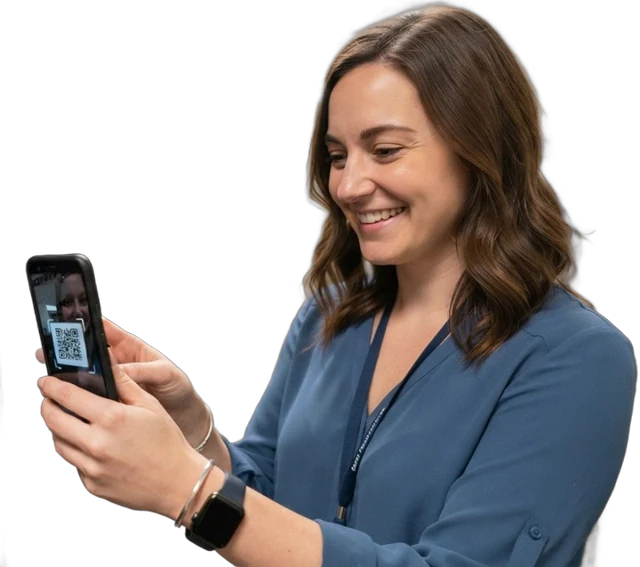
Scan the QR or barcode label with a phone to open the asset; issue and return from Check-outs, where items already out are greyed out.

Custody history per asset

Every loan is kept on the asset: holder, issuer, dates, condition and notes.

Not in the product yet

Everything else on this page is live today. These are the pieces we are still building.

  • Coming soonAutomatic overdue reminders (email / in-app)
  • RoadmapOne-step scan-to-issue and scan-to-return
  • RoadmapReservations and request-to-borrow step

In the Asetavo app

Issue and return from the phone

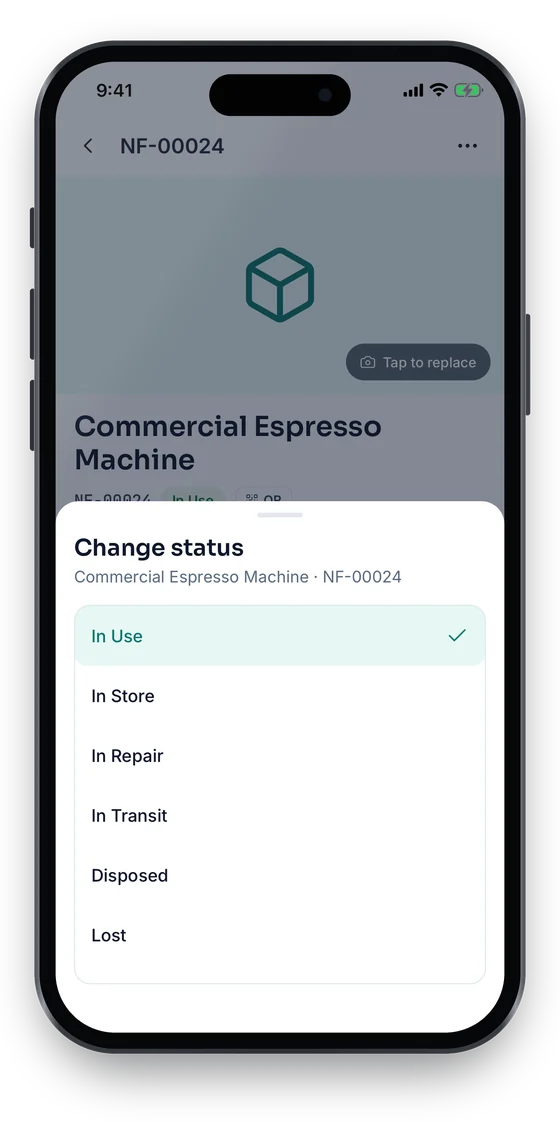
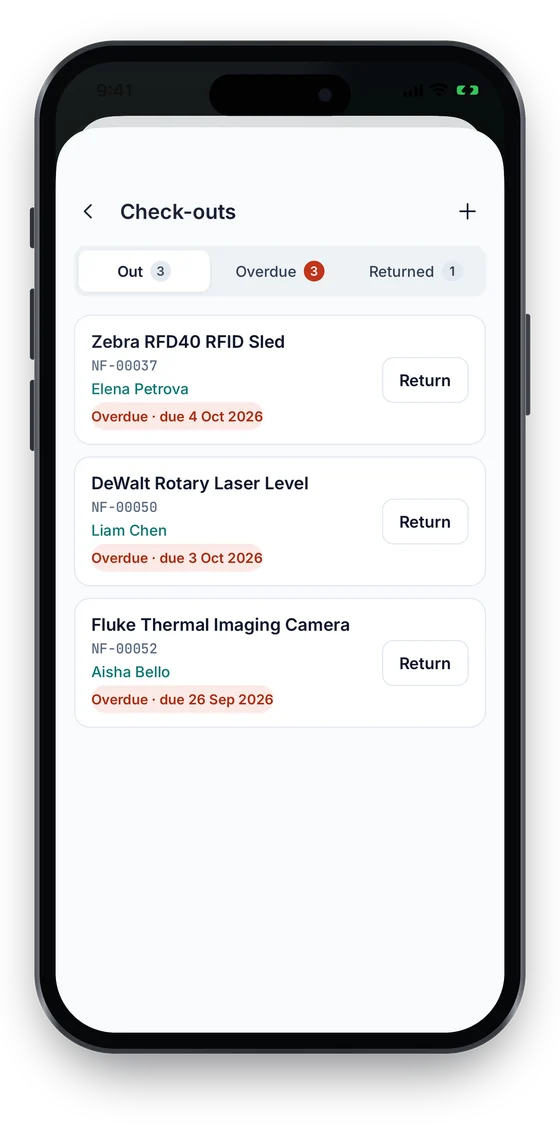
See what is out, what is overdue and what has come back, and return an item with one tap. Status changes take two taps, and every action saves without signal and syncs once you reconnect.

Coming soon on theApp StoreComing soon onGoogle Play
Check-outs list with overdue items and a Return button on each (sample data)
1Out & overdue
Change status sheet: In Use, In Store, In Repair, In Transit, Disposed and Lost (sample data)
2Status in two taps

Swipe to see more screens →

Real screens from the Asetavo phone app (demo workspace, fictional company). iOS and Android apps coming soon to the App Store and Google Play.
How it works

From first step to everyday use

  1. 01
    Asset is Available

    Any registered asset without an open check-out is available to issue. The Issue asset picker shows which ones are free.

  2. 02
    Issue it

    Pick the asset by tag or name, choose who receives it (staff member, custodian, contact or other), set an expected return date, record condition out and add a note.

  3. 03
    Checked out

    The asset shows as out, to whom and until when. It cannot be issued twice and it cannot be disposed while it is out.

  4. 04
    Due and overdue

    Once the due date passes the loan flips to Overdue and is highlighted in red in the Check-outs list and counted on the Overdue tab.

  5. 05
    Return it

    Book the asset in, record its condition on return and add a note if something needs attention. The return is stamped with who received it and when.

  6. 06
    Available again

    The loan closes into the asset’s custody history and the asset is immediately free to issue to the next person.

Workflows, end to end

IT laptop handover to a new hire

  1. IT scans laptop NF-00042 to confirm the unit, then opens Check-outs
  2. Issue to custodian Priya Shah (Finance), condition out Good, charger noted
  3. No due date — long-term custody
  4. On leaving, the laptop is booked in with condition in and a note
  5. The laptop is available for re-imaging and the next starter

Tool crib on a construction site

  1. Store keeper at the Denver depot picks the rotary hammer drill in Issue asset
  2. Issue to Daniel Okafor, due back Friday, condition out Good
  3. Friday afternoon: the Overdue tab shows anything not back
  4. Returned drill is booked in as Damaged with a note
  5. A corrective work order is raised against the drill

Medical equipment loan between wards

  1. Biomed issues an infusion pump to the ward contact
  2. Expected return in 7 days, condition out Good
  3. Pump shows as out on its asset profile to anyone who looks it up
  4. On return, condition in is recorded and the pump is available again

School device or camera loans

  1. Media teacher issues a camera kit to a student (type: Other)
  2. Due at end of the week, accessories listed in the note
  3. Monday: overdue kits are on the Overdue tab
  4. Kit returned and checked against the note before the next loan
Compare

Sign-out sheet vs spreadsheet vs Asetavo check-in/out

CriteriaPaper sign-out sheetShared spreadsheetAsetavo
Who has it right nowRead the whole sheetIf someone updated itShown on the asset and in the list
Stops double issuingNoNoYes — second issue rejected
Condition out vs inRarely writtenOptional columnCaptured on every loan
Overdue viewManual checkFilter by handOverdue tab with days overdue
Who issued / received itA signature, maybeWhoever typed the rowStamped from the signed-in user
Blocks disposal while outNoNoYes
Works from a phoneNoAwkwardlyAny phone browser or the mobile app

With fixed RFID readers on the Business plan, a checkout-exit rule also flags any tagged item that leaves without an open loan.

Deep dive

The detail behind it

What a check-out record captures

Each loan is one row, linked to the asset. The fields below are what you see in the app and what the API returns.

Asset
The asset and its tag number. Only assets without an open loan can be chosen.
Issued to
Staff, custodian, contact or other, plus the person or party holding it. Custodians bring their department with them.
Issued and returned by
Who issued it and who booked it back in, with times — stamped by the server from the signed-in user, never typed in.
Due at and status
Optional expected return date. Out, Overdue or Returned — Overdue is set by the server when an open loan passes its due date.
Condition out / in
Good, fair or damaged on each side of the loan.
Notes
Free text at issue and at return — accessories, a missing charger, a crack on the housing.

Rules the system enforces

Custody only works if the record can be trusted. These rules are enforced on the server, not just in the screen.

One open loan per asset
A second issue of an asset that is already out is rejected with "already checked out".
Disposal blocked while out
You cannot dispose of an asset with an open loan.
Permission-gated
Issuing and returning need the Edit permission. People without it see a permission message, not the list.
Server-computed overdue
Overdue is worked out on the server, not in the browser, so everyone sees the same Overdue tab and counts.
FAQ

Check-in/out questions

Want to see it with your assets?

Walk us through your sites and we’ll show you check-in/out set up the way you’d use it.

Book a demo
It records who has each asset. You issue an item to a person with an expected return date and its condition, and book it back in when it returns. The result is a live list of what is out, what is overdue and a history of every loan for every asset.

Take control of asset custody

Start with your most-borrowed items. Label them, issue them to named people and see what is out, and overdue, from day one.

No card required · Workspace ready in minutes · Simple USD pricing