QR code & barcode asset tracking

QR code and barcode asset tracking, free to start.

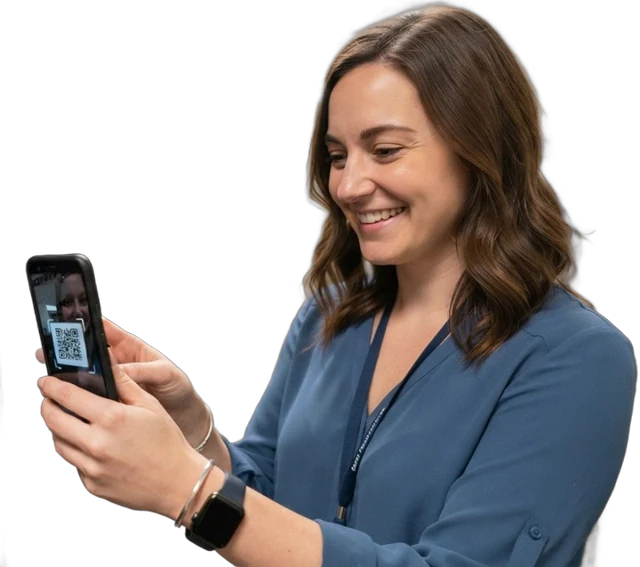
Print a QR code or Code 128 barcode label for every asset, stick it on, and scan it with any phone camera to open the asset’s record. From there you can move it, check it out, count it in a stock-take or log a repair. QR and barcode tags are on every plan, including the free Starter plan for up to 100 assets.

All plans, including free Starter · check-outs, stock-takes and GPS on scans from GrowthCompare plans
Product screen · sample data
What it solves

What changes when qr code & barcode tracking moves into Asetavo

The way it usually works today, and the way it works once it lives in one system.

  1. Before: Asset numbers written in marker pen, or stickers that only mean something to the person who made the spreadsheet.

    With Asetavo: Each asset carries a printed QR code or barcode generated from the register, with its tag number and, if you want, its name and location.

  2. Before: Finding an asset’s record means typing a serial number into a spreadsheet search and hoping it was entered correctly.

    With Asetavo: Point a phone camera at the label and the asset opens: location, custodian, status, history and attachments.

  3. Before: Year-end counts on paper sheets, re-keyed into Excel and reconciled by hand for days.

    With Asetavo: Scan labels room by room in a stock-take. Asetavo returns found, missing and unregistered items for review (Growth and up).

  4. Before: Borrowed equipment goes out on a signature in a notebook, and nobody can read the name a month later.

    With Asetavo: Scan the label to confirm the item, then check it out to a named person with a due date (Growth and up).

Product in action

What your team actually sees

Coded from the real Asetavo screens, with sample data for a fictional company, Northfield Group.

Queue assets from the register, choose a label template and print the sheet from your browser.

QR and Code 128 labels from the register

  1. 1
    Print queue
    Add assets one at a time or select rows in bulk.
  2. 2
    QR or barcode
    QR codes suit phone cameras. Code 128 barcodes suit the handheld scanners many teams already own.
  3. 3
    What’s printed
    The code and tag number, with optional asset name, location and your logo.
Sample data
Capabilities

Everything in QR Code & Barcode Tracking

Every card below is in the product today, on the plans shown above.

QR codes on every plan

Generate QR labels from the register and scan them with any phone camera. Free on Starter.

Code 128 barcodes

Print barcode labels for teams that already use handheld barcode scanners, or keep barcodes an asset already carries.

Phone-camera scanning

Scan in Safari or Chrome at app.asetavo.com today. The native iOS and Android apps are coming soon.

Label printing

Print queue, room and small-equipment templates, optional name, location and logo, printed from the browser.

Check-in/out by scan

Confirm the item by scanning, then issue it with a due date and condition. Growth and up.

Stock-takes by scan

Scoped counts that return found, missing and unregistered items. Growth and up.

GPS fix on scan

The mobile app can record where each scan happened, so assets show a last GPS position on a map. Growth and up.

Excel and CSV export

Export the register and reports, tag numbers included, on every plan.

Not in the product yet

Everything else on this page is live today. These are the pieces we are still building.

  • Coming sooniOS app on the App Store and Android app on Google Play
How it works

From first step to everyday use

  1. 01
    Build the register

    Import your spreadsheet with the Excel/CSV import wizard, or add assets one by one. Each asset gets a tag number.

  2. 02
    Print labels

    Queue assets and print QR or barcode labels from your browser to a label printer or sheet labels, or order durable printed tags.

  3. 03
    Tag the asset

    Stick the label in a consistent, visible spot. Use tougher labels or metal plates for equipment that lives outdoors.

  4. 04
    Scan to open

    Scan with a phone camera in the browser at app.asetavo.com today, or in the Asetavo app for iOS and Android (coming soon).

  5. 05
    Act on the scan

    Move the asset, check it out or back in, count it in a stock-take, or open a work order from the same record.

  6. 06
    Step up where it pays

    Keep QR on most assets and add NFC or UHF RFID tags to the same asset when you need taps or bulk reads.

Workflows, end to end

Office: tag 100 assets on the free plan

  1. Import the existing spreadsheet with the Excel/CSV wizard.
  2. Queue every asset and print 50×30 mm QR labels.
  3. Stick each label and scan it with a phone browser to confirm it opens the right record.
  4. Export the tagged register to Excel for finance.

Workshop: check out a drill by scan

  1. A technician brings cordless drill NF-00731 to the counter.
  2. The storekeeper scans its barcode with a handheld scanner.
  3. The drill is checked out to Daniel Okafor, due back at 17:00 (Growth).
  4. At the end of the day, a scan on return records its condition.

Site: count equipment at year end

  1. Start a stock-take for the Denver Field Services Depot (Growth).
  2. Two people scan labels, floor by floor, on their phones.
  3. Asetavo lists 4 missing and 2 unregistered items.
  4. Resolve each variance, then export the report to Excel.
Compare

When to stay on QR, and when to step up to NFC or RFID

CriteriaQR code / barcodeNFCUHF RFID
Read withPhone camera or barcode scannerTap with a phone in the Asetavo appHandheld or fixed RFID reader
Line of sightNeededNeeded, a few centimetres awayNot needed, several metres
Reads at onceOneOneMany per second
Best forMost assets, look-ups, small countsKeys and kit people handle up closeLarge counts, doorways, zones and exit alerts
Extra hardwareNoneNFC readerRFID reader required
PlanAll plans, incl. free StarterGrowth and aboveBusiness and above

Most teams start with QR on everything and add RFID only to high-value or frequently counted assets. One asset can carry several tags, so moving up never means re-registering.

Deep dive

The detail behind it

QR code or barcode?

Both are printed labels and both are on every plan. The difference is how you plan to scan them.

QR code
A 2D code that any modern phone camera reads from any angle. The usual choice when people will scan with their own phones.
Code 128 barcode
A compact 1D barcode that holds letters and numbers. A good fit for handheld laser or imager scanners at a counter or store.
Both on one label
The free asset label generator can print QR, barcode or both, so phones and scanners can read the same label.
Existing barcodes
If an asset already carries a barcode with a unique number, that number can be recorded as its tag.
Label size
A 50×30 mm room label for furniture and equipment, or 38×19 mm for small items such as handheld tools.
Harsh environments
Outdoor plant and tools need tougher labels. Laser-etched metal plates with Code 128 are available from the tag store.

Ways to scan

You don’t need special hardware to start. These are the options.

Phone browser (today)
app.asetavo.com in Safari or Chrome on iPhone or Android, with camera scanning of QR codes and barcodes.
Asetavo app (coming soon)
Native iOS and Android apps, coming soon to the App Store and Google Play. They add an offline queue for stock-take scans and GPS capture on actions.
Handheld barcode scanner
Scan labels straight into Asetavo with a handheld barcode scanner — useful for high-volume counts at a desk or in a store room.
Manual entry
If a label is scratched, type the tag number and carry on, then reprint the label.
What scanning cannot do
QR codes and barcodes need line of sight and are read one at a time. For bulk reads without line of sight, use UHF RFID.
FAQ

QR Code & Barcode Tracking questions

Want to see it with your assets?

Walk us through your sites and we’ll show you qr code & barcode tracking set up the way you’d use it.

Book a demo
Yes. QR code and barcode tags are on every plan, including the free Starter plan for up to 100 assets and 2 users. Check-in/out, stock-takes and GPS on scans start on Growth.

Print your first QR labels today

Start free with 100 assets and 2 users, import your spreadsheet, print labels and scan them from any phone browser.

No card required · Workspace ready in minutes · Simple USD pricing